Perguntas Frequentes sobre Listas de Compras
Master your grocery shopping with smart lists, shared lists with family, multiple store lists, and automatic item suggestions in KitchenPal.
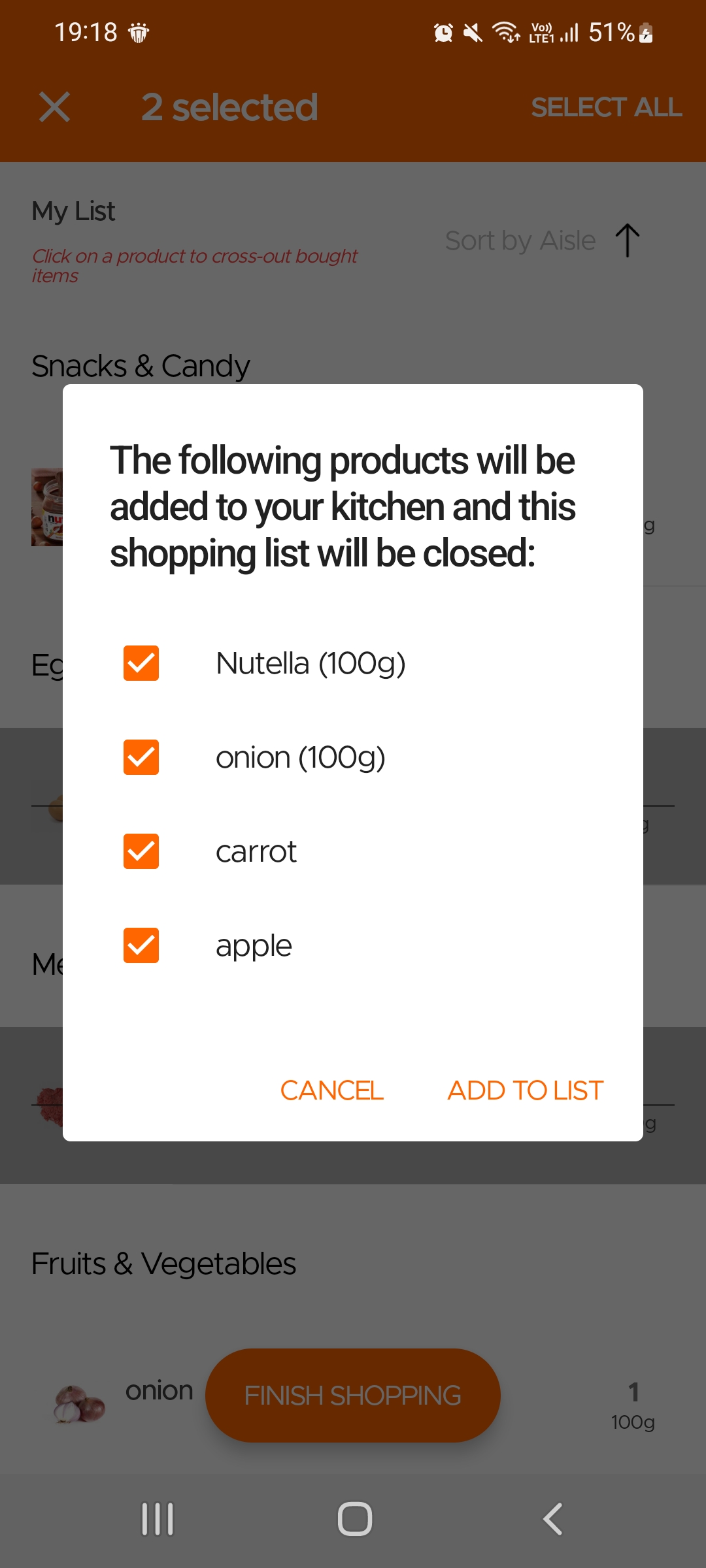
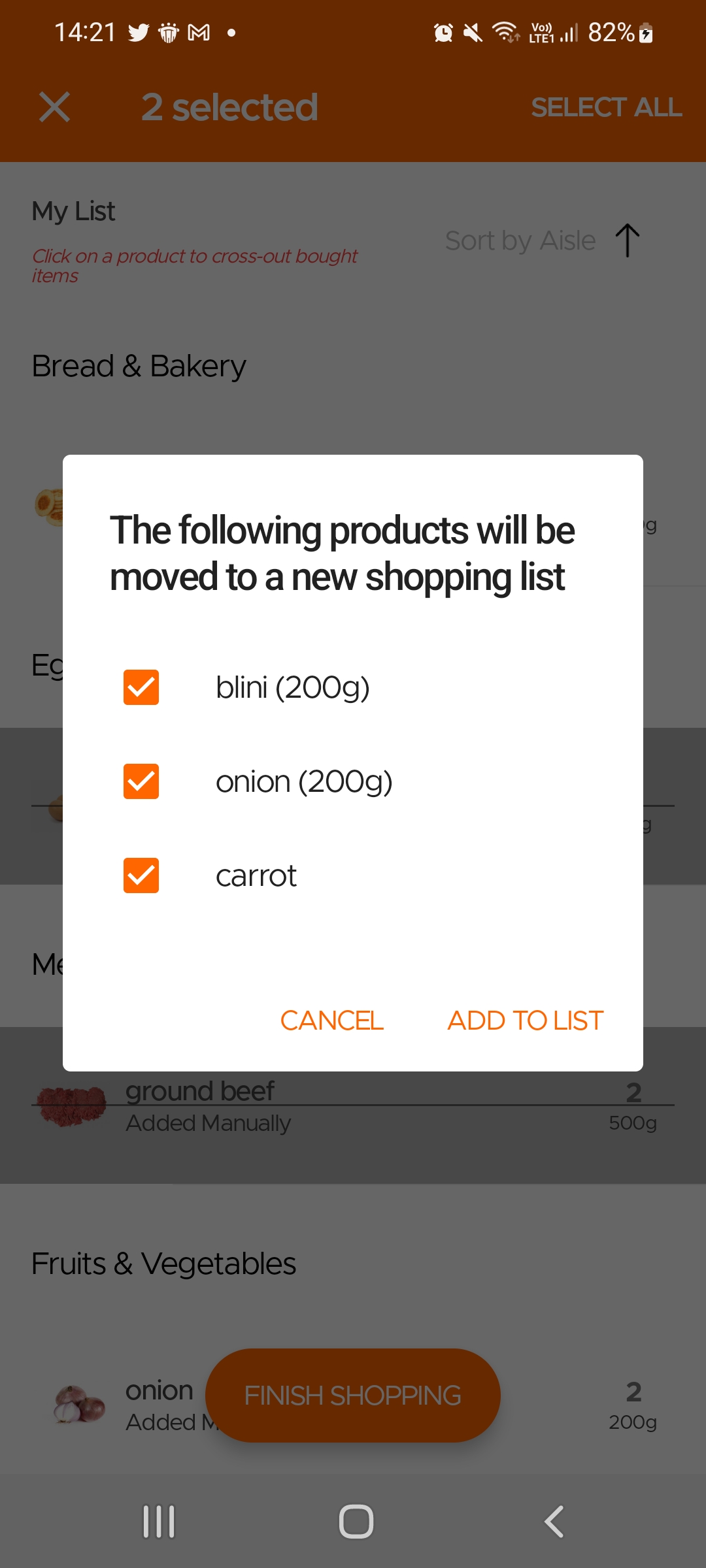
When you finish making your grocery list and go shopping, use the Checkout button so that you can cross-out items as you shop. When you are done, you can click on the Finish Shopping button on the the page to automatically move bought items to your Kitchen. You will then also get the option to move any unpurchased items to a new Shopping List.
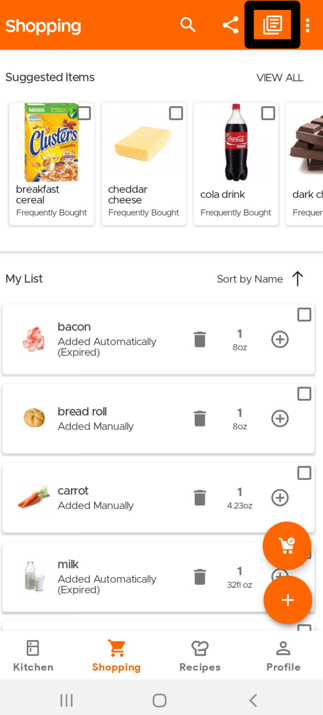
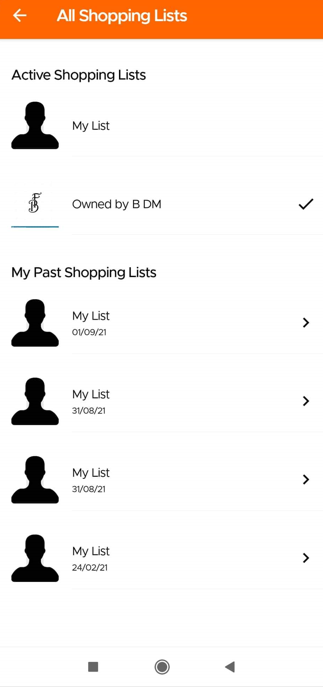
To access any Shared Grocery/Shopping Lists, you only need to click the All Lists icon (Notepad) on the top of the Shopping List page. Here you will have the option to switch between all Active Shopping lists, including any shared ones. And any changes you make to a shared Shopping List will be updated in real time to reflect across all users/devices.
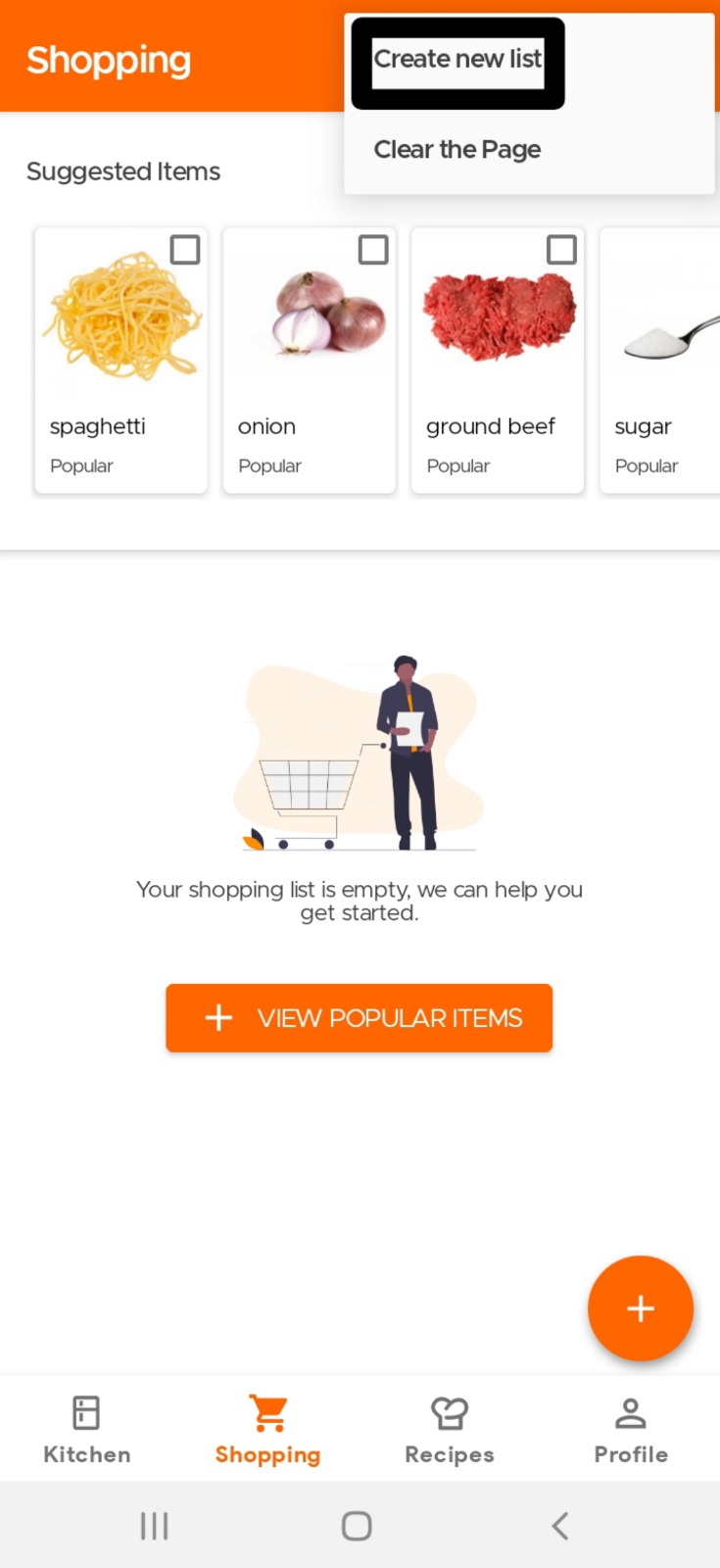
You can create multiple Shopping Lists at the same time and add items to each one of them. To create a new List, simply click on the Create Button in the overflow menu (three dots). This will ask you to add a name for the new list after which you are ready to go.
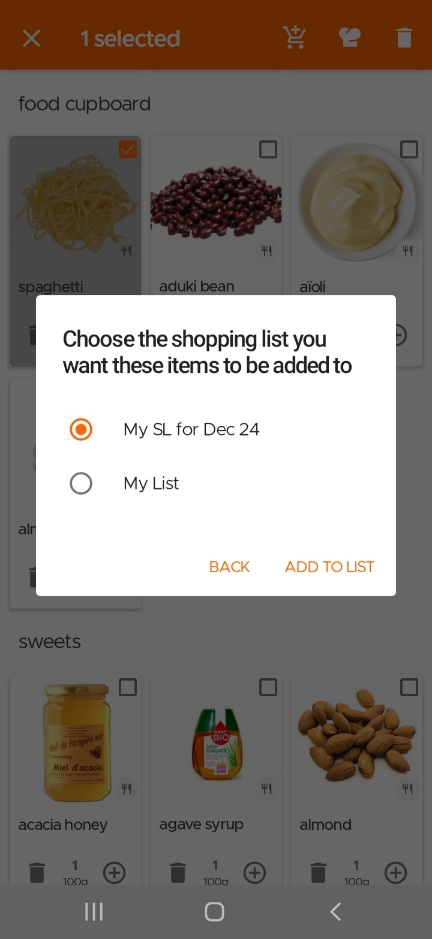
Once you have multiple lists created (or shared with you), whenever you are adding an item, you can choose the desired Shopping List by clicking on the All Lists icon (Notepad) to see all the available Shopping Lists. And if you are adding items from other pages (like the Kitchen or from a Recipe), you will be prompted to choose which list you'd like to add the item to.
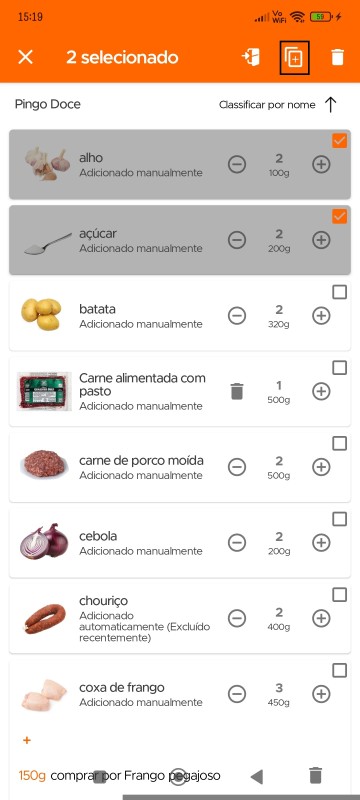
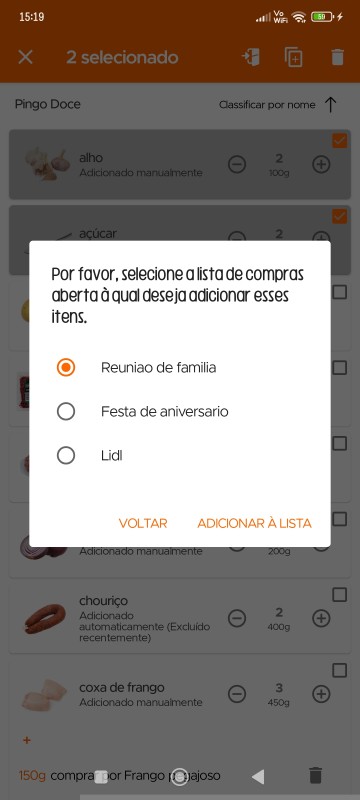
Pode mover ou copiar itens de uma lista de compras para outra, sem necessidade de os eliminar e voltar a adicioná-los manualmente. Isto ajuda-o a manter-se mais organizado, especialmente quando gere várias listas para diferentes ocasiões ou lojas.
Para mover ou copiar os seus itens, selecione os itens que pretende mover e clique no ícone copiar/mover, e depois, na página seguinte, escolha a ação caso pretenda copiar ou mover os itens.
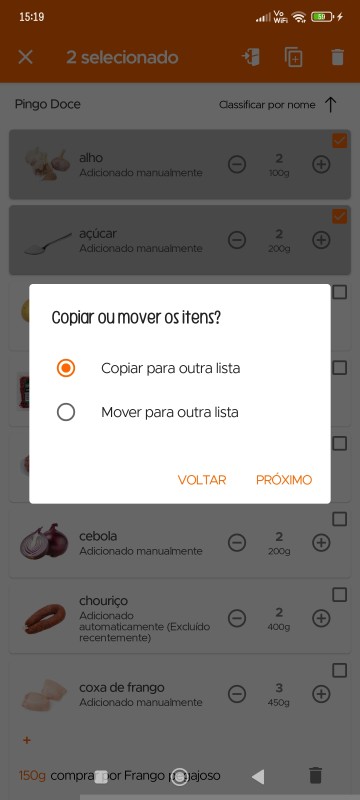
Por fim, selecione para que Lista de Compras pretende que os seus itens sejam movidos/copiados.
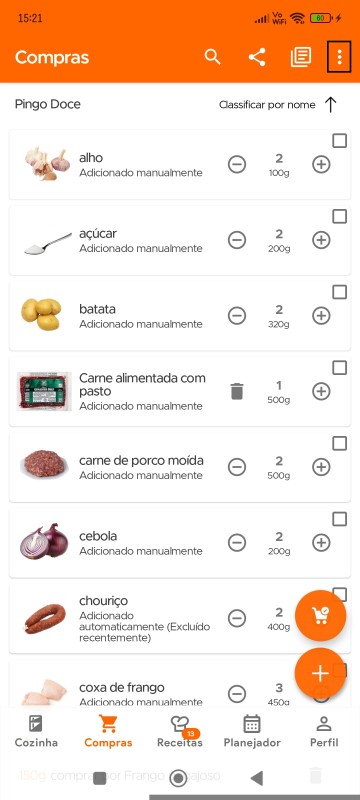
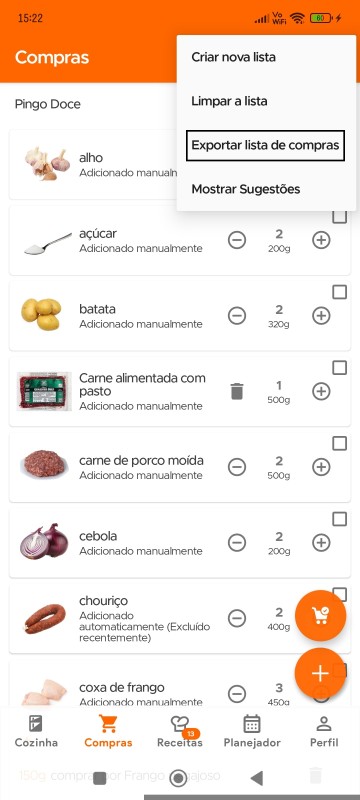
Pode exportar as suas listas de compras diretamente a partir da aplicação *(disponível apenas para os nossos utilizadores Premium), facilitando a partilha, impressão ou conservação de uma cópia para os seus registos.
Para exportar a sua Lista de Compras, clique no ícone de três pontos no canto superior direito e depois escolha Exportar Lista de Compras.
KitchenPal aims to make your shopping more convenient and that you never forget an item again. Hence items are added automatically to your default shopping list under the following conditions:
- When you manually delete an item from your Kitchen(irrespective of whether you used it or if you threw it away), it will automatically get added to your list. But not so, if you select the "I just want to delete" option. (Please note that this auto-add feature can be turned off in the app customization section in your profile page).
- If an item has expired for three days or more
- If the item is running low in your Kitchen
o For countable items, such as bananas, if the quantity is reduced from 'x' qty. to 1
o For non-countable items, such as milk, if the amount of the item is set to low
Items that are frequently bought but do not fall in any of the above categories, may show up in the Suggested List in the Shopping page, as might other items that are popular with other users in your area.
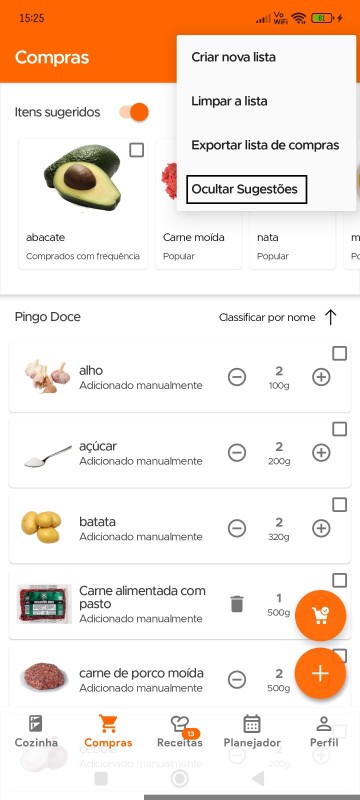
Pode desativar os itens sugeridos na página da Lista de Compras através do ícone de interruptor.
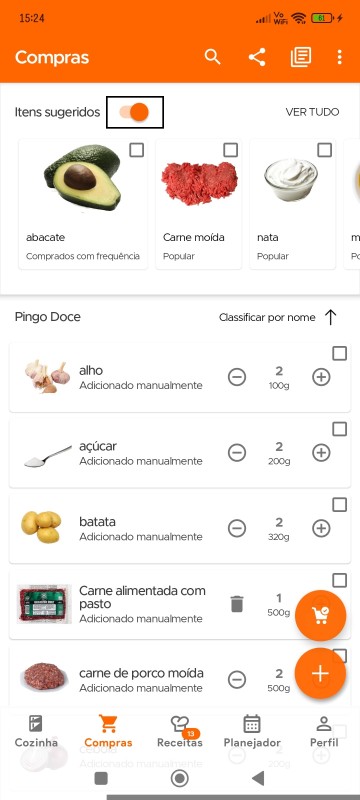
Se pretender voltar a ver as sugestões, clique no ícone de três pontos no canto superior direito e escolha 'Mostrar Sugestões'.
Still Need Help?
Can't find what you're looking for? Our support team is here to help!
Email Support Help Center