Preguntas Frecuentes sobre la Planificación de Comidas
Plan your meals ahead, add recipes to your calendar, generate shopping lists from planned meals, and share with family in KitchenPal.
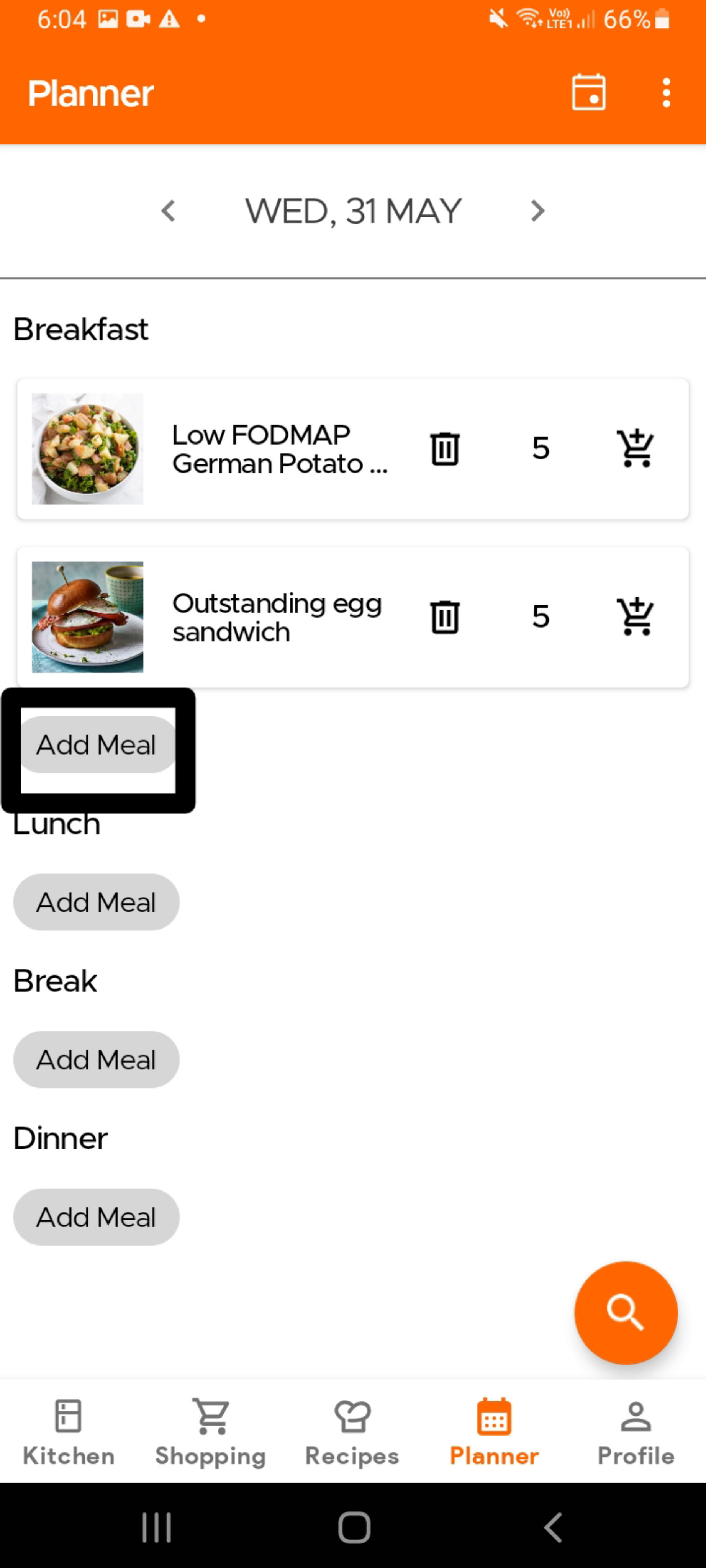
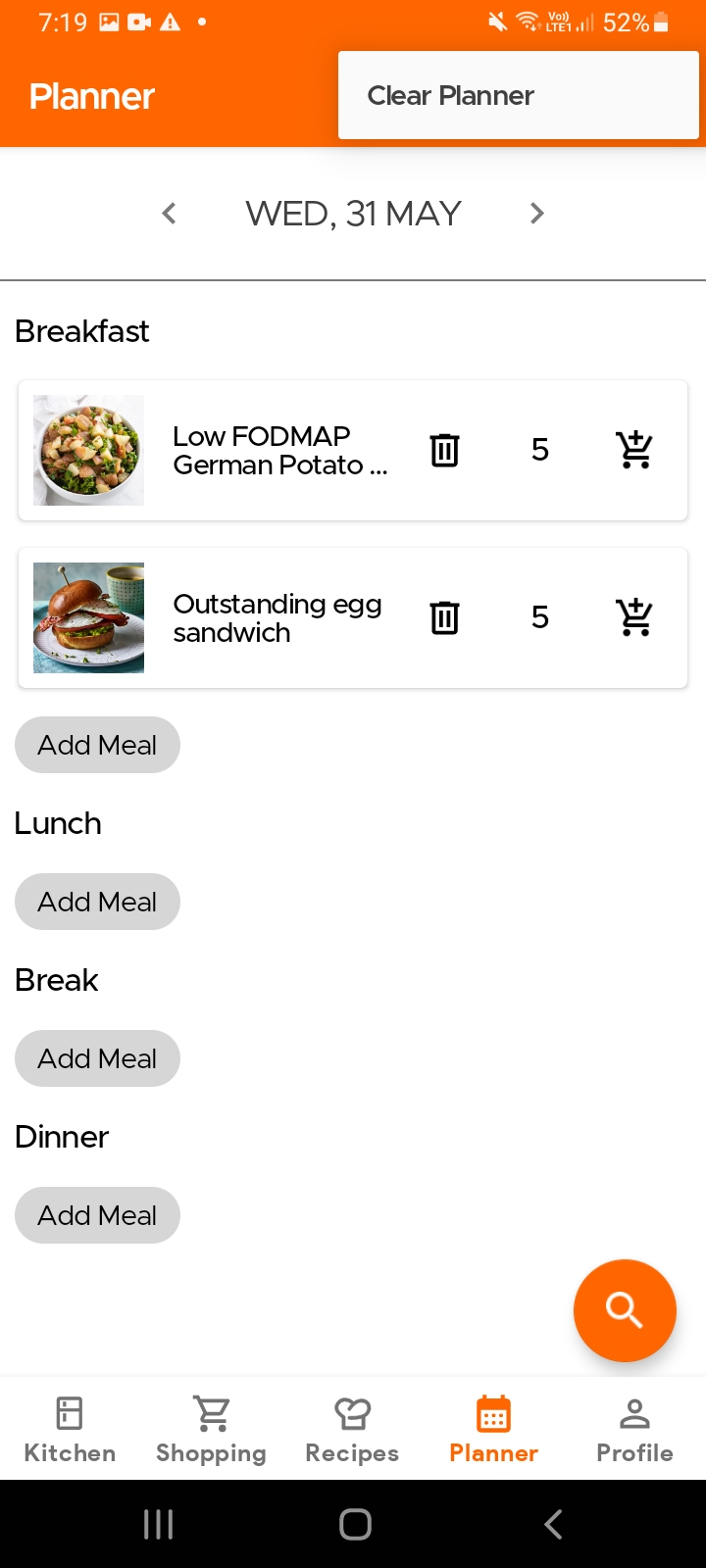
To add a recipe to your Planner, simply go to the Planner page and select the date (either by clicking on the calendar icon or using the arrow buttons next to today's date). Then click on 'Add Meal' based on which meal you want to plan (eg. breakfast, lunch, etc.). This will then allow you to search for recipe (s) you want to plan and cook.
Alternatively, you can also use the Search Button you see at the bottom of the Planner page to quickly search for recipes.
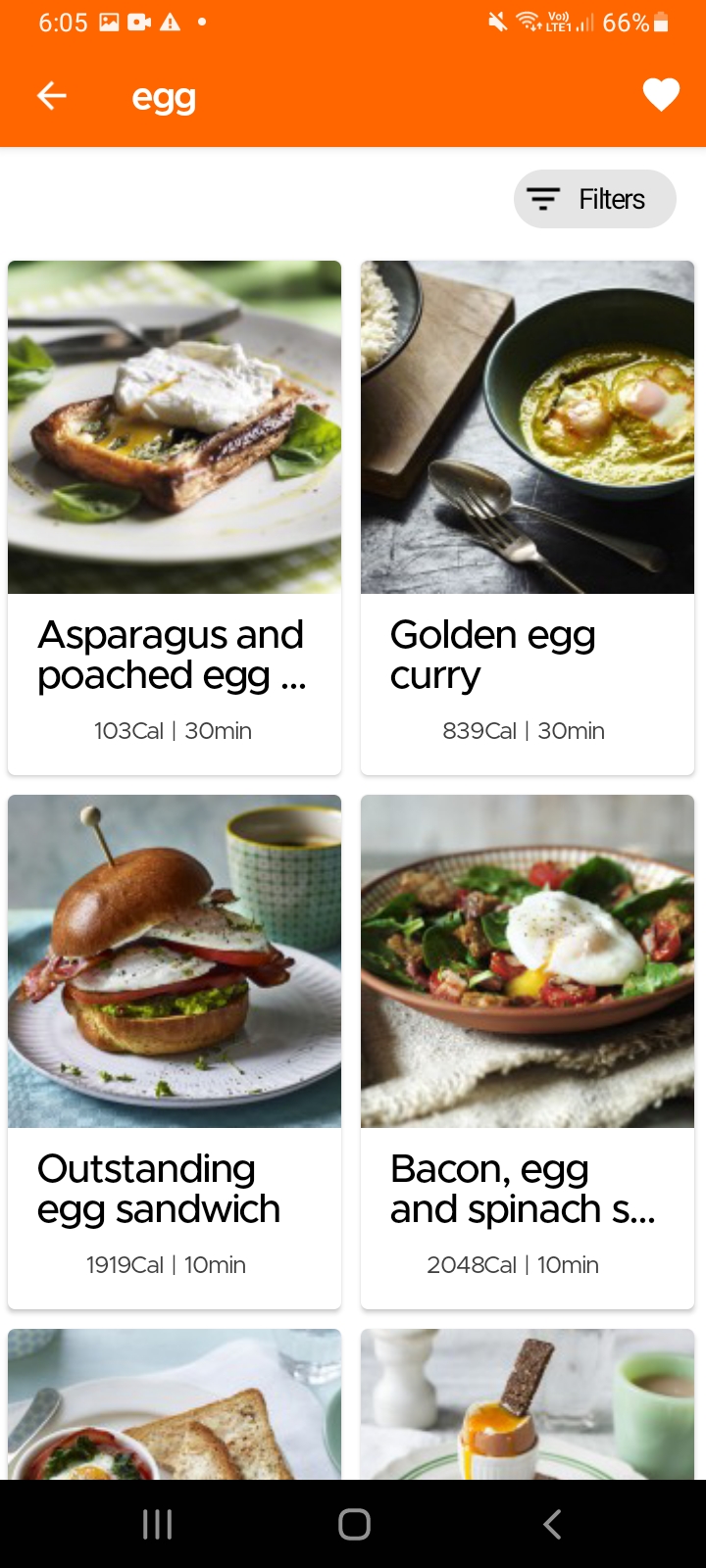
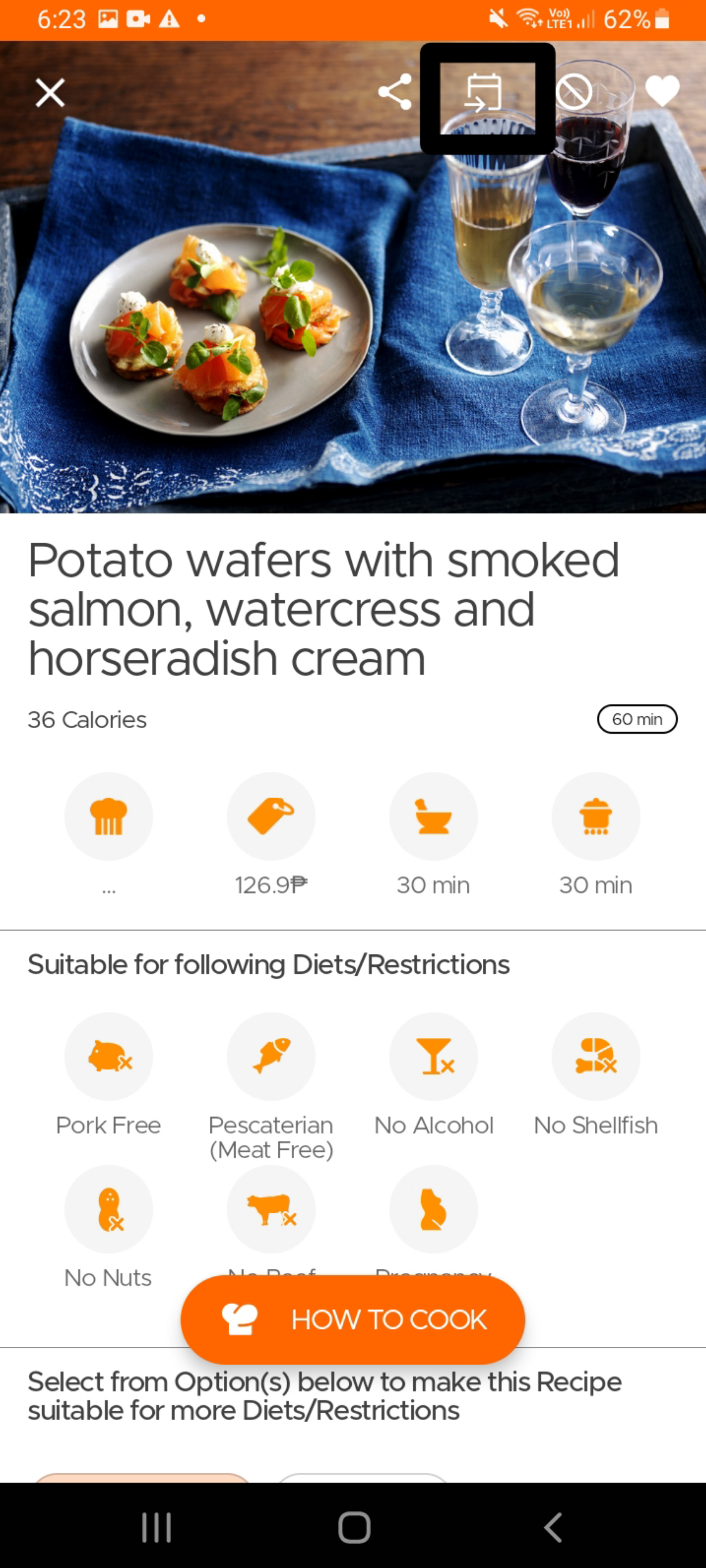
After selecting the recipe you want, please click on the Add to Planner Icon at the top of the recipe.
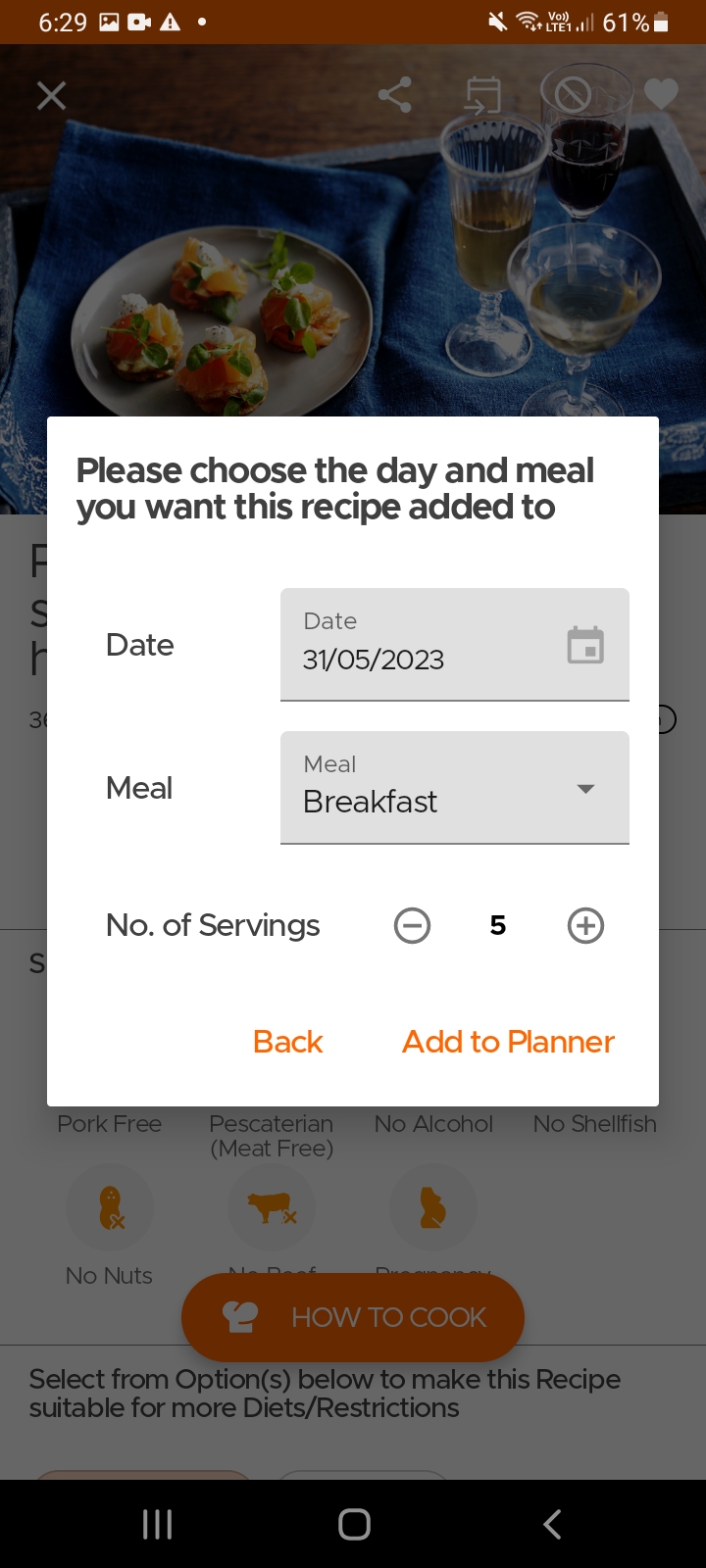
This will then give you the option to update the date and meal and then save to Planner (the date and meal may already be pre-populated depending on where you accessed the planner from).
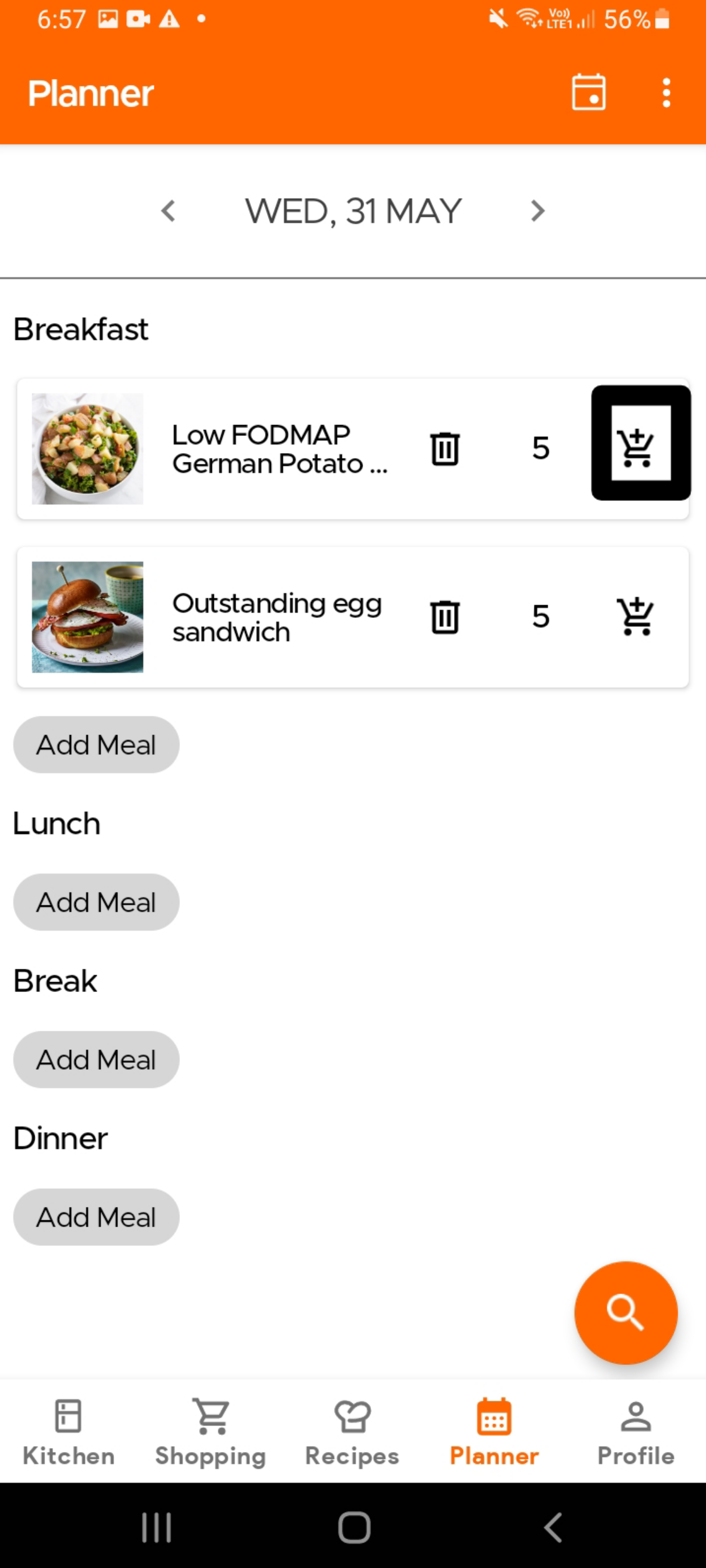
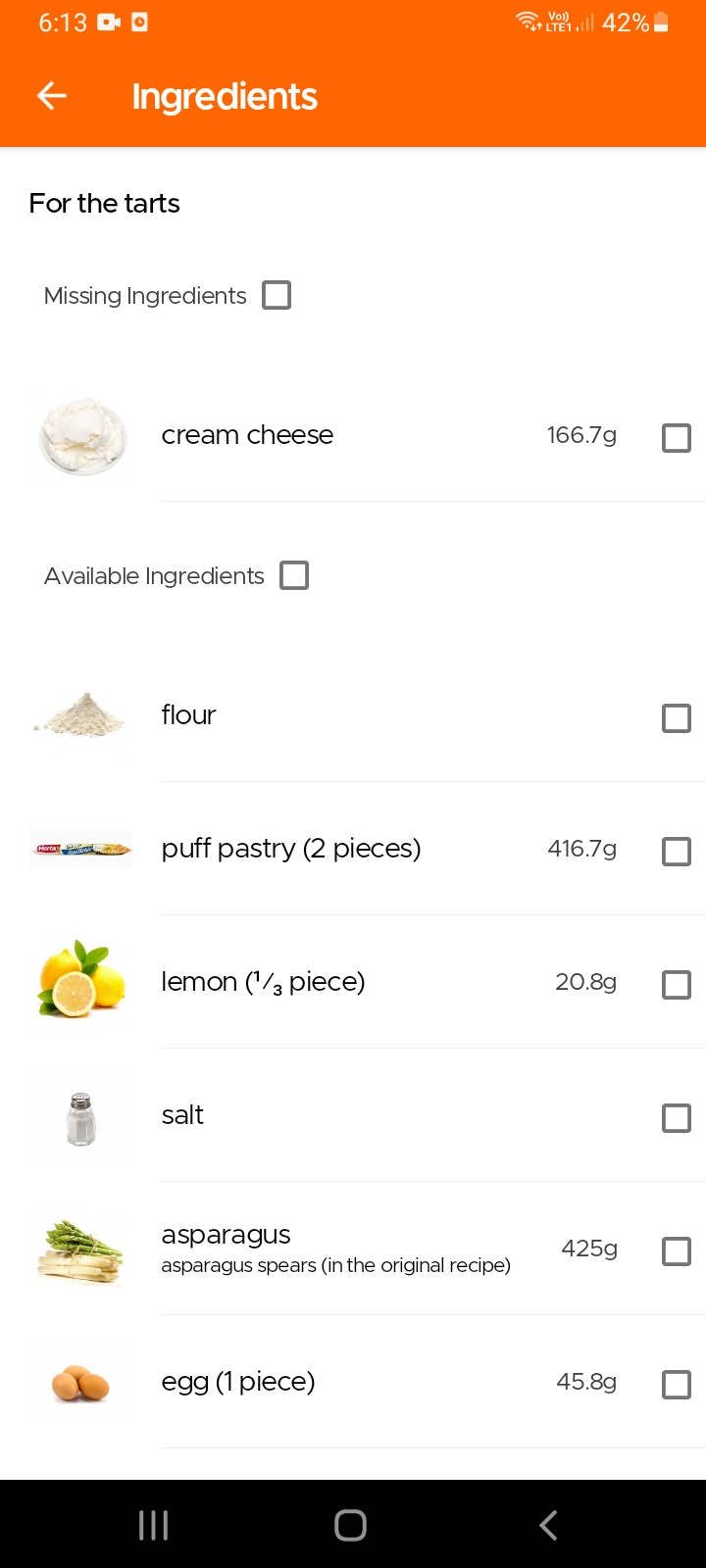
You can use the shopping cart icon, next to each recipe in the planner to add it to your Shopping List. Clicking on the icon will show you a list of all the ingredients and you can choose to add all or just the ones missing from your pantry.
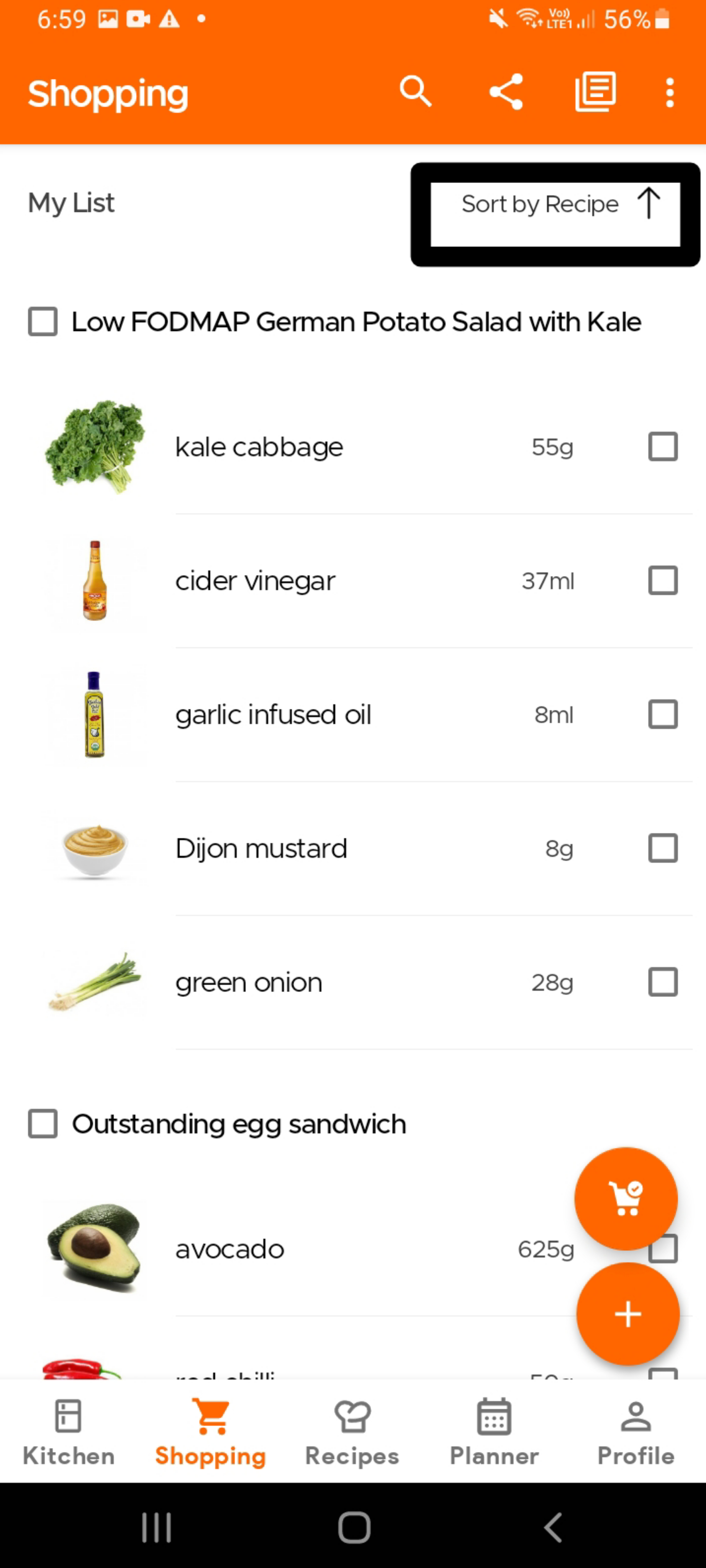
You can sort your Shopping List by Recipes (besides other options like Supermarket section, etc) to see which recipes have been added.
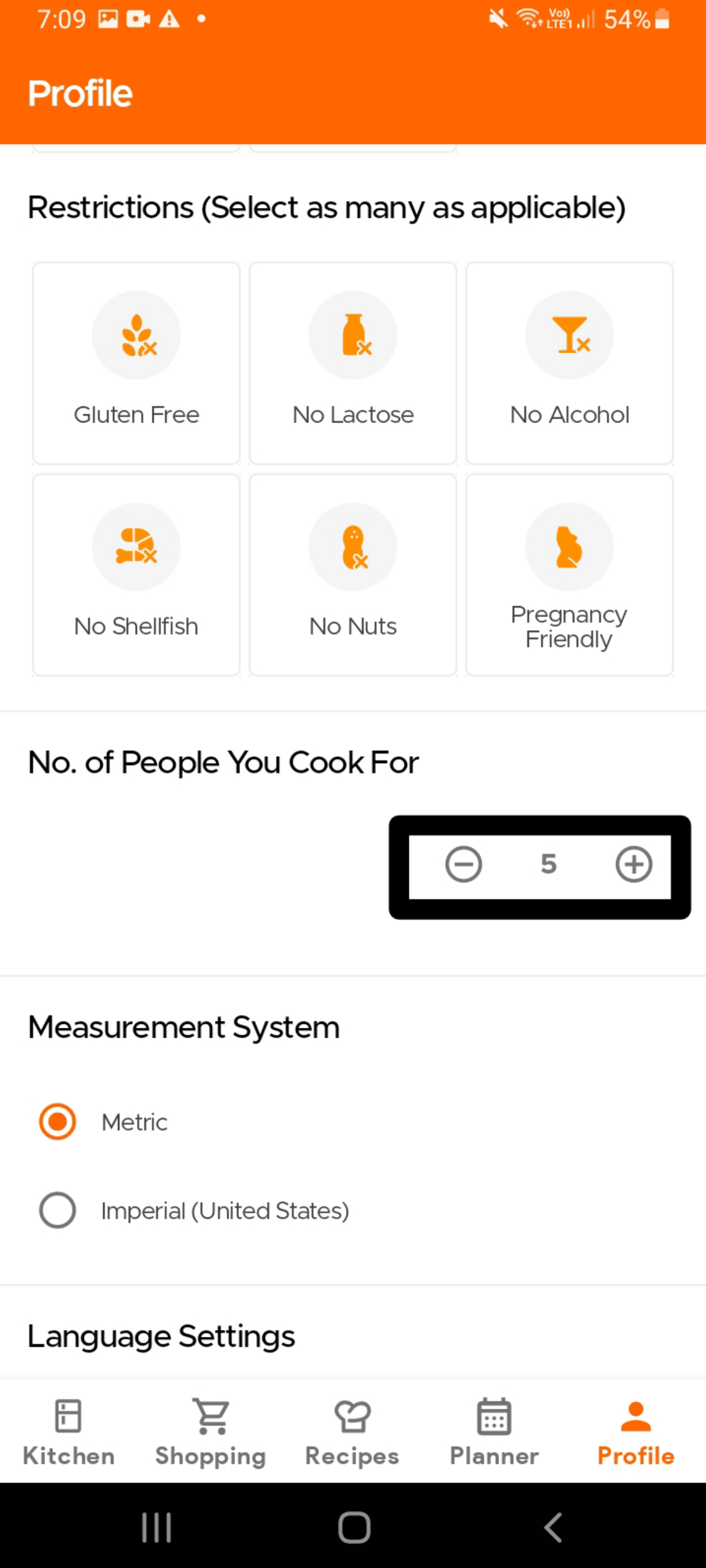
The Planner, by default, will pick up the number of servings set in your Profile page under the 'No. of People You Cook For'. You can edit the default here. You can also always change the number of servings for individual recipes, from the default, while adding them to the Planner and similarly modify it, if already added, by clicking on the servings icon, next to the recipe inside the Planner.
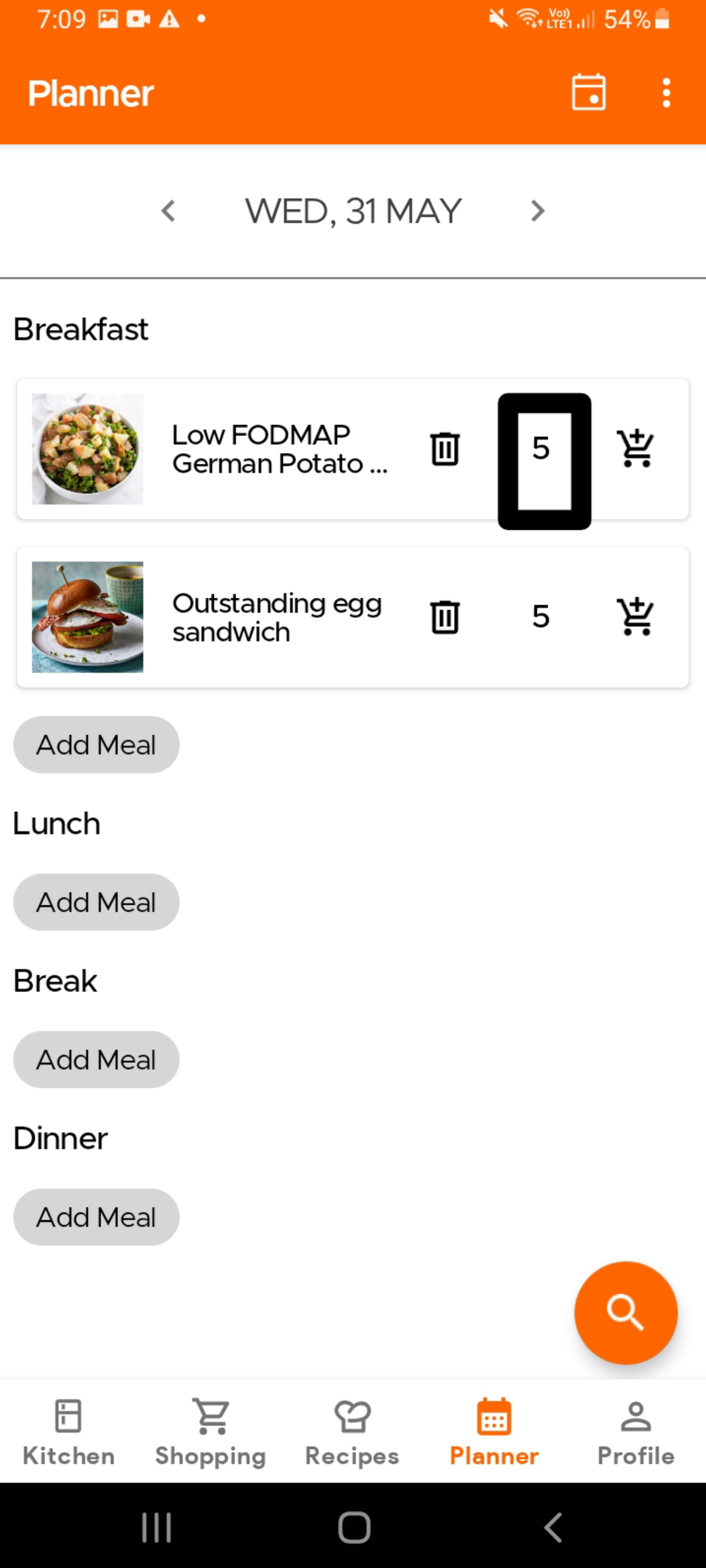
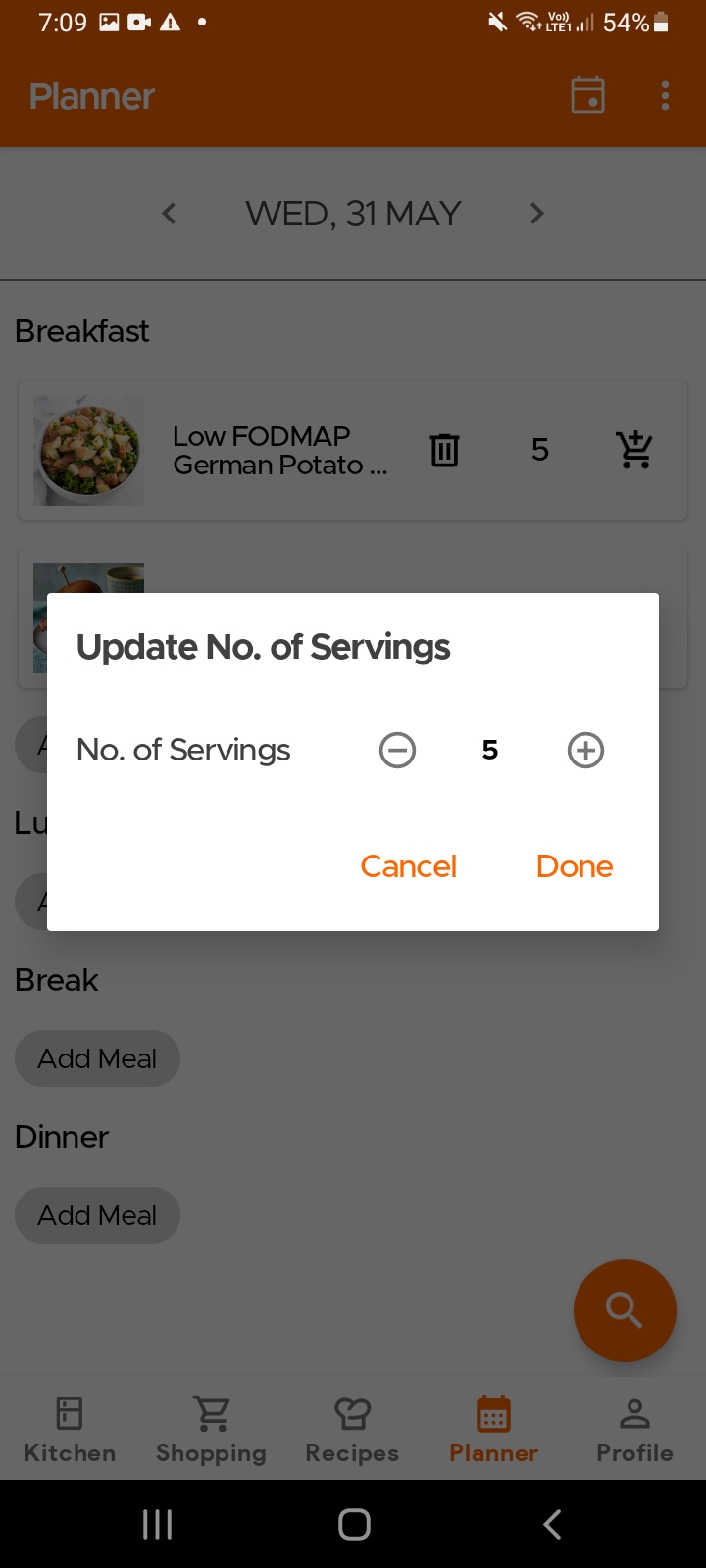
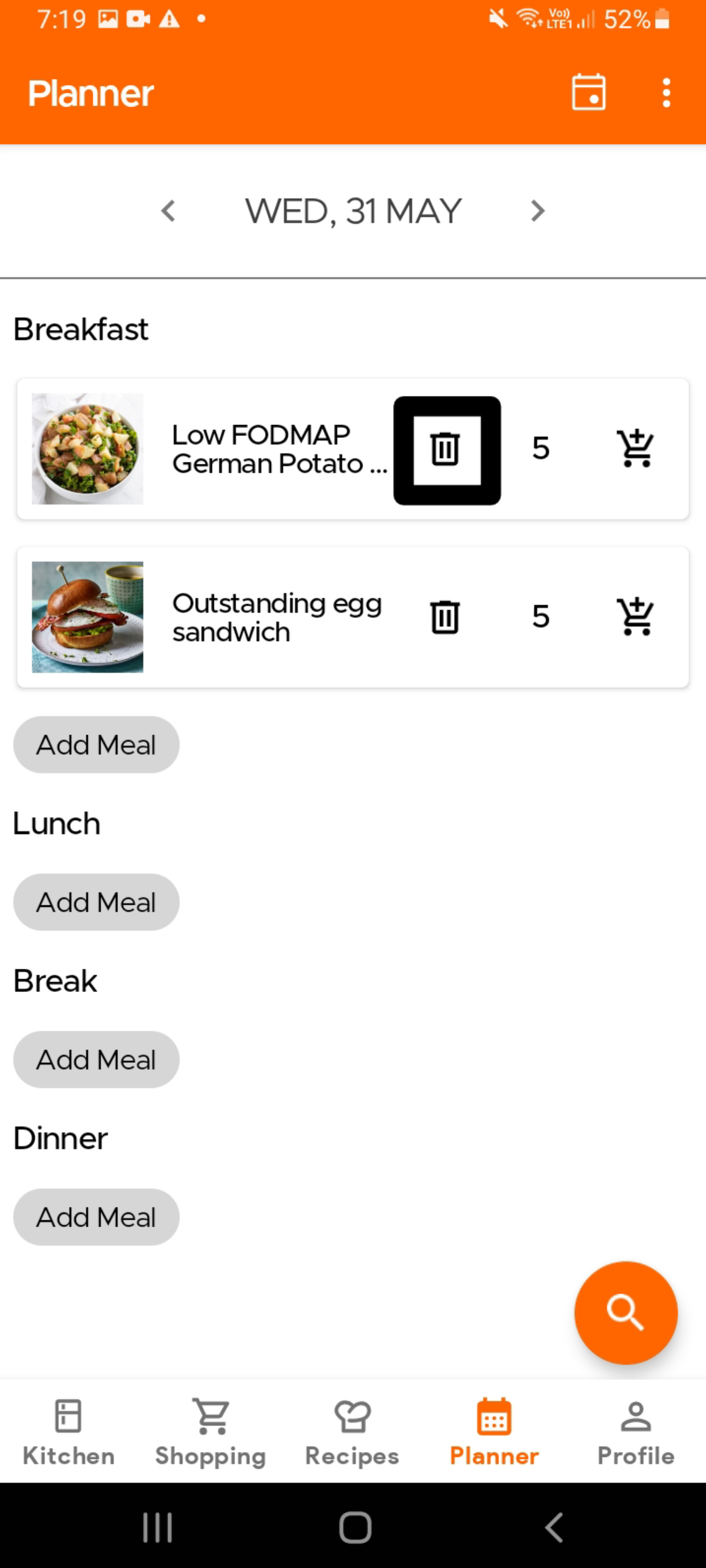
To delete an added recipe, simply click on the trash icon. If you want to clear all the added recipes, simply click on the overflow menu (the three horizontal buttons icon). This will give you the option to clear your Planner. Currently, it is not possible to move/copy a recipe from one date to another, but we hope to have this ready very soon.
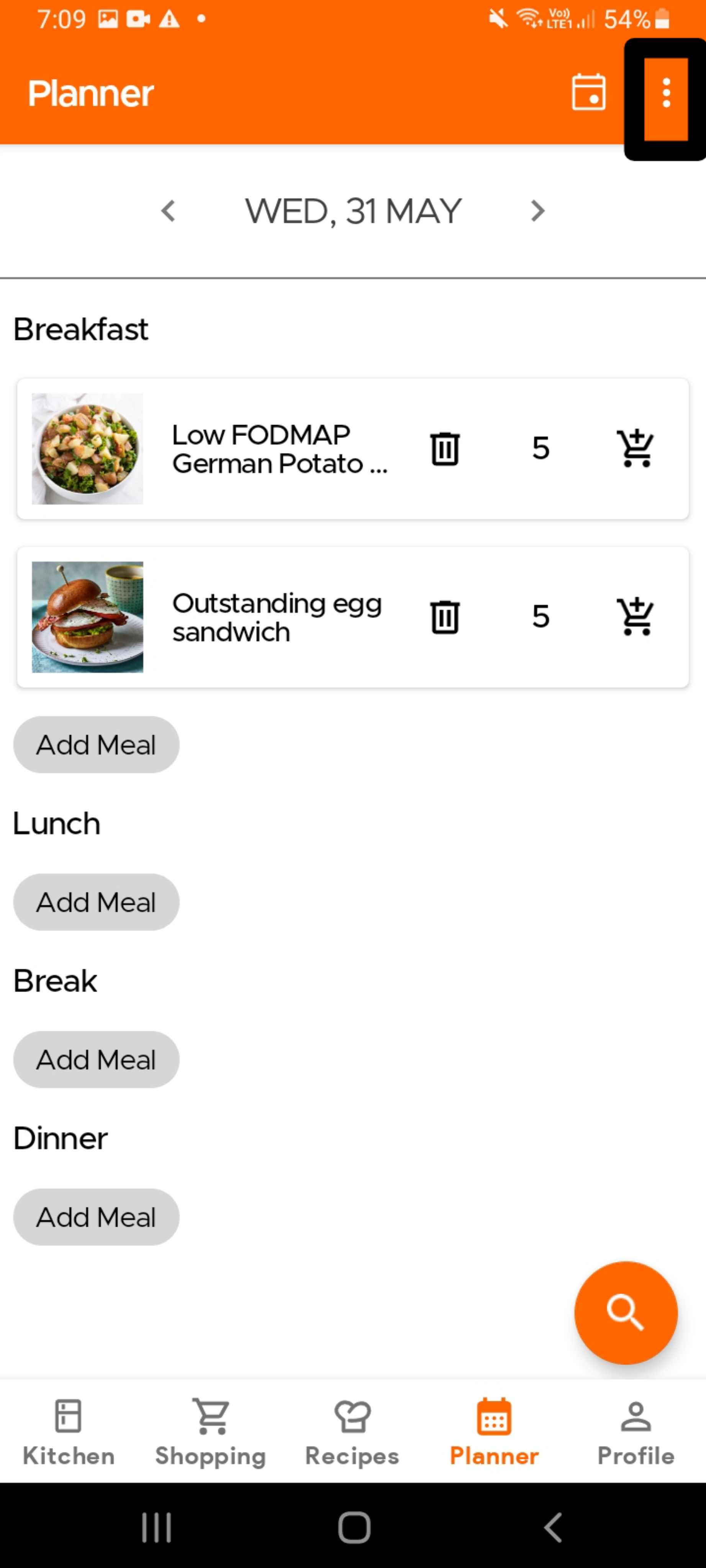
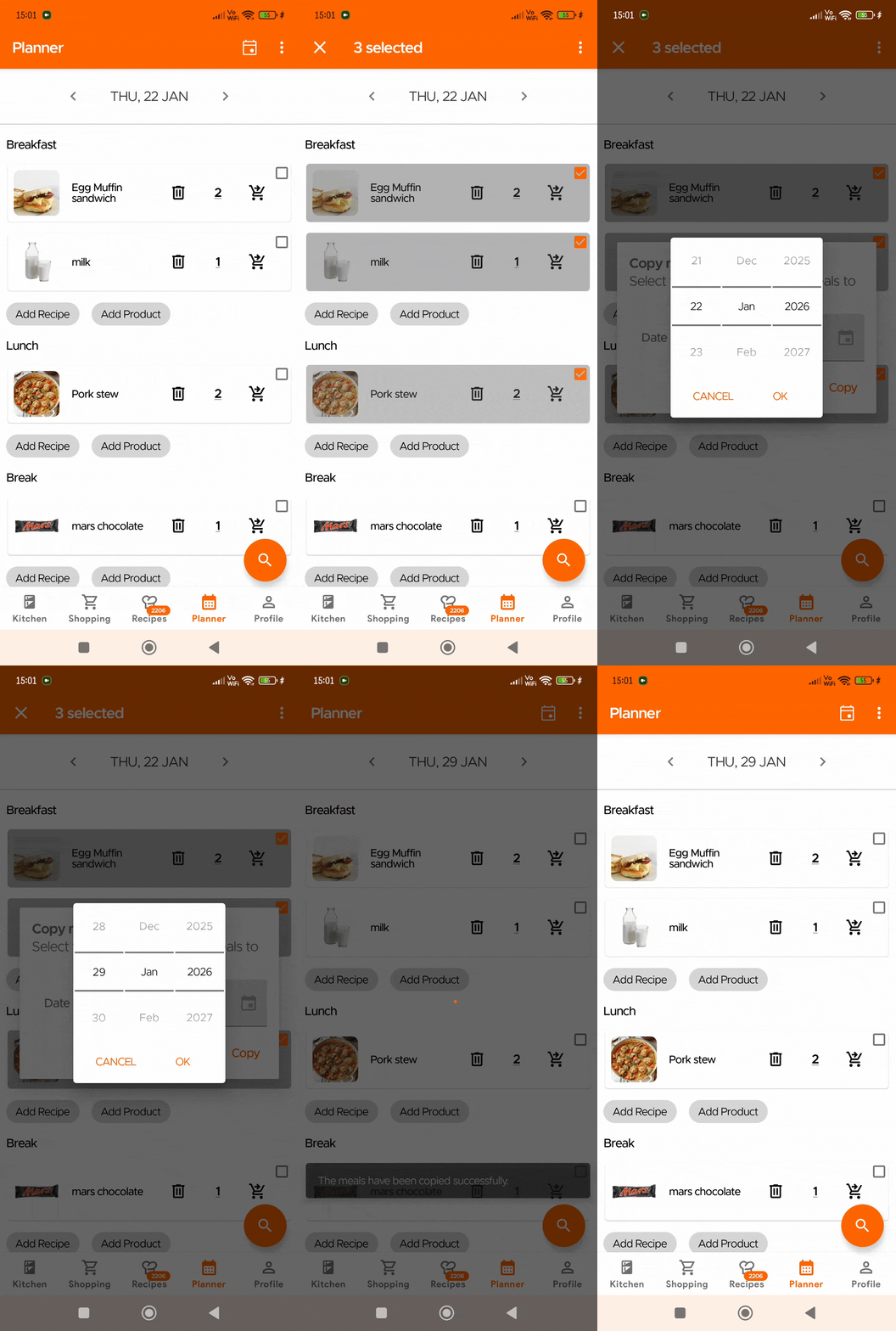
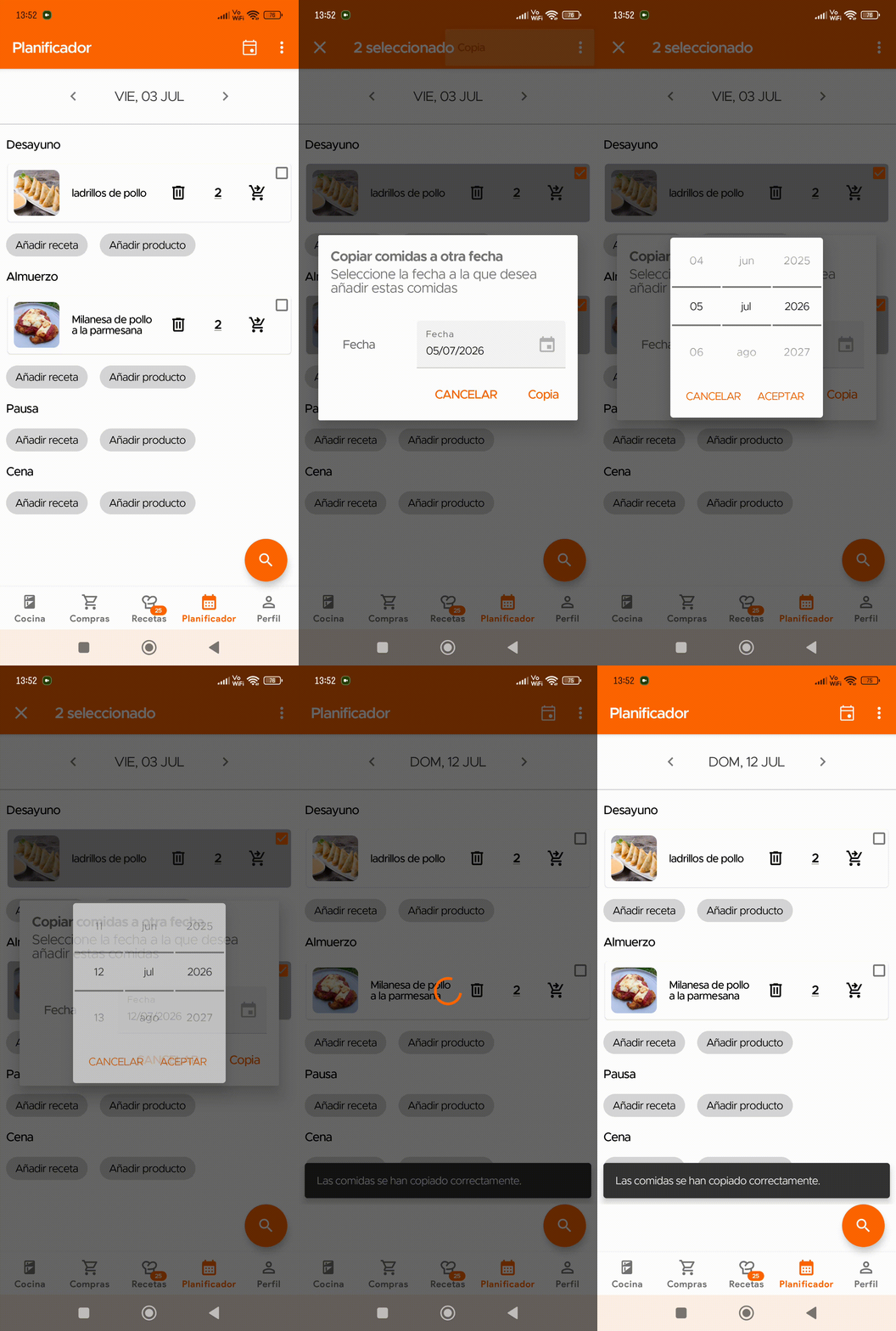
Para copiar tus comidas planificadas actuales a otra fecha, selecciona las comidas planificadas que deseas copiar y haz clic en el icono de tres puntos en la esquina superior derecha. Luego, selecciona la fecha a la que deseas añadir estas comidas planificadas.
Yes, you can. Only your submitted/uploaded recipe has been verified by our team (see Recipes Section for more details), it will become available within the app. Then simply search and add the recipe to you planner, just like you would with any other recipes.
Yes, you can. Simply share your Kitchen with the family member in question, and the Planner will be shared automatically. Your family members will be able to not only view the Planner, but will also be able to add/edit meals and add recipes to a common Shopping List. To know how to share your Kitchen, please see the Kitchen section for more details)
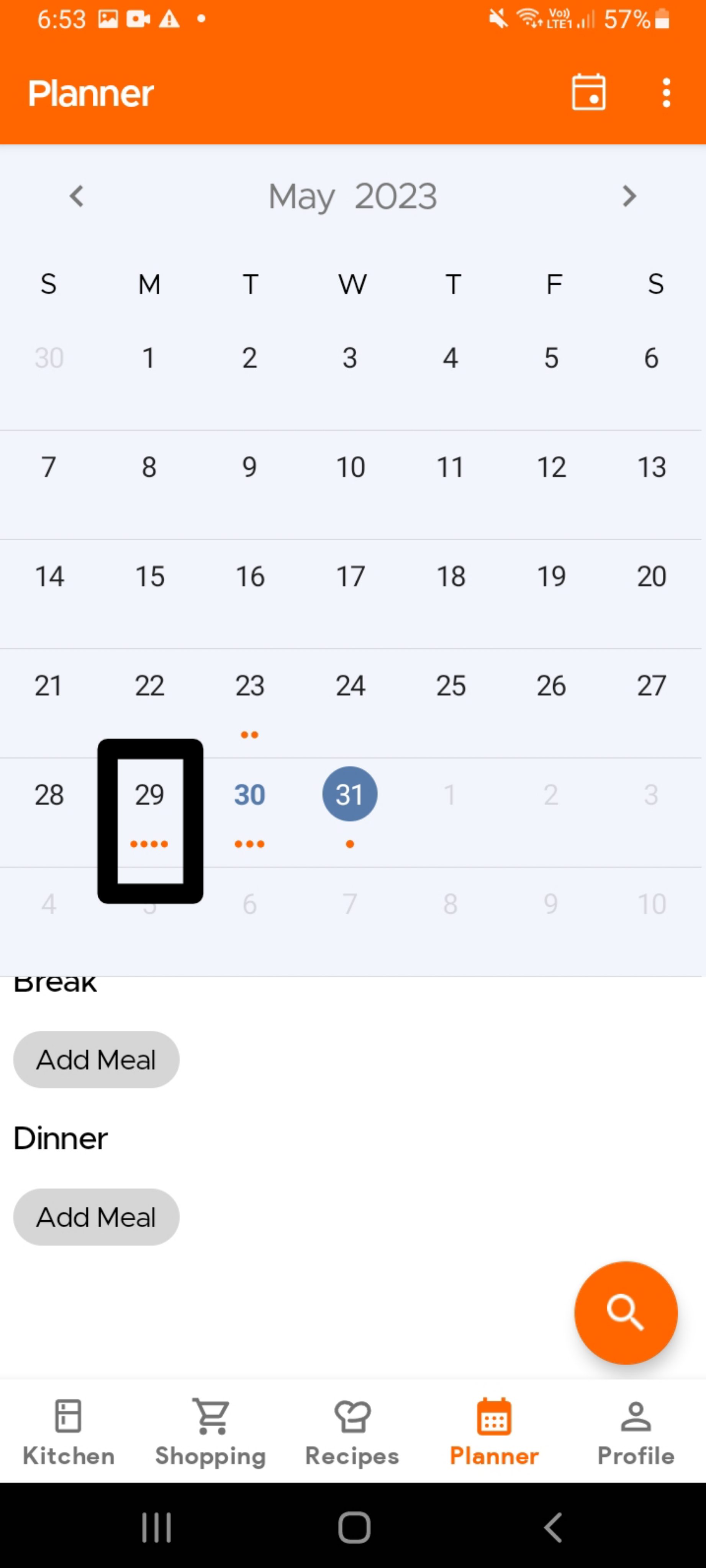
When you click on the calendar icon on top of the Planner page, you can see which dates you have added recipes to, at a glance. Each orange dot represents an added meal (not a recipe), so the display shows whether lunch, breakfast, etc have been planned for the given date.
Still Need Help?
Can't find what you're looking for? Our support team is here to help!
Email Support Help Center