Häufige Fragen zur Küchenverwaltung und -organisation
Learn how to manage your kitchen inventory, organize storage spaces, share with family members, and efficiently track all your items in KitchenPal.
Single Screen View
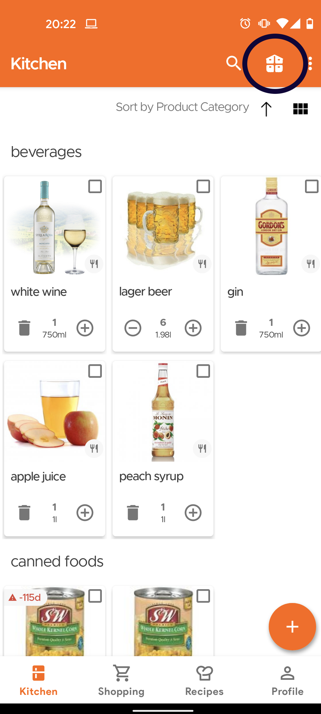
This single screen view, where you can see all your kitchen items in a single page, is recommended only if you have a few items in your Kitchen or do not track your items by storage. In case you have a large kitchen and want to organise it by storage spaces, we recommend using the Multi-Tabs view mentioned further below.
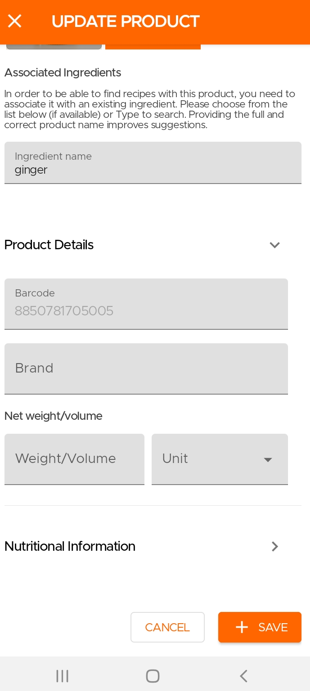
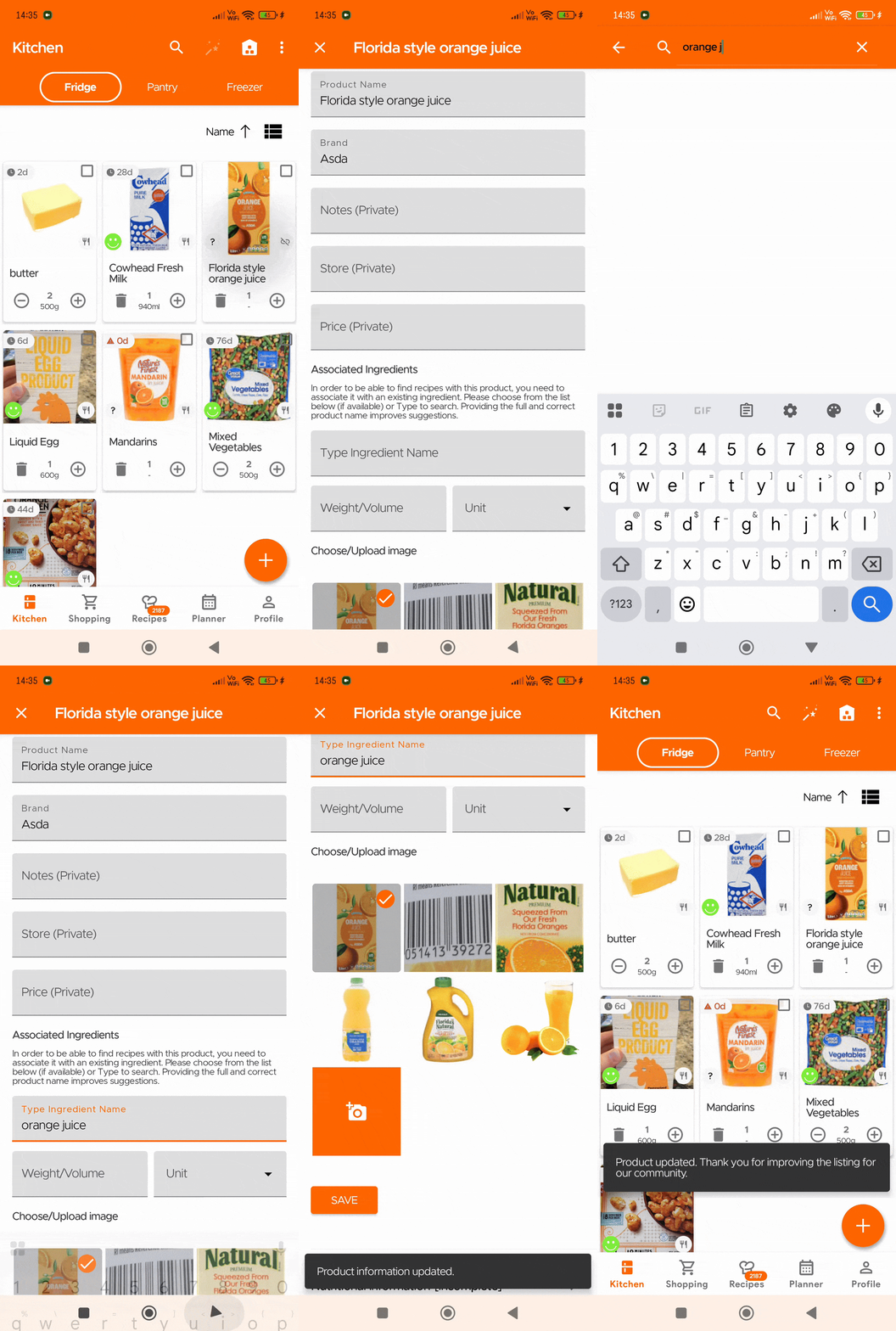
This single-screen view only has a few preset product categories that cannot be changed/modified. Items are slotted into these categories automatically by our app. Majority of the time, the app's algorithm selects the correct categories, but in case you encounter any errors, especially for branded packaged goods, you can update/correct this. Our app uses something called an 'associated ingredient' to categorize a product (and also to find recipes which can be cooked with this product). In case you see an error in categorization, simply click and open the item in your Kitchen list and scroll to the Product Details section and update this association (see the 2nd Image below)
Also, products that have missing associated ingredients (because our algorithm couldn't decipher the product) will automatically get organized in the 'Products not associated' category. In such cases where it's missing, you can add the associated ingredient and that will move the product to the right predefined category.
Multi-Tabs View
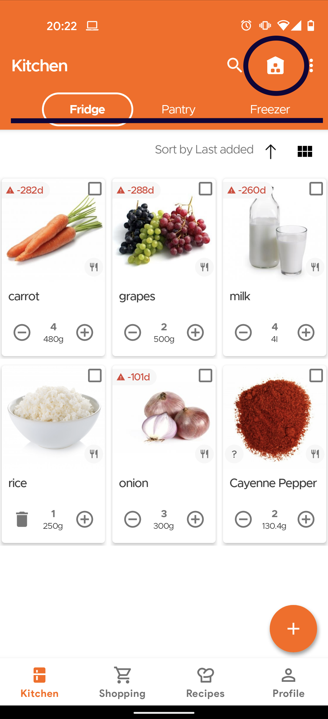
To switch to this view, just click on the house icon on Android or open the Overflow menu (three dots) on the right and Choose the Storage View option. Once you are on this screen, no matter from which tab/storage space you open the scanner, you will get the option to choose/add the storage space. So when you want to first add items (even if they are 30-40 items) just change the view to as shown in the image below, and you can start scanning and adding items to all the different storage spaces, instead of going to each one individually because the scanner result page will let you choose any storage option you want directly.
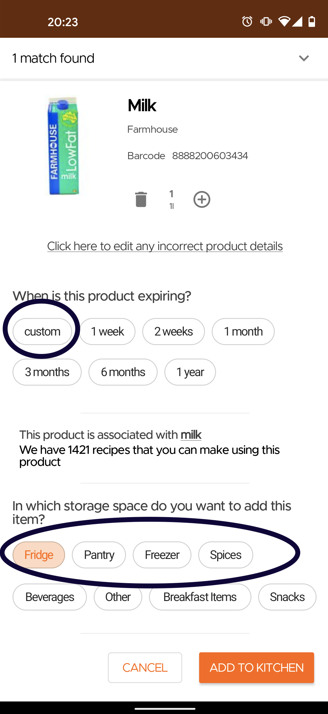
You will then see a result page like this which lets you choose where you want to add the item (and also add custom expiration dates which is optional). The storage space may be pre-selected if you have added the same item previously, but can be changed easily by clicking on another option.
You can also toggle between these two different views (single screen or multi-tabs view by storage location) whenever you want and the system will remember which item goes where.
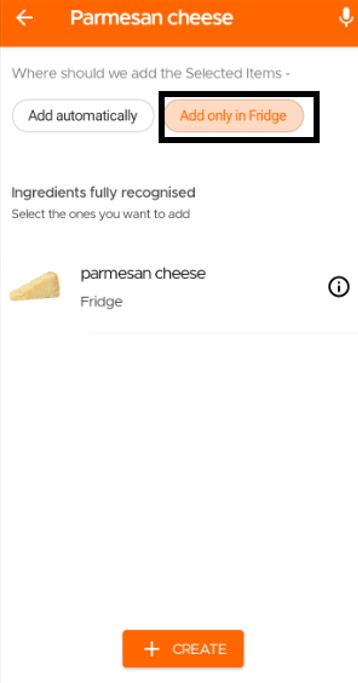
And if you are adding items manually or using voice, simply first go to the desired storage space before adding the items. There, while adding, it will give you the option of 'add automatically' or the current storage tab you were at ('add automatically' adds the item to where you stored it previously, if available, or its default storage as per our system). Again this option is only available if your Kitchen is organised by Storage Spaces and not the default single screen view.
Hence, our users have the option to choose whether they would like their items to be added based on a default storage or their preferred storage.
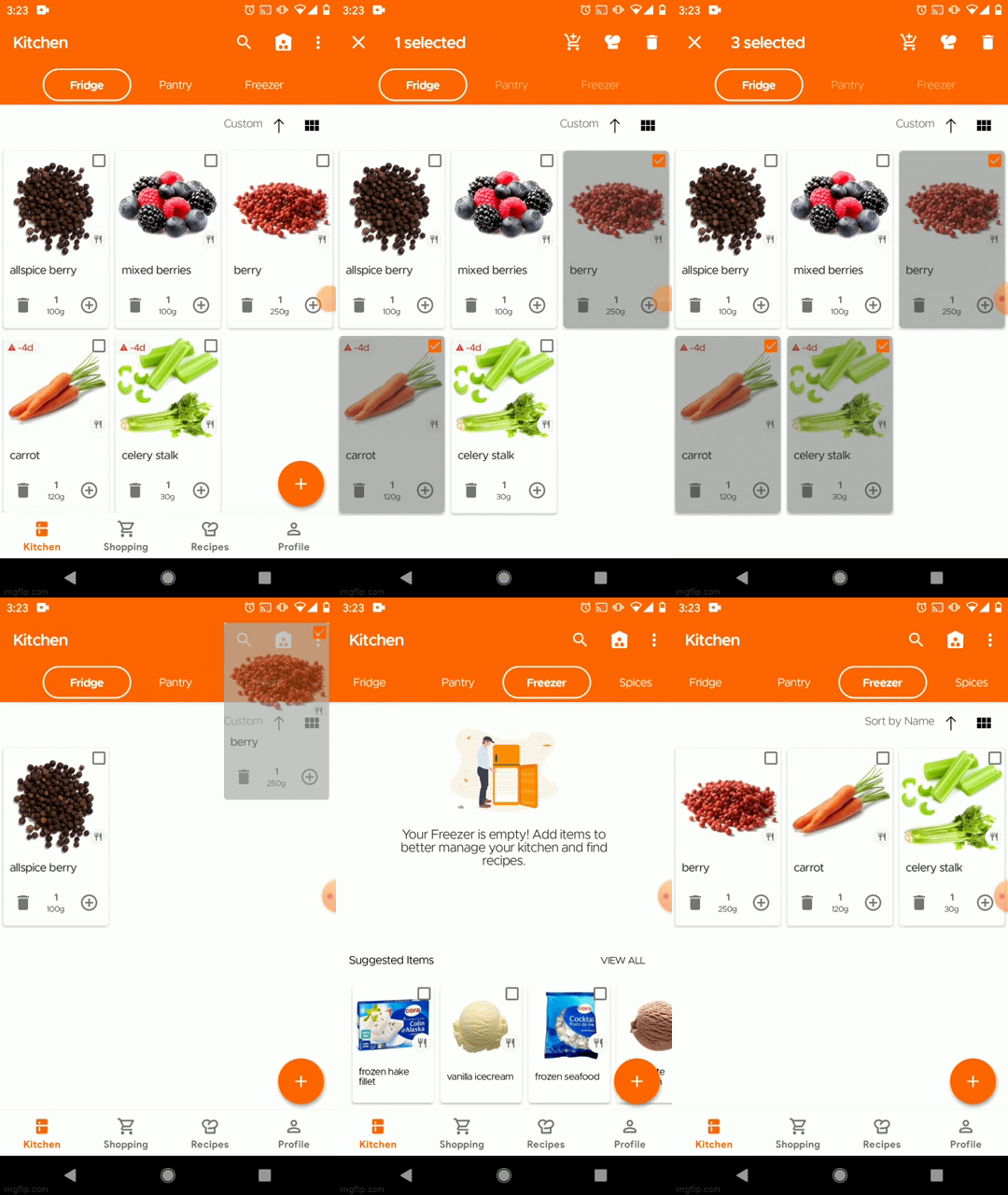
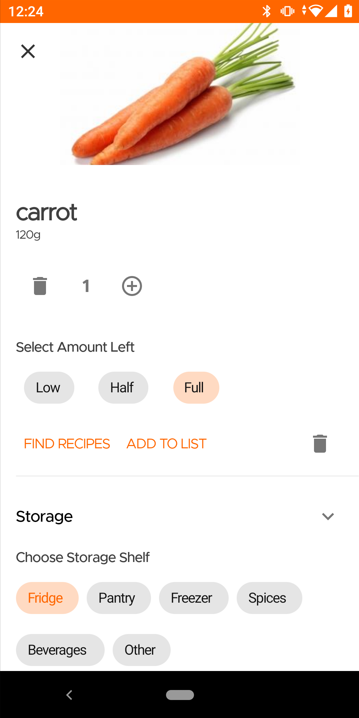
To move already added items from one space to another, you can Drag & Drop the collapsed card from the one tab to another (e.g, Fridge Tab to Pantry Tab) or open the product card of the item and change the storage shelf within the storage section (from Fridge to Pantry for example). The drag and drop also allows for multiple items to be moved at one time.
Please see below on how to add a new storage space.
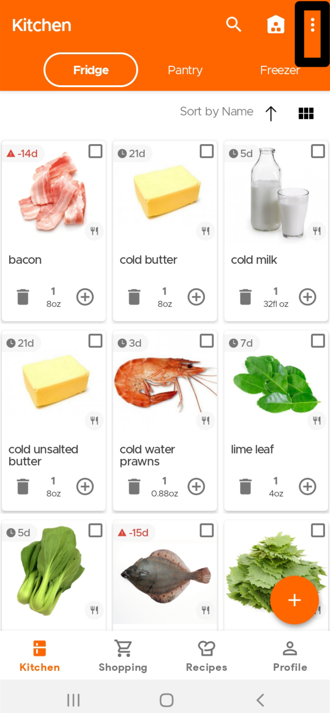
First, please ensure you are on the Storage View screen within the Kitchen (by clicking on the House icon). Then click on the Overflow icon (three dots) at the top right corner of your screen.
Then click the 'Edit Storage Spaces' option.
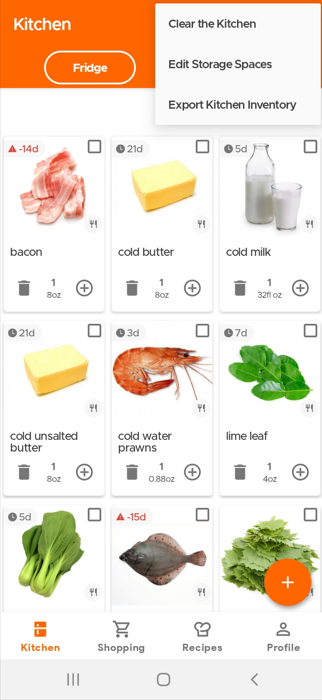
Then click 'Add Space':
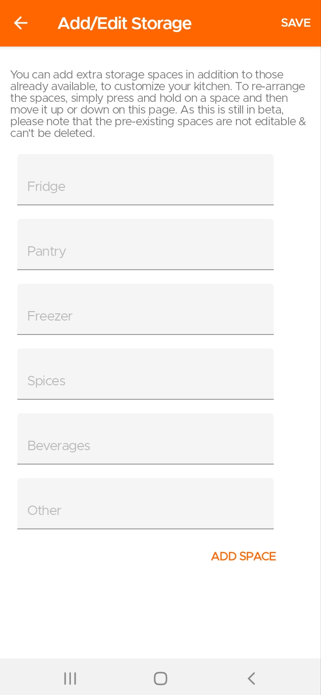
Neben der Möglichkeit, Ihre Lagerbereiche zu erstellen/aktualisieren (in der Lageransicht), können Sie auch Ihre eigenen Produktkategorien in der Einzelbildschirmansicht (in der Artikel nach Produktkategorie geordnet sind) hinzufügen oder bearbeiten.
Um Ihre Produktkategorien hinzuzufügen oder zu bearbeiten, stellen Sie sicher, dass Sie sich in der Einzelbildschirmansicht befinden. Tippen Sie dann oben rechts auf der Küchenseite auf das Drei-Punkte-Symbol und wählen Sie Kategorie hinzufügen/bearbeiten.
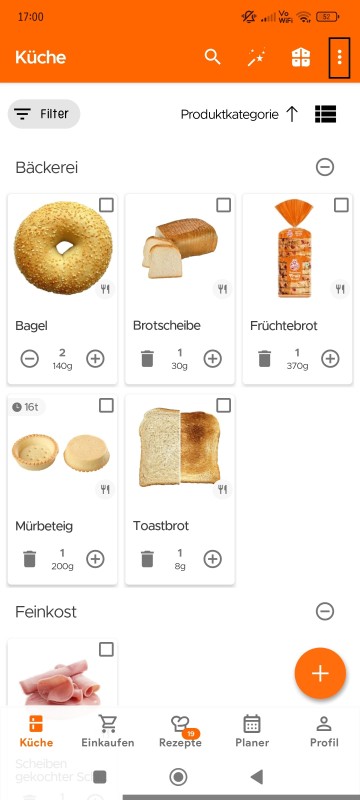
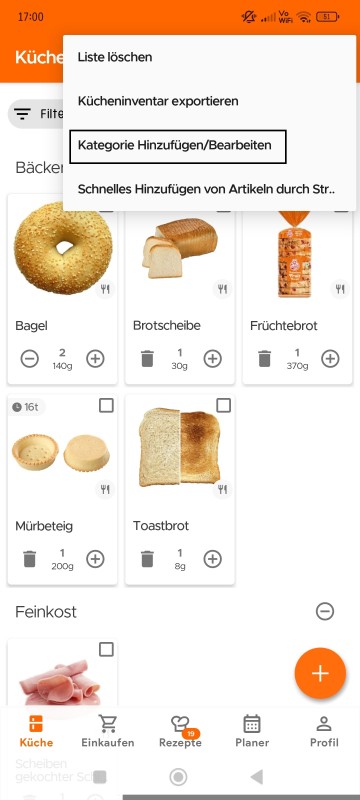
Tippen Sie dann auf Bereich hinzufügen und danach auf Speichern, sobald Sie die neue Produktkategorie hinzugefügt haben.
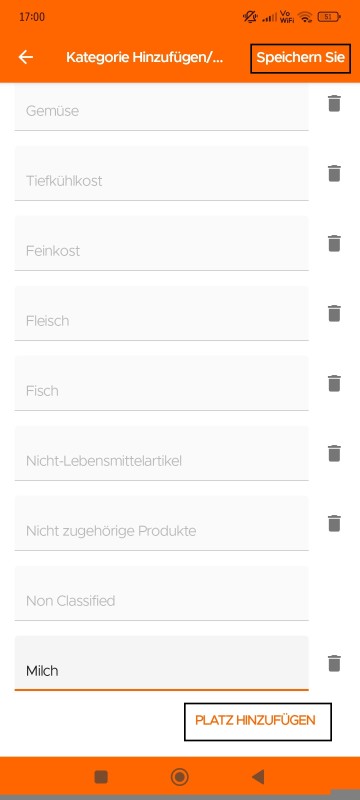
Hinweis: Sie können Produktkategorien auch hinzufügen, bearbeiten oder aktualisieren, wenn Sie eine der Produktkarten öffnen.
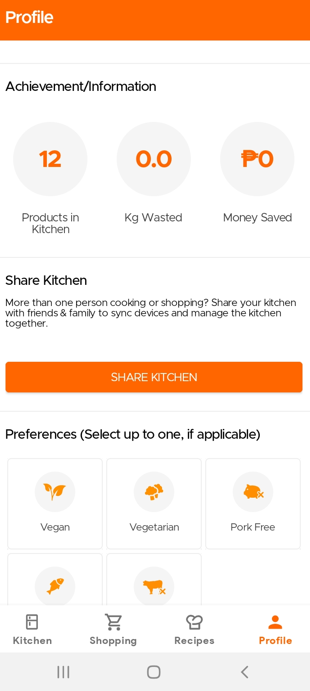
You can share your Kitchen (which will become the master kitchen) with your partner or more family members by using the Share Kitchen feature from the Profile Page. This generates a unique link for each family member (you will have to generate a new link separately for each member) which you can then share with them. Once they click on the link to accept (if they haven't downloaded the app as yet, the link will first take them to the App/Play Store), their Kitchen syncs with yours and now they will see the same shelves, products, etc and they can add, delete or update the common kitchen. Any Shopping Lists you create will also be shared with your family as well. You can see more details in the short video here for Sharing the Kitchen.
To disconnect, you can go to the Profile page and disconnect
from the Shared Kitchen.
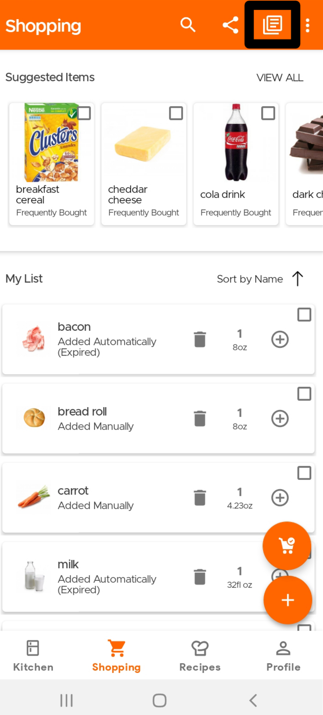
To see the Shared Shopping List, they simply need to click on the All Shopping Lists icon and select the Shared Shopping List.
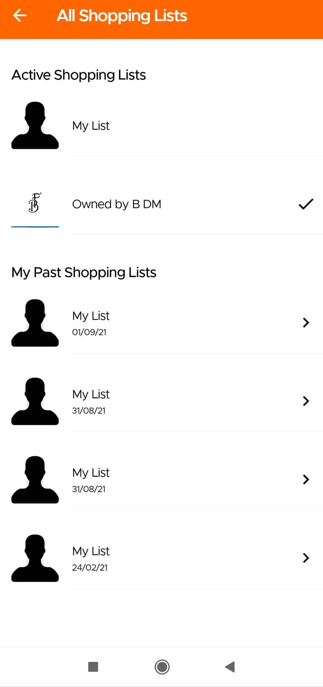
Here you can see all of your shopping lists, including all active and past lists.
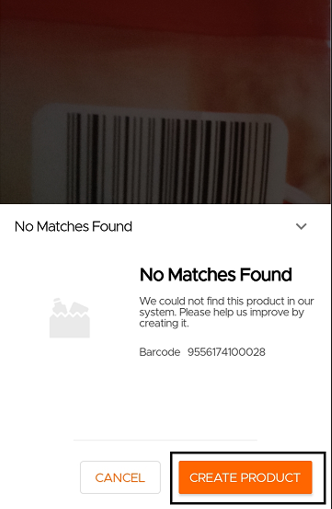
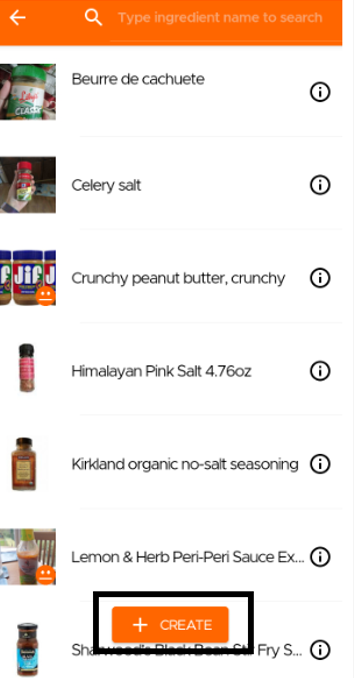
In case while adding a product, you do not find it in our DB, you can use the Create option to still add the item to your inventory.
When scanning your items
When manually adding items with Text Search
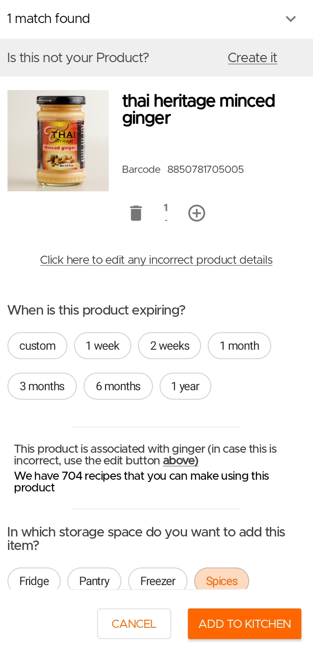
When scanning an item, our users have the option to edit any incorrect product details, as shown in the image below. For example, if you see the wrong image or incorrect product name with the scanned barcode, you have the option to edit and correct it.
In the below screen image you can see how to edit
Click the Save button once done editing the Product Details.
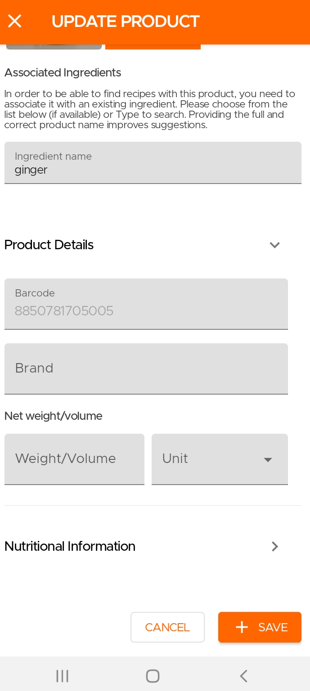
Associated ingredients are what we use to help us find the best possible recipes for a given product, since recipes on the web rarely use branded products but use generic ingredients instead. If your desired associated ingredient isn't available, we suggest using the closest or most similar substitute. This ensures you can still find recipes for the product using that associated ingredient.
Sometimes you may find that after searching and selecting an associated ingredient, the displayed name is different from the one selected. This is because we classify various names and very similar versions of an ingredient under a single parent ingredient name so as to give you the best recipe recommendations and it is this parent ingredient name that is displayed. For example, the card may show the associated ingredient as "eggplant," even if you initially selected and associated the product with "diced aubergines.".
Our algorithm sometimes does get these classifications wrong and classifies an ingredient under the wrong parent. If you see such a scenario, please do let us know by email or raising a flag in the app and our team will promptly correct it.
If you wish to add the same item/product multiple times separately (and not just increase quantity), you can do that by again entering the item and changing the expiry date from the one previously entered (or choosing a different storage space for the newly added item compared to the previous one).
Basically, the app consolidates the same product/item only if both the assigned storage space and the expiry dates are the same. Please see this video for more details.
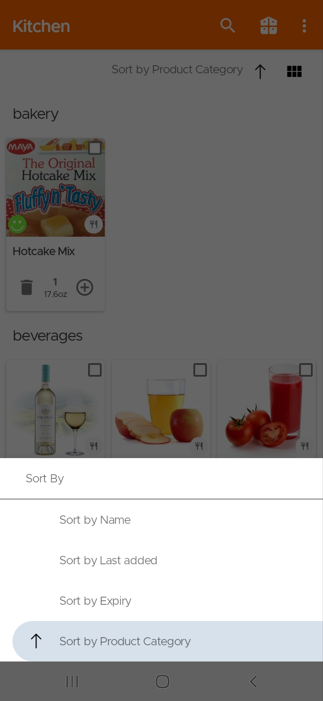
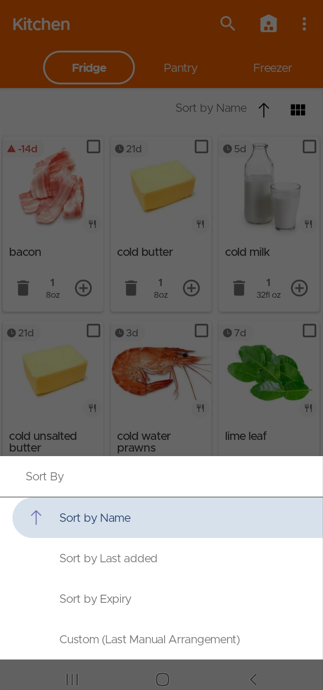
Our users can use our sort function if they want to sort the items in their Kitchen (available next to the option to switch to List View, on the right above the product cards).
Options include: by expiry date, product category, name, and last added. Choosing Custom sorting orders the items by any rearrangement previously done manually by the user. Clicking on the same sort option a second time, switches the order from ascending to descending. See examples in the images below.
Sorting your items in the Single-Screen View
Sorting your items in the Multi-Tabs View with Storage Spaces
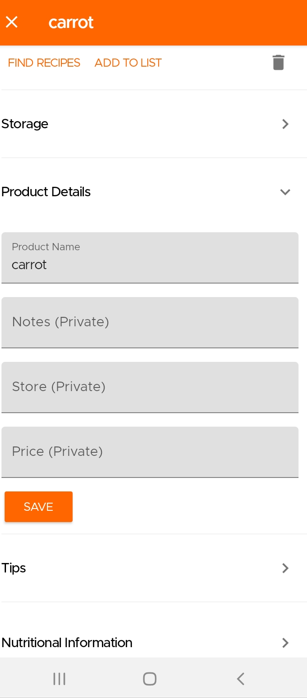
Users can save private notes about their items/products. Simply open the product card of your item by tapping on it and scroll down to the Product Details section.
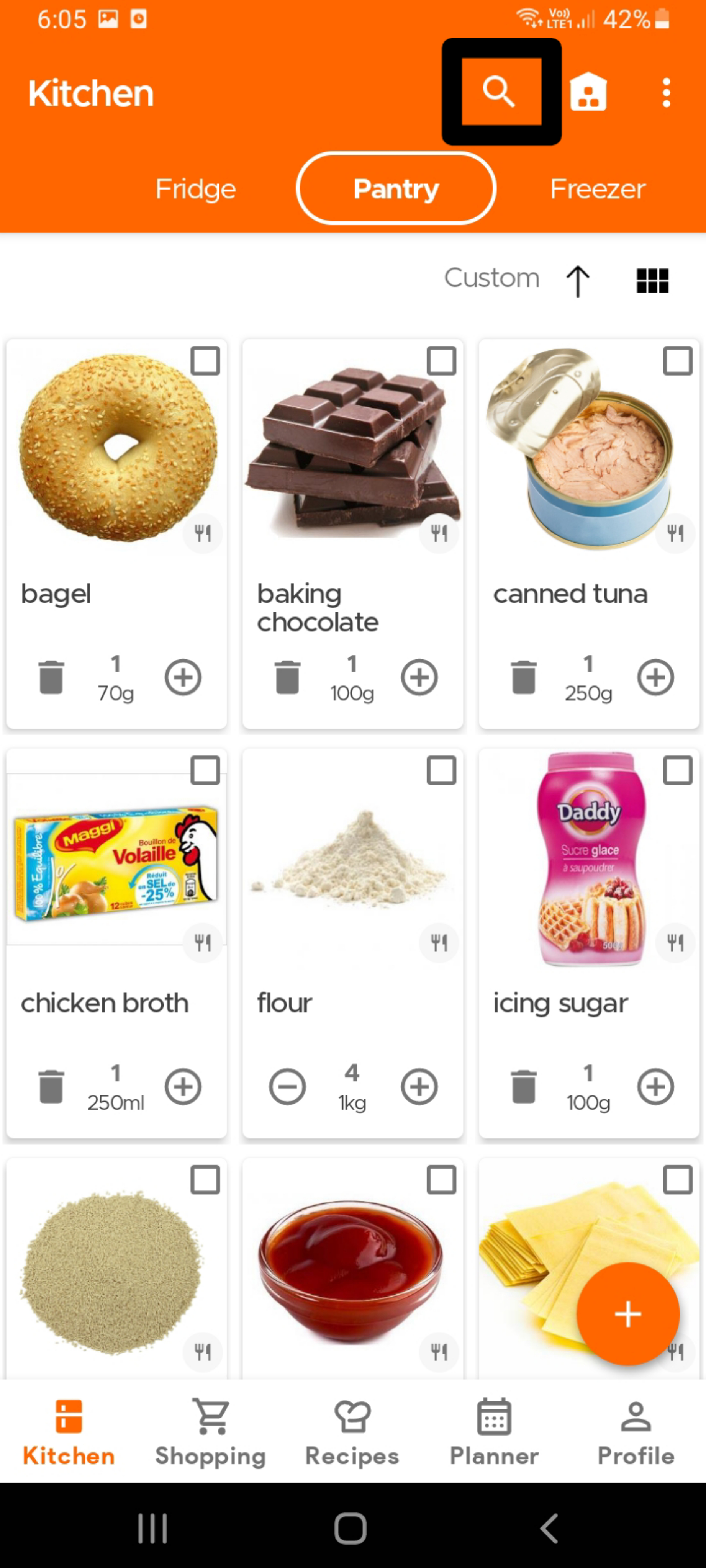
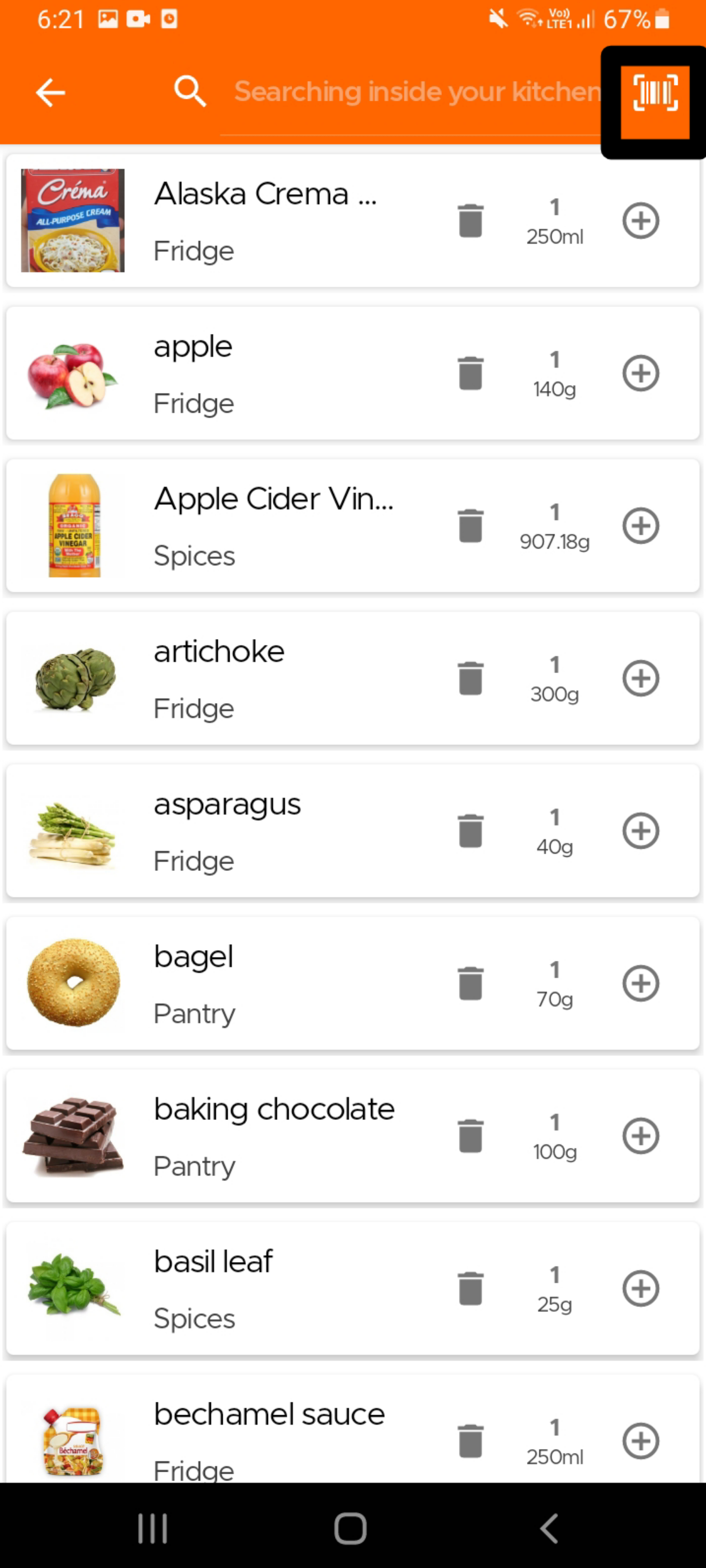
To search within your kitchen using the scanner or to simply scan out items, tap on the search icon inside the Kitchen page and then the barcode icon in the search field. This will open the scanner, within which scanning an existing barcode, will show you the quantity remaining, wherein your Kitchen it is stored and the option to delete it, if necessary. Please note that you can also just type the barcode number to search inside your kitchen, without having to necessarily scan the item itself.
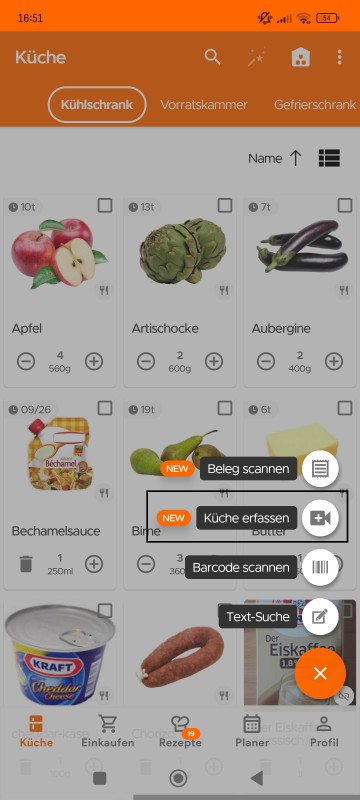
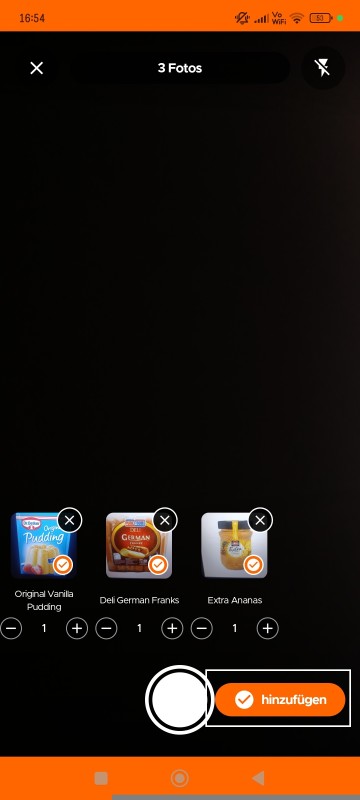
Nutzer können jetzt ganz einfach Artikel in ihrer Küche mit KI-Fotoerkennung erfassen. Machen Sie einfach Fotos von Ihren Zutaten oder Produkten, und die App erkennt und identifiziert automatisch die Namen der Zutaten oder Produkte für Sie.
Diese Funktion ist besonders hilfreich, wenn Sie mehrere Produkte haben, die noch nicht in unserem System verfügbar sind, und Sie diese schnell zu Ihrer Küche hinzufügen möchten. Sie können auch mehrere Artikel oder Produkte in einer einzigen Sitzung hinzufügen.
So verwenden Sie diese Funktion:
- Tippen Sie auf der Küchenseite auf die Schaltfläche Hinzufügen (+) und wählen Sie „Küche erfassen“.
- Machen Sie Fotos von Ihren Artikeln oder Zutaten. Die KI verarbeitet und erkennt automatisch den Namen der Zutat oder des Produkts, einschließlich Gewicht/Volumen und Einheit (falls auf dem Foto erkennbar). Sie können diese Details jederzeit über das Stiftsymbol bearbeiten.
- Tippen Sie abschließend auf die Schaltfläche „Hinzufügen“, um die Artikel in Ihrem Küchenbestand zu speichern.
For Voice Search
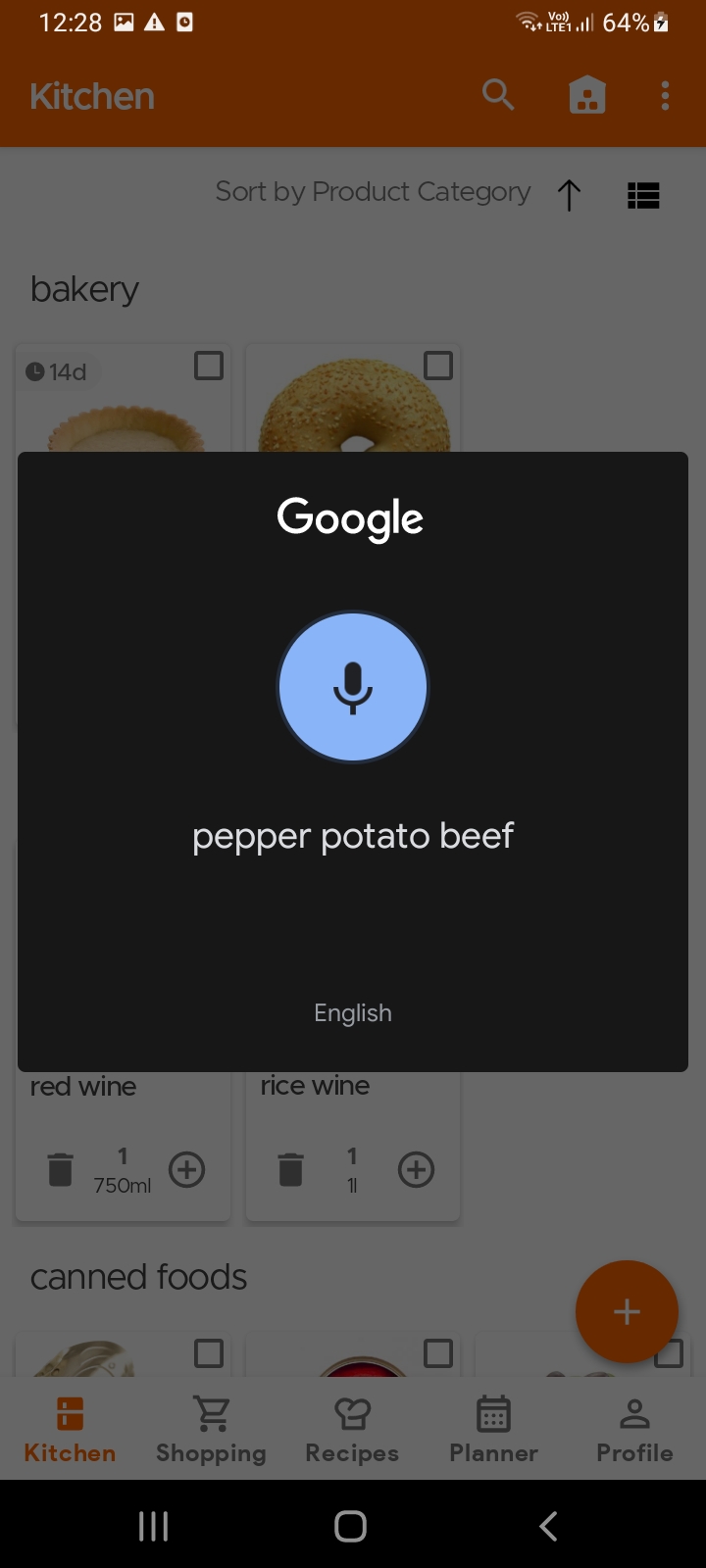
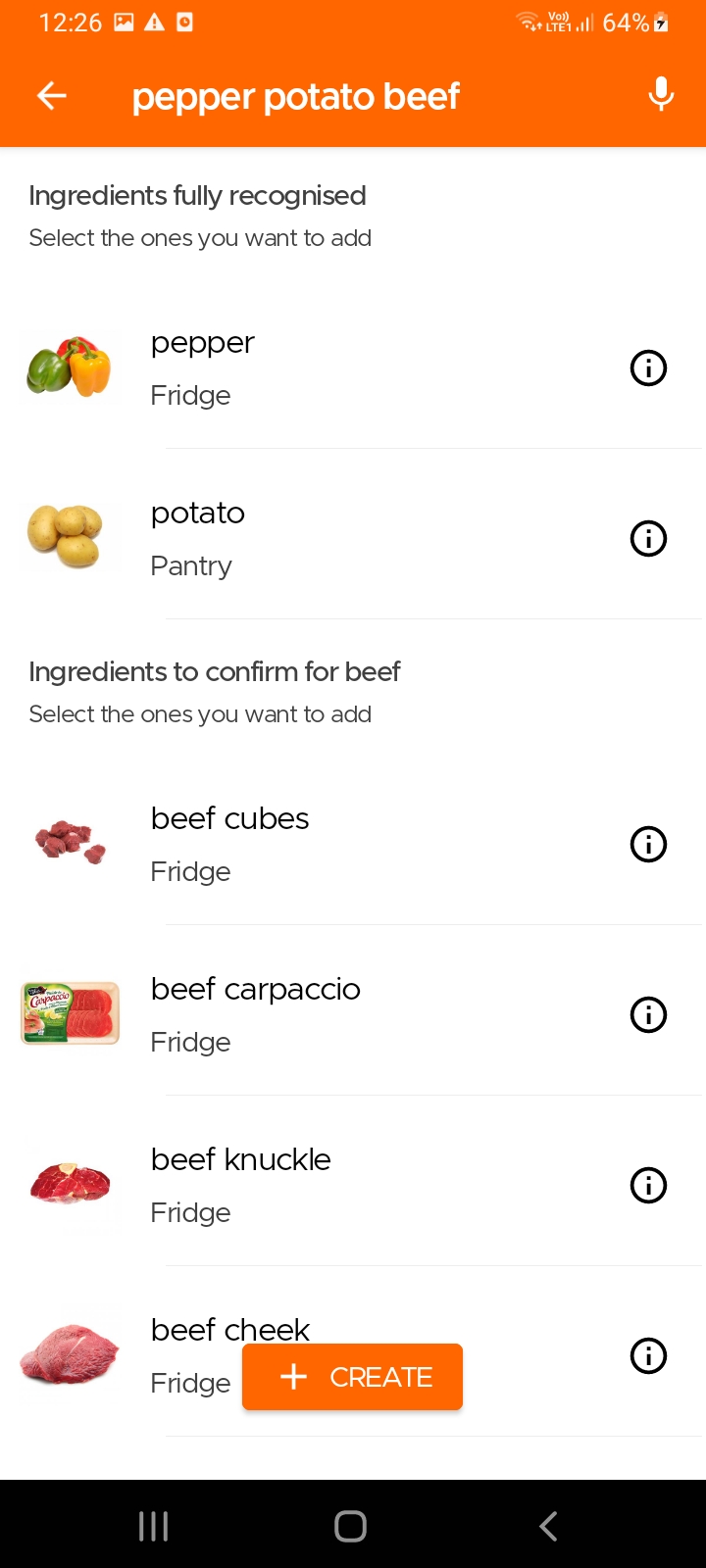
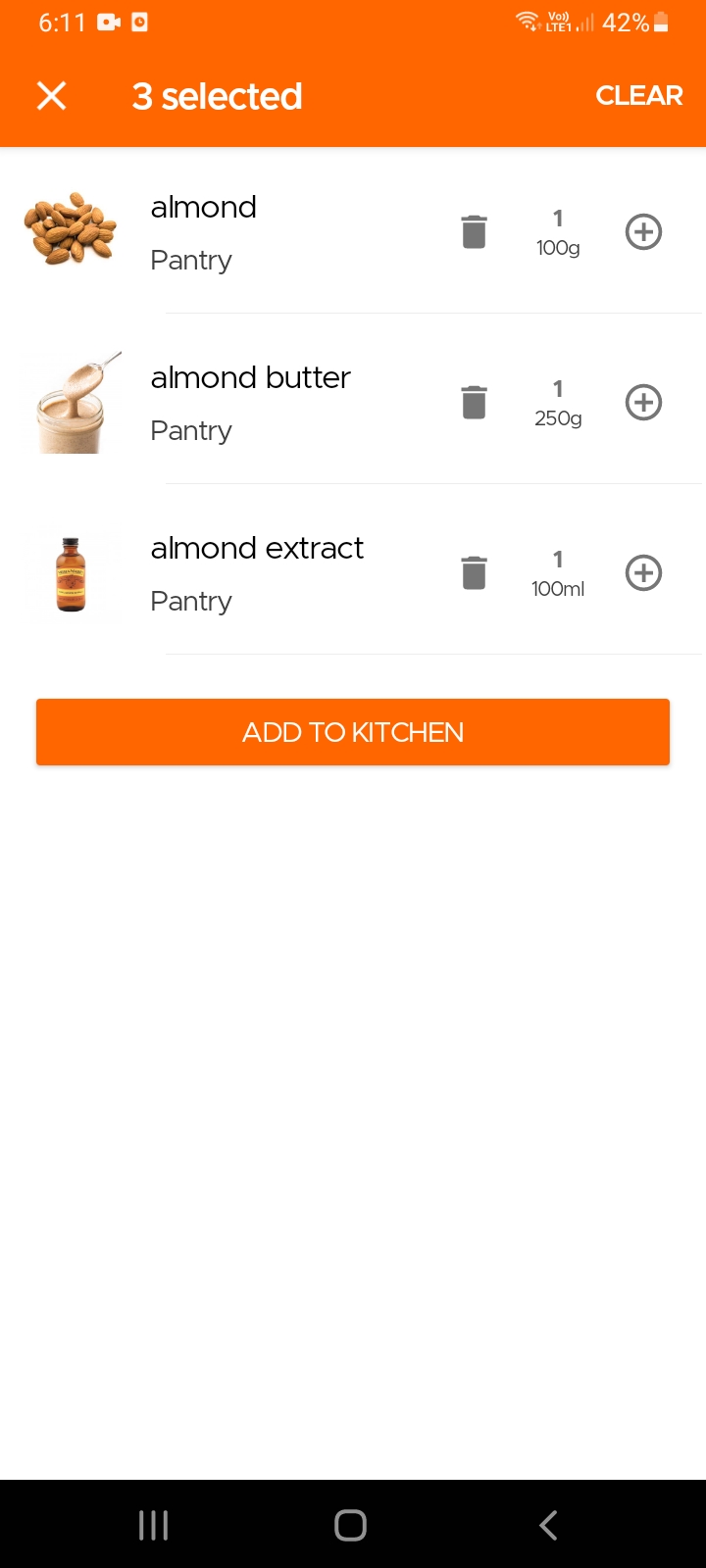
To add multiple items using voice search, simply speak all names of the items one after the other, and our app will automatically identify each item for you to add to your pantry. In case, it is unable to identify and item, they will be listed separately, like the example below (see for beef).
Also, products that have missing associated ingredients (because our algorithm couldn't decipher the product) will automatically get organized in the 'Products not associated' category. In such cases where it's missing, you can add the associated ingredient and that will move the product to the right predefined category.
For Text Search
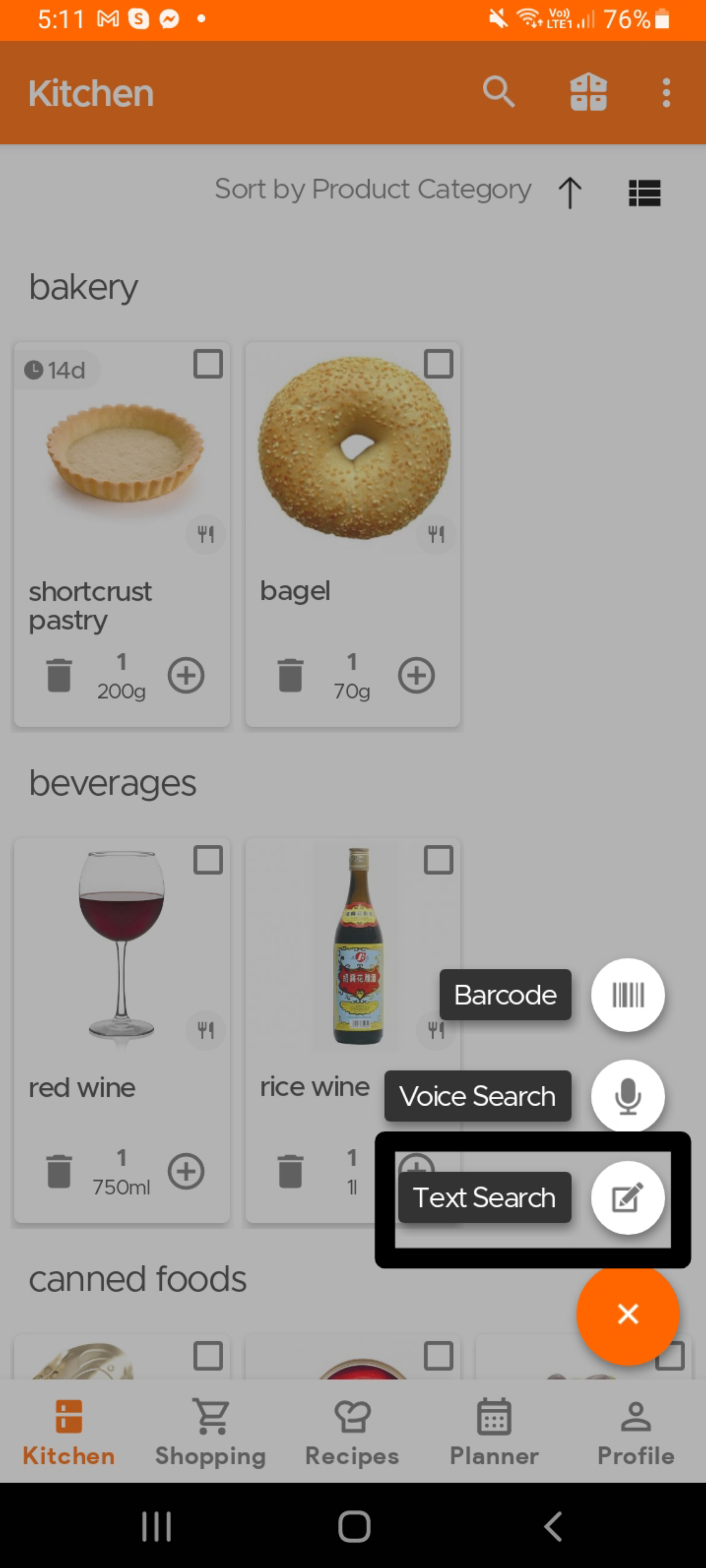
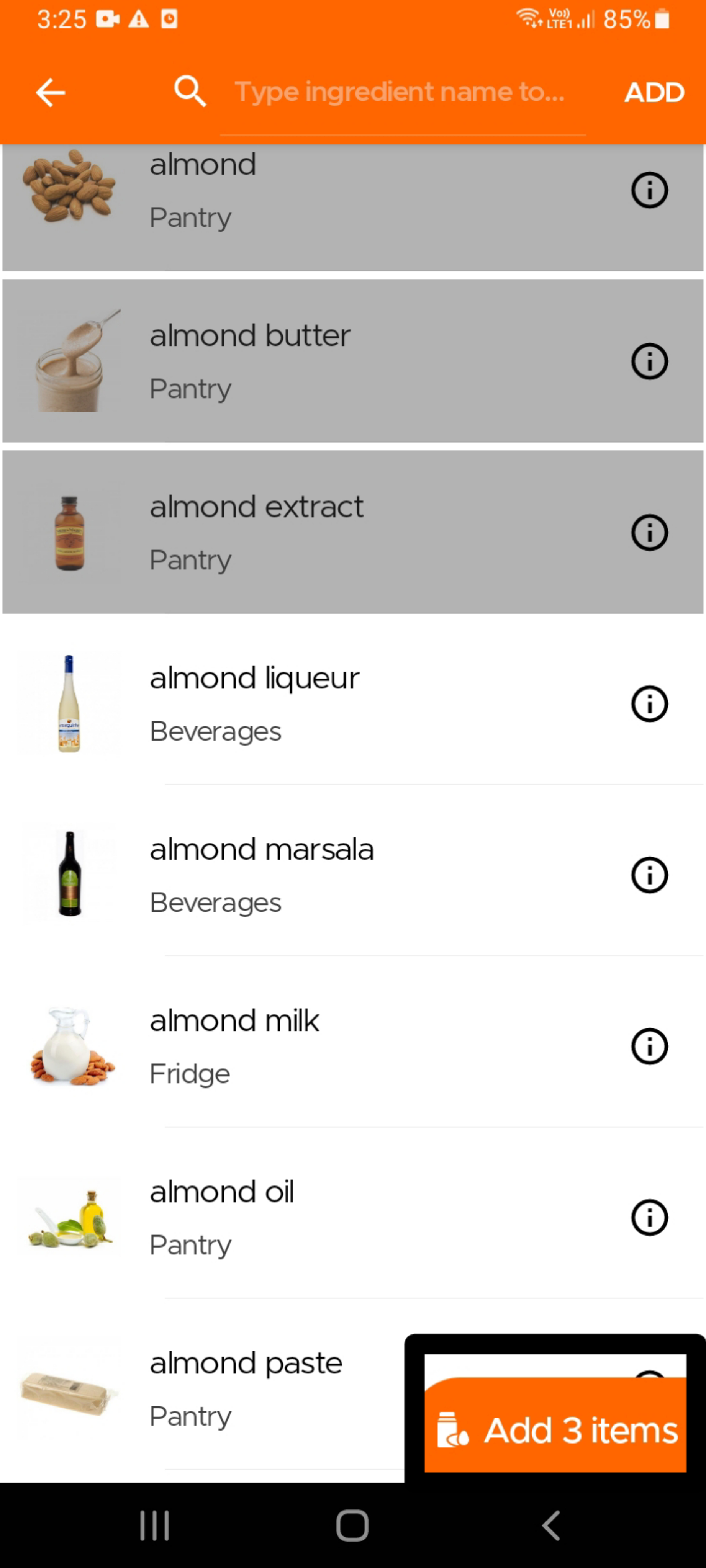
To add multiple items using text search, simply type the name of the first ingredient and select it from the search results. Then, proceed to type in the next ingredient and select it from the results, and so on and so forth. Once done, click on the Add Items button at the bottom of the page, after which you will see a summary of all the items, with the option to update quantities if required.
Sie können schnell Lebensmittel zu Ihrer Küche hinzufügen, indem Sie Ihren Einkaufsbeleg scannen.
Tippen Sie auf der Küchenseite auf die Schaltfläche Hinzufügen (+) und wählen Sie Beleg scannen.
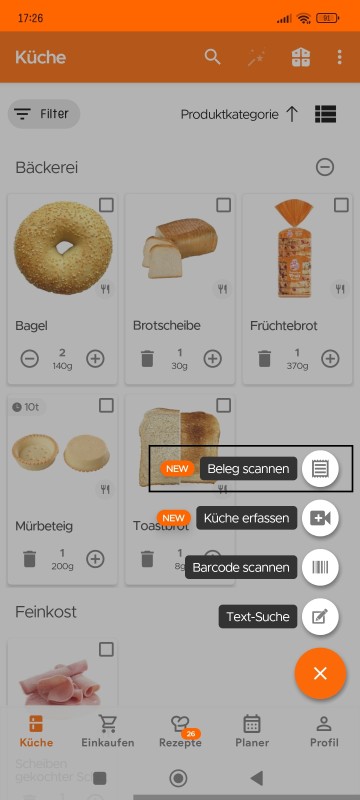
Beim Scannen eines Belegs macht KitchenPal Folgendes:
- Sucht nach Barcodes und durchsucht unsere Datenbank
- Wenn kein Barcode gefunden wird, gleicht unsere App den Beleg-Artikel mit Produkten ab, die Sie zuvor zu Ihrer Küche hinzugefügt haben.
- Wenn keine Übereinstimmung gefunden wird, erstellt unsere App ein neues Produkt zur Überprüfung, das Sie vor dem Speichern bearbeiten können.
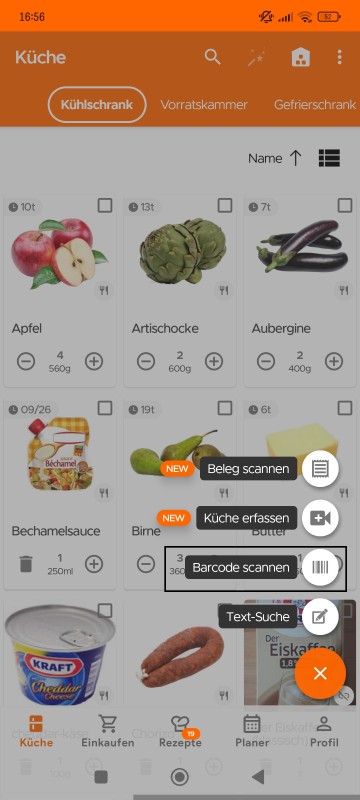
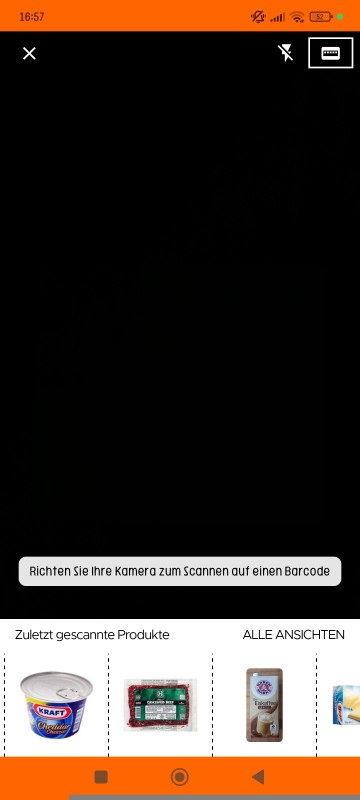
Nutzer können einen externen Bluetooth-Barcode-Scanner direkt mit unserer App verwenden – das macht das Scannen schneller, flüssiger und effizienter als je zuvor. Diese Funktion wurde entwickelt, um Ihnen zu helfen, intelligenter und schneller zu arbeiten – besonders wenn Sie eine große Küche haben.
So verwenden Sie diese Funktion:
- Tippen Sie auf der Küchenseite auf die Schaltfläche Hinzufügen (+) und wählen Sie „Barcode scannen“.
- Klicken Sie dann oben rechts auf das externe/Bluetooth-Symbol.
Still Need Help?
Can't find what you're looking for? Our support team is here to help!
Email Support Help Center