Vanliga Frågor om Recept i KitchenPal
Discover how to find recipes with your ingredients, upload your own recipes, save favorites, and manage your recipe collection in KitchenPal.
Now you can upload your own recipes or your favourite recipes from other blogs/sites. The simplest way to import a recipe to KitchenPal is to share the URL with KitchenPal while visiting the recipe blog with your browser (choose Share and then scroll and select the KitchenPal app from the list of apps available to share the content with).

Recipes usually get added automatically but sometimes it may take our team a couple of days to approve these recipes (we check to see if everything is imported correctly, and items are mapped to ones in our DB and your Kitchen).
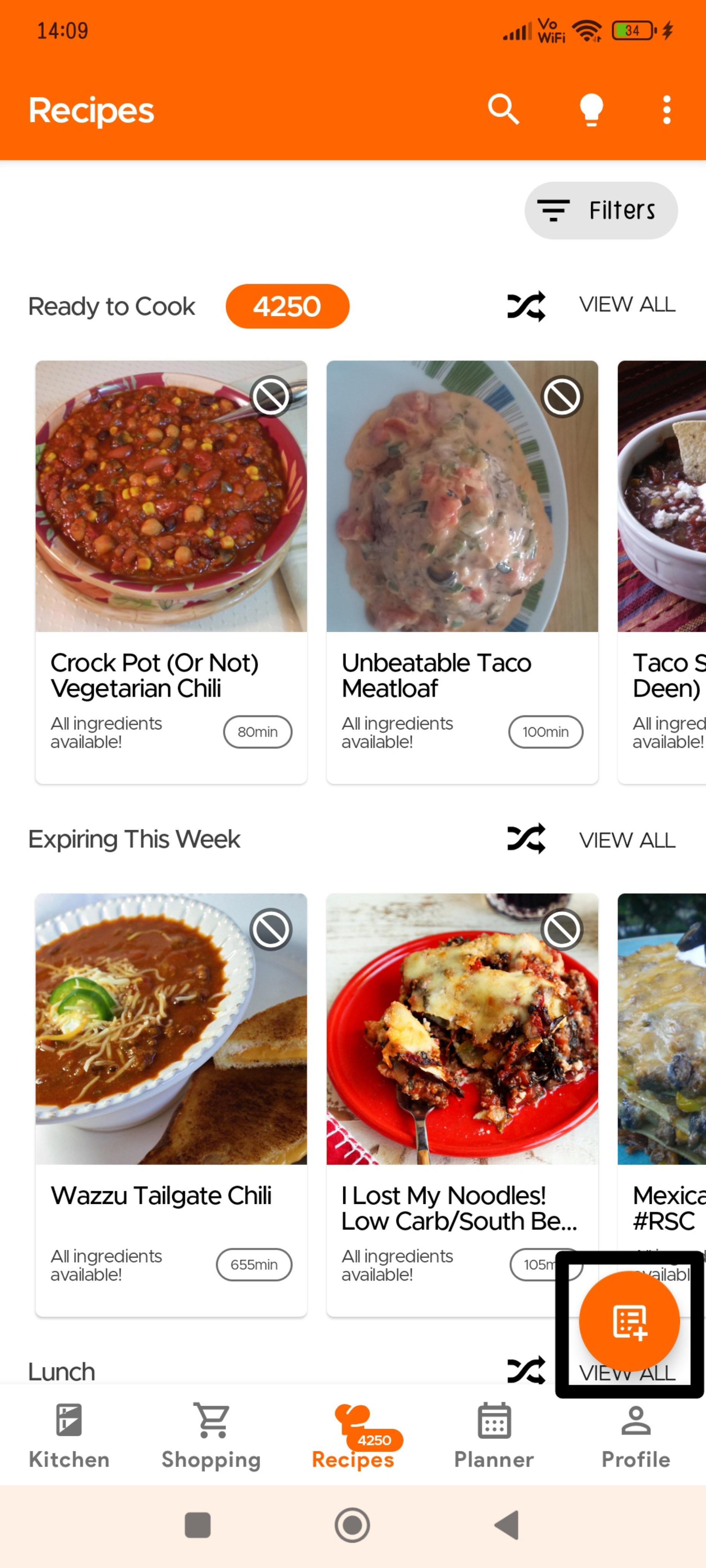
Or you can go to the Recipe Section and click the Overflow icon (three dots) on the top right:
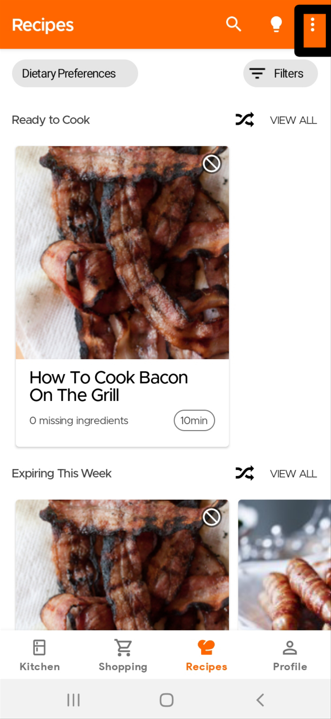
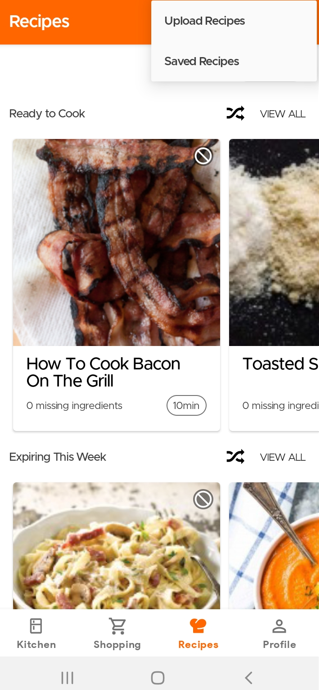
Click on Upload Recipes
Then you will have the option to choose if you want to submit a recipe from another website or manually submit your own recipe.
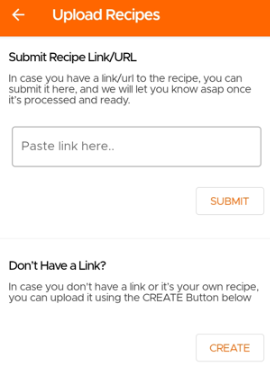
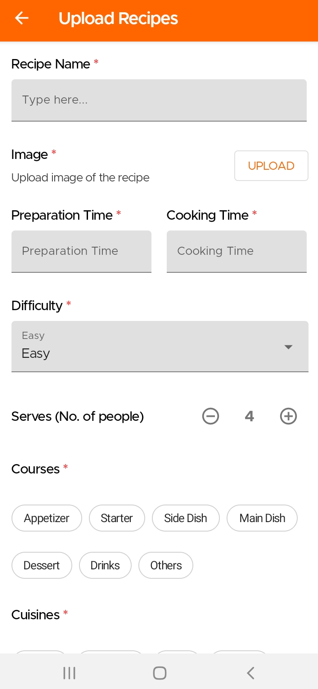
If you wish to manually submit your own recipe, you will need to fill in the required fields marked with an asterisk.
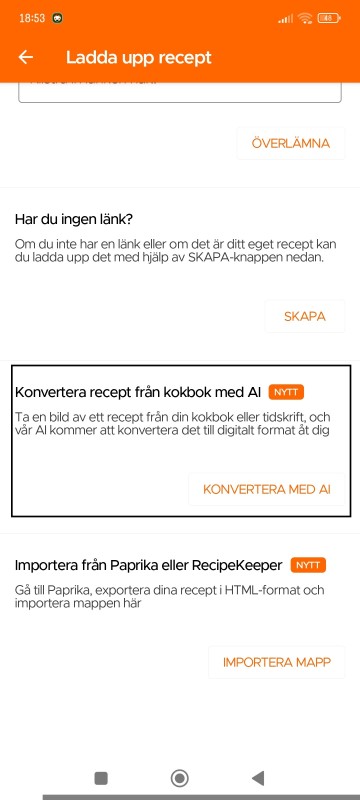
Nu kan du ladda upp recept genom att helt enkelt ta ett foto - oavsett om det är från din kokbok, en tidning eller till och med handskrivna anteckningar (endast tillgängligt för våra Premium-användare). Observera: recept som laddas upp via Kokbok AI förblir privata för användaren.
För att skanna/ladda upp dina recept med Kokbok med AI, gå till receptsidan och välj Ladda upp recept, välj sedan "Konvertera recept från kokbok med AI"
Steg 1: Ta ett foto av ditt recept
Steg 2: Ange receptnamnet
Steg 3: Ta ett foto av den färdiga rätten (valfritt)
Steg 4: Ta ett foto av tillagningsdetaljerna (portioner, förberedelsetid, tillagningstid)
Steg 5: Ta ett foto av ingredienslistan
Steg 6: Ta ett foto av instruktionerna
Steg 7: Välj kök och typ av rätt för ditt recept
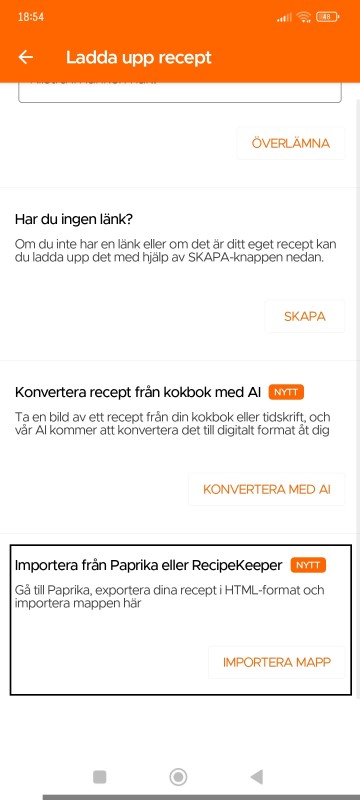
För att importera dina Paprika-recept till KitchenPal:
1. Gå till Inställningar i Paprika.
2. Välj "Exportera recept."
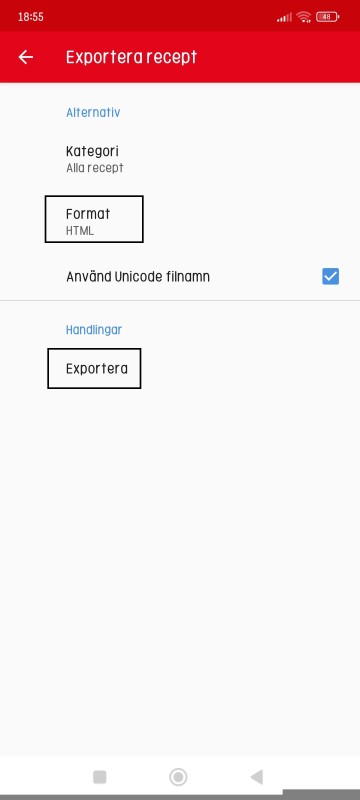
3. Välj HTML som format.
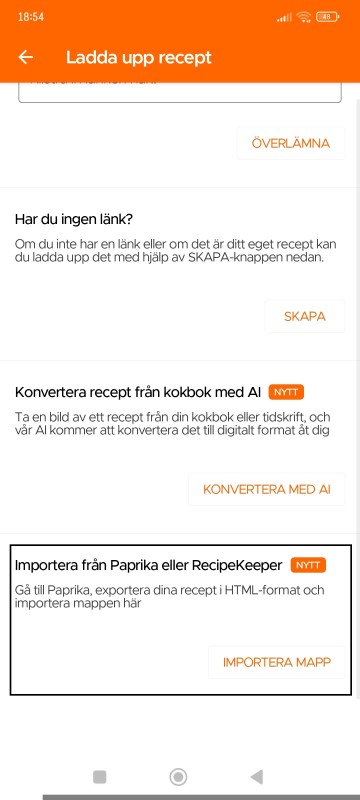
4. Välj sedan "Importera recept från Paprika eller Recipe Keeper" i KitchenPal-appen.
Exportera recept-sidan i Paprika
Ladda upp recept-sidan i KitchenPal
För att importera dina Recipe Keeper-recept till KitchenPal:
1. Gå till Inställningar i Recipe Keeper.
2. Välj "Exportera recept."
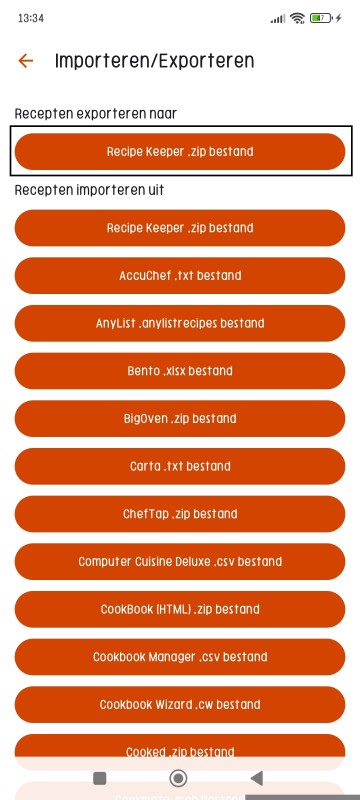
3. Välj Exportera recept till (Recipe Keeper .zip-fil)
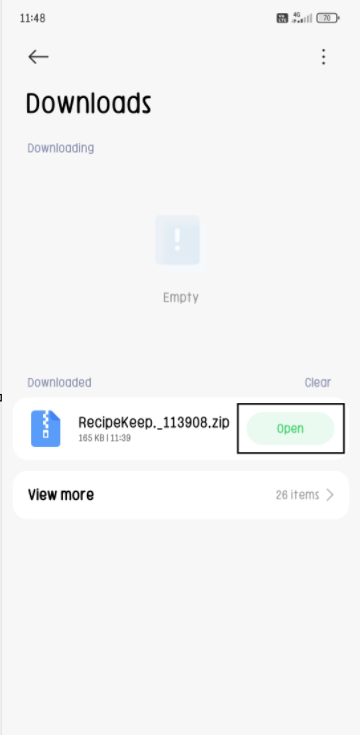
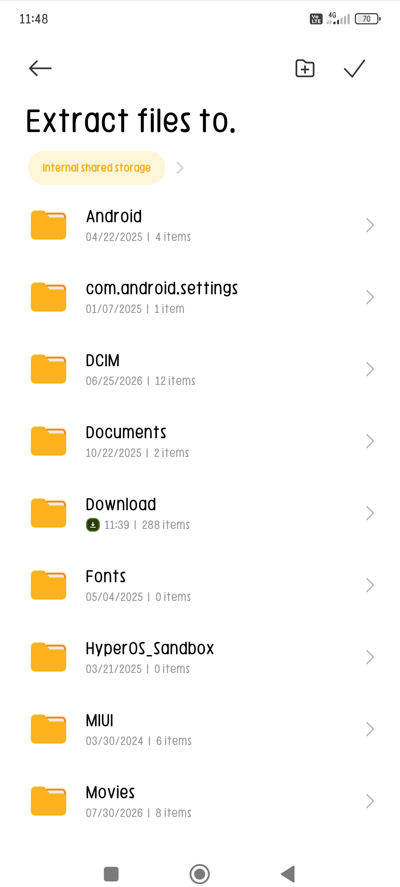
4. Öppna/packa sedan upp filerna från den nedladdade zip-filen från Recipe Keeper till valfri lagringsplats.
5. Välj sedan "Importera recept från Paprika eller Recipe Keeper" i KitchenPal-appen.
Exportera recept-sidan i Recipe Keeper
Klicka på "Öppna" för att packa upp ZIP-filen
Välj mappen där du vill packa upp dessa filer
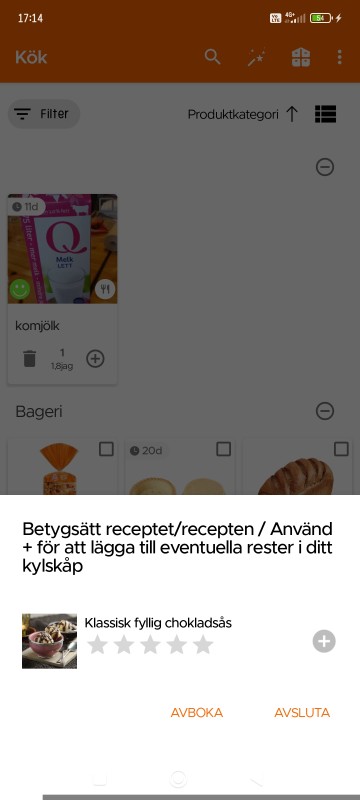
When you finish cooking a recipe, the app will give you an option to deduct the used items from your pantry and keep your kitchen updated.
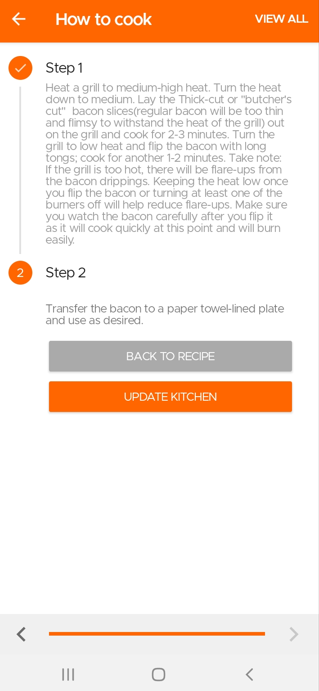
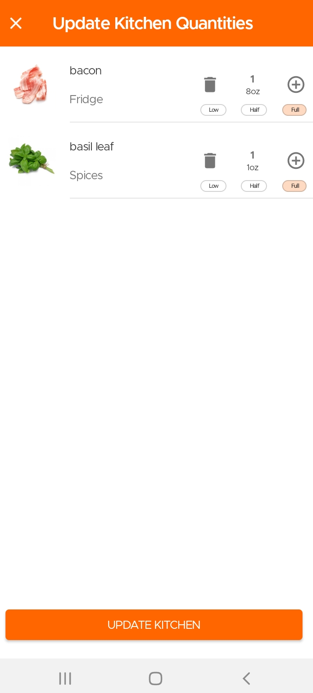
Go to the Recipes Section and click the Overflow menu (three dots) at the top.
Then click on Saved Recipes to see all the Recipes Saved or Submitted by you.
One of the great advantages of KitchenPal is that you can easily find what to cook with what's in your pantry at any time. But what should you do, when you are looking to cook with only a few specific ingredients in your kitchen (or maybe just looking for inspiration). We have you covered.
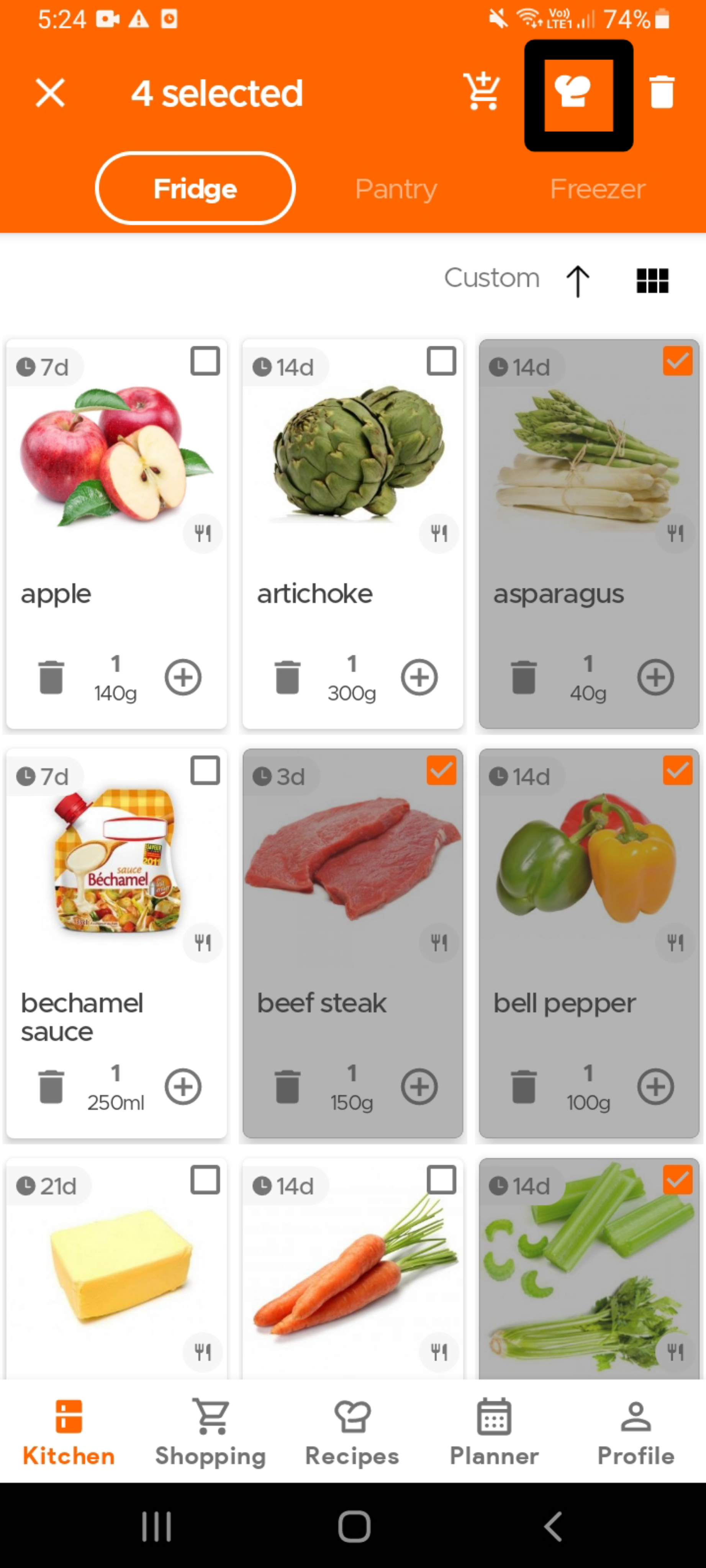
To find recipes using specific ingredients that are already in your kitchen, simply select the ingredient(s) - see the image below (you can select as many ingredients as you want) - and then click on the Recipes icon (chef's hat) on the top app bar.
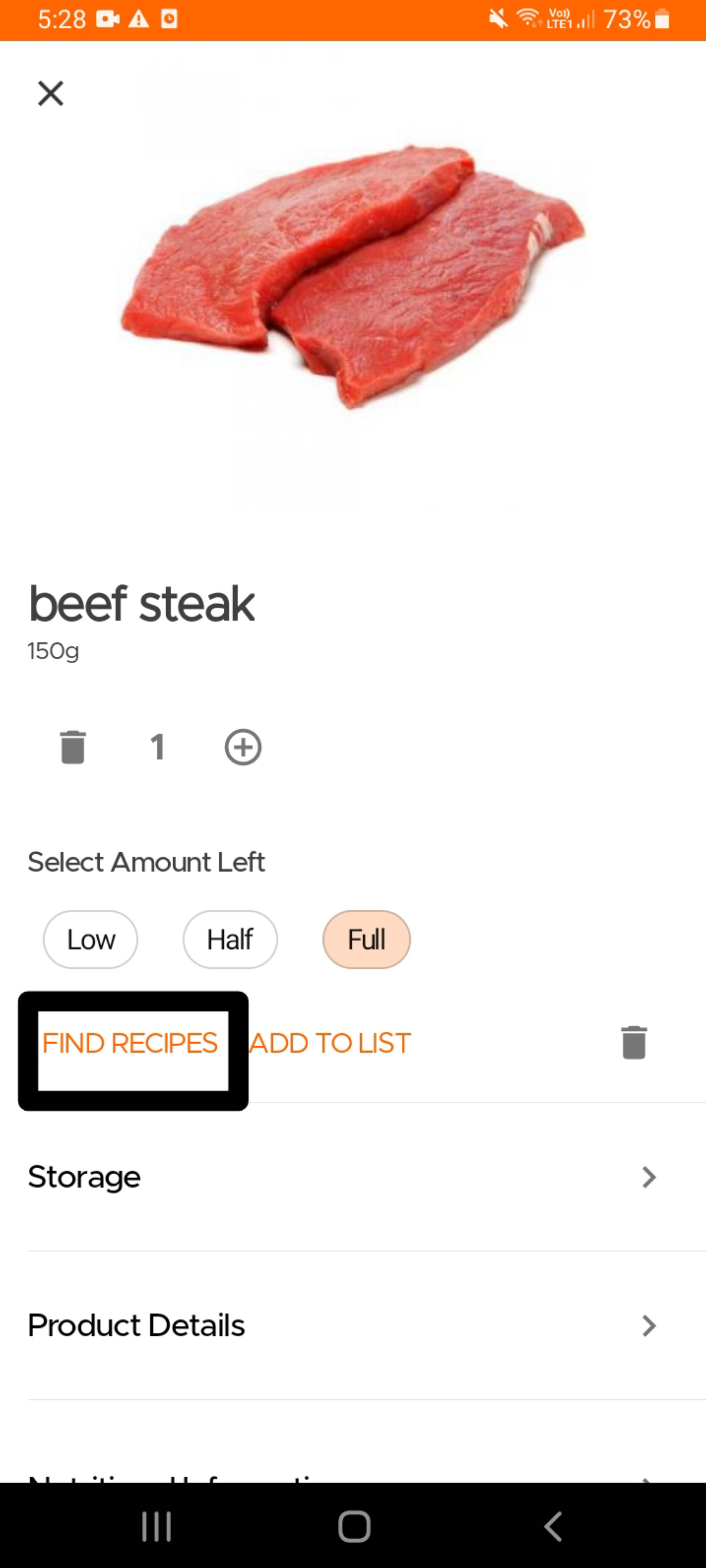
Alternatively, if you are looking for recipes that use a single specific ingredient , you can also open the product card for that ingredient and click on the "Find Recipes" option.
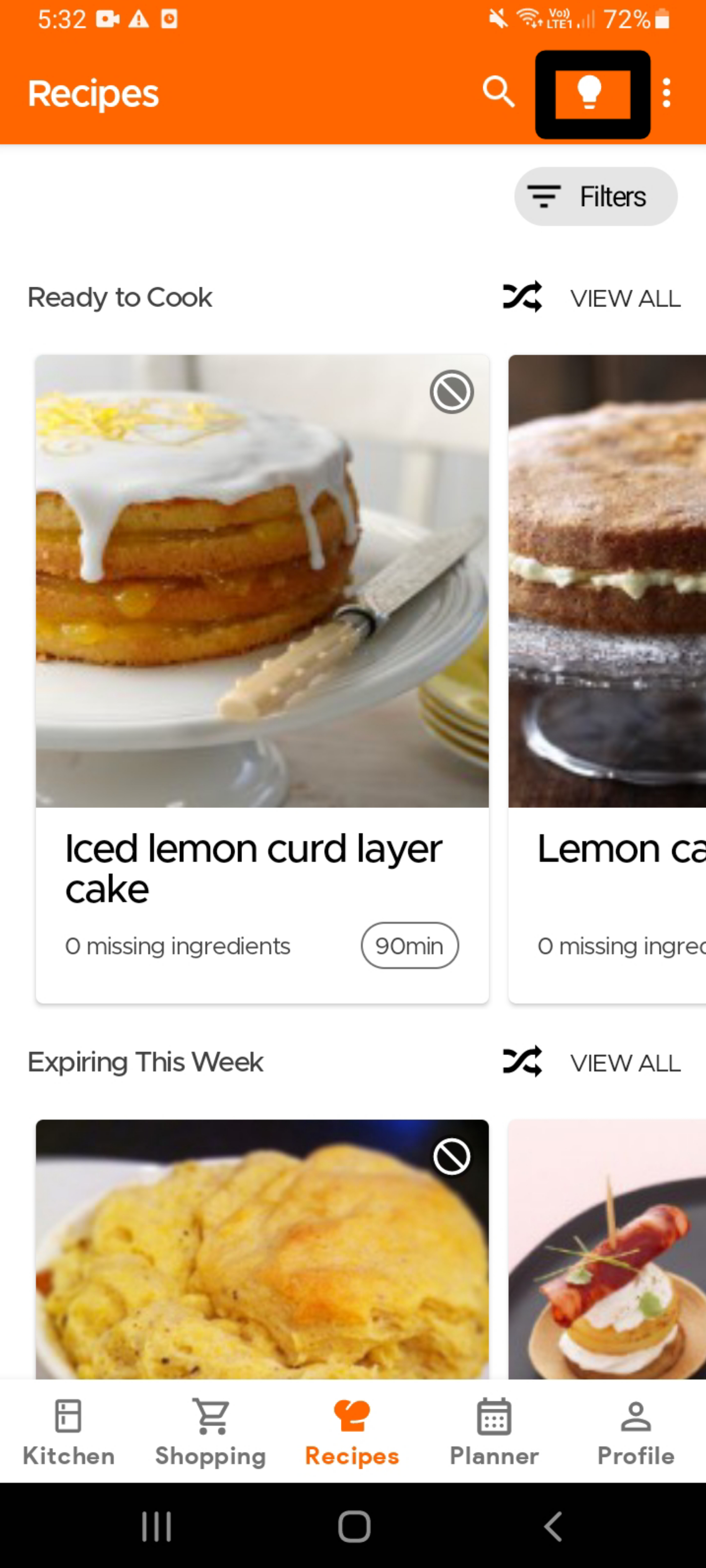
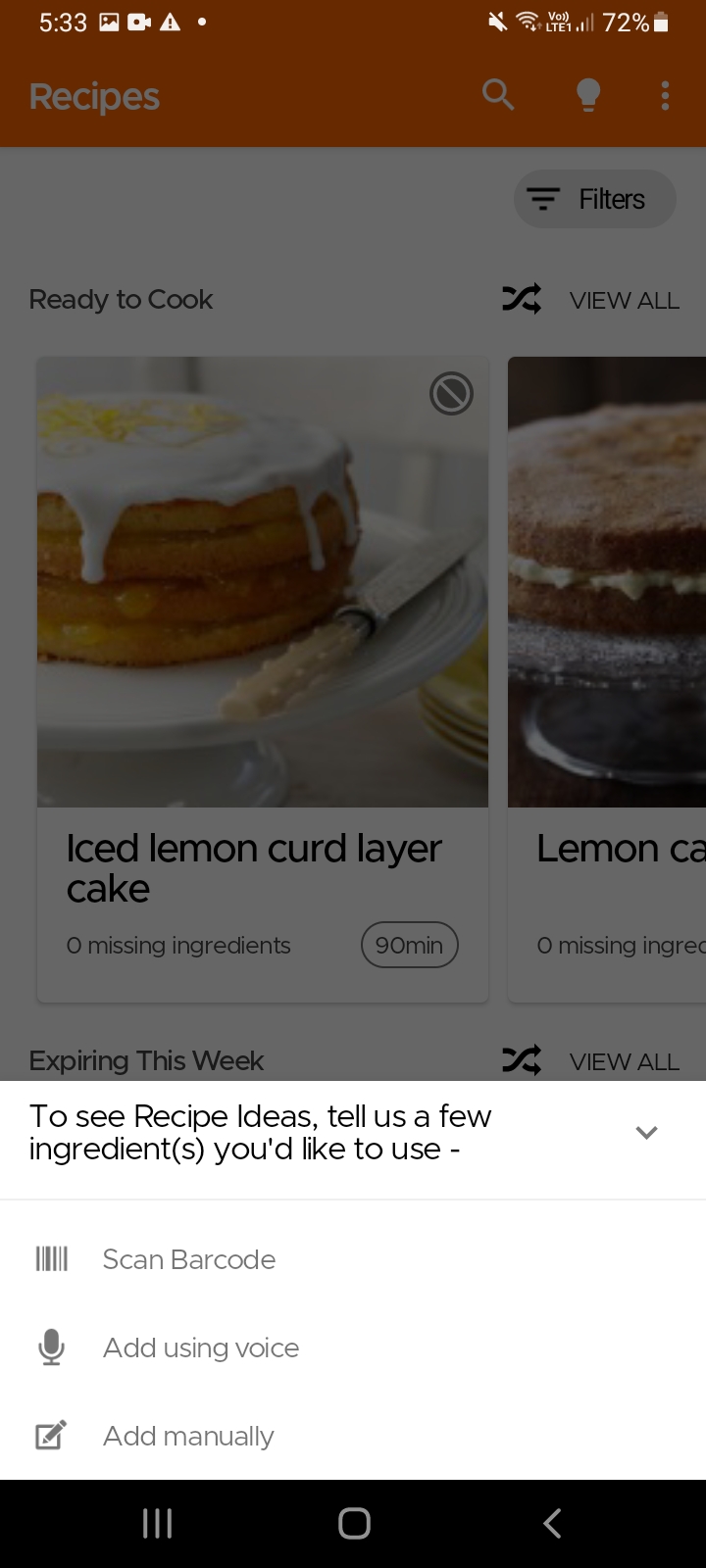
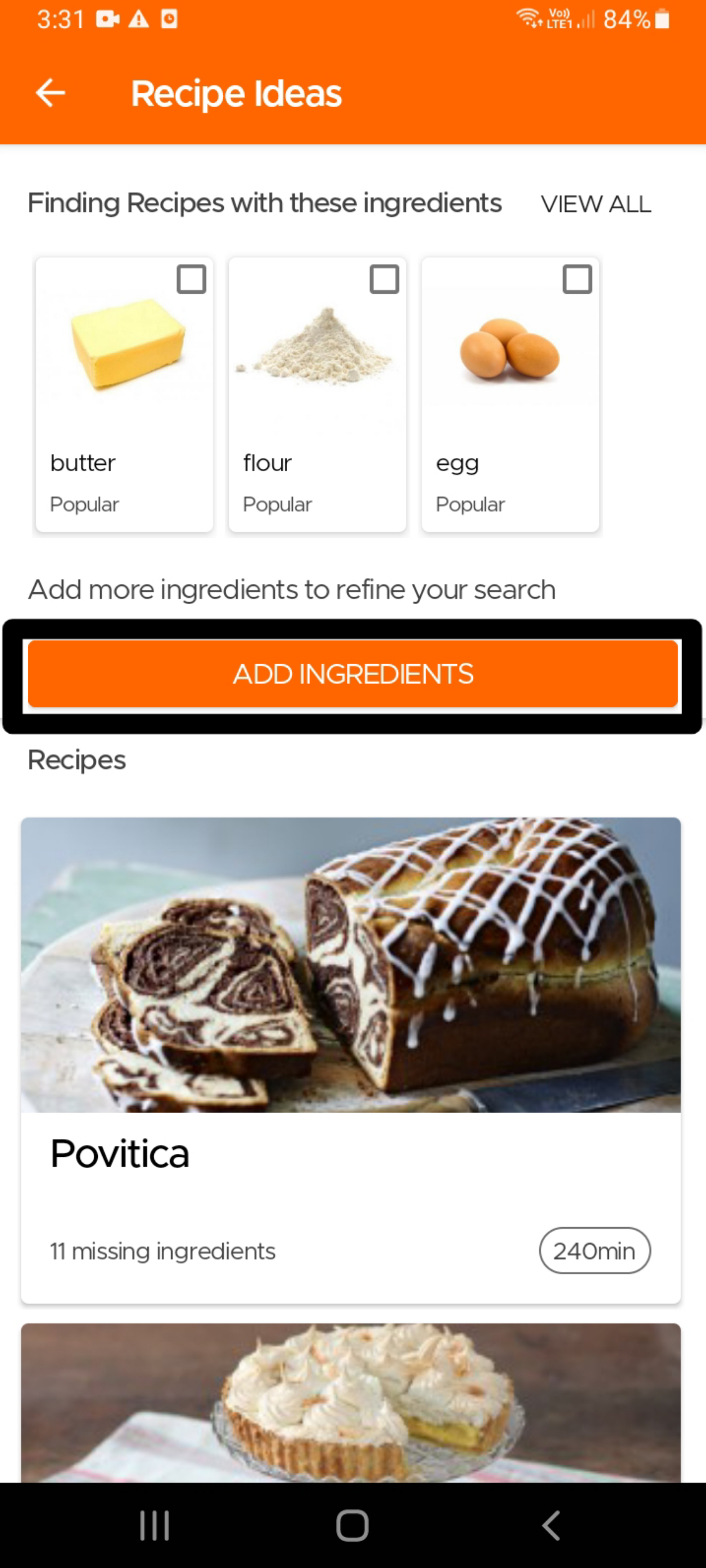
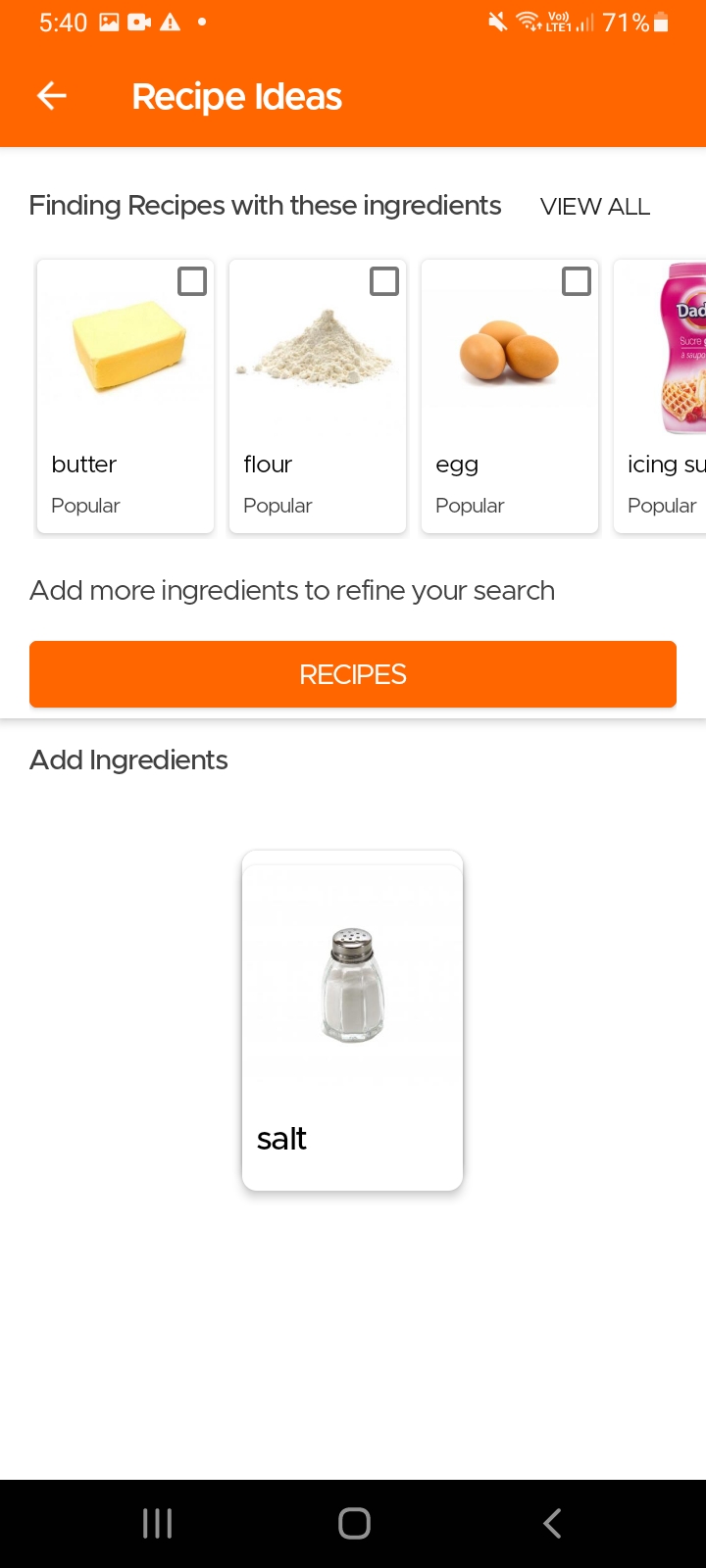
Another option to find recipes using specific ingredients, especially in case you do not use our Pantry feature, is to simply go to the Recipes page and click on the Idea icon (light bulb) on the top right. The app will then ask you to input the main ingredients for which you are looking for recipes. It will then give you tailored recommendations which you can refine further by choosing additional ingredients that should be included or excluded.
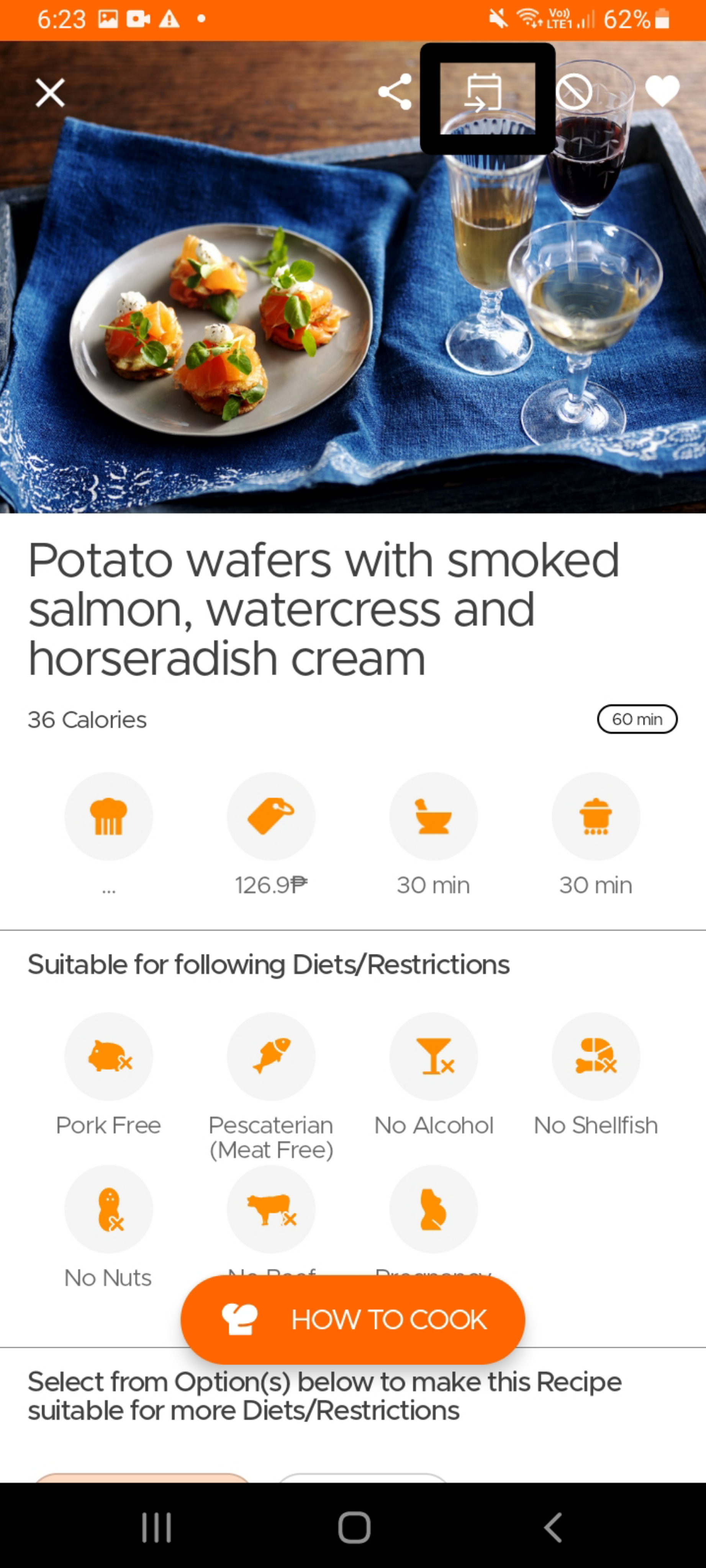
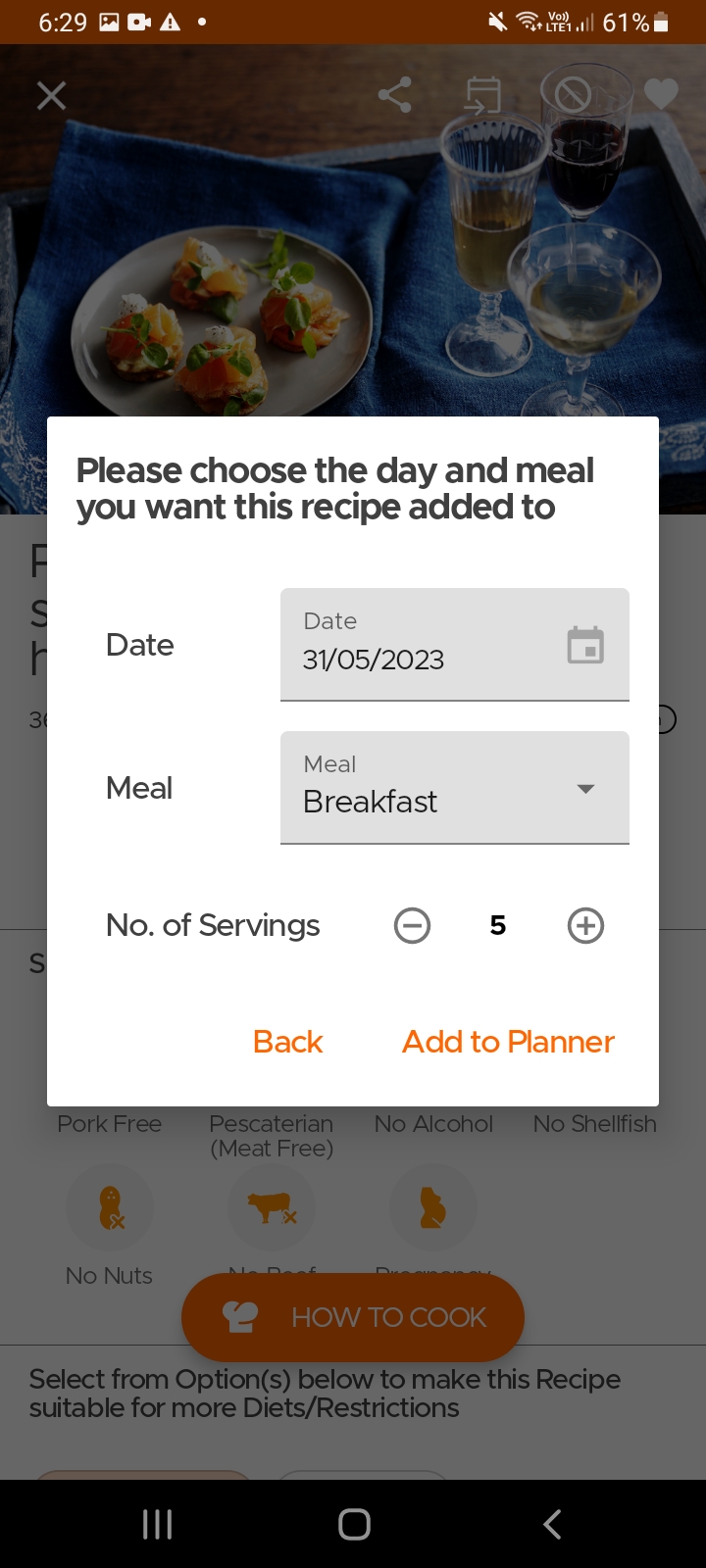
To add a recipe to your planner, simply open the recipe page and click on the Add to Planner icon on top. Select the date, meal and the number of servings and viola, you are done.
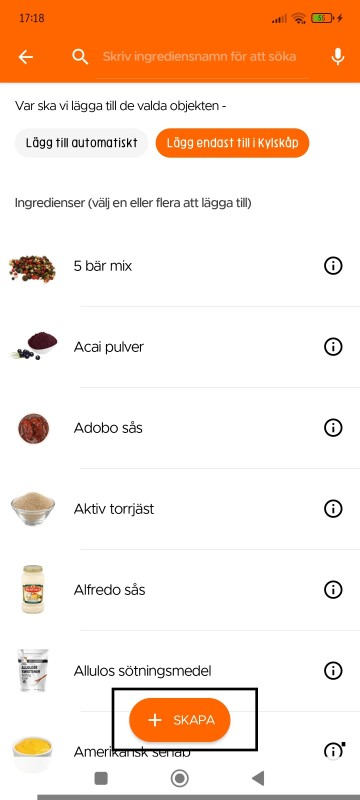
Användare kan skapa hemlagade/tillagade rätter eller rester i lagret (med skapa-alternativet) och ange ett utgångsdatum för dem. På så sätt kan du se en lista över alla tillgängliga rätter att äta, tillsammans med varorna i ditt lager.
Dessutom, efter att du lagat ett recept [från receptsidan], får du nästa gång du öppnar appen ett meddelande som detta i Kök-avsnittet, vilket gör att du kan lägga till dina rester direkt i köket (varorna läggs automatiskt till i kylskåpet med 3 dagars utgångsdatum, båda kan ändras senare).
Still Need Help?
Can't find what you're looking for? Our support team is here to help!
Email Support Help Center