Veelgestelde Vragen over Recepten
Discover how to find recipes with your ingredients, upload your own recipes, save favorites, and manage your recipe collection in KitchenPal.
Now you can upload your own recipes or your favourite recipes from other blogs/sites. The simplest way to import a recipe to KitchenPal is to share the URL with KitchenPal while visiting the recipe blog with your browser (choose Share and then scroll and select the KitchenPal app from the list of apps available to share the content with).
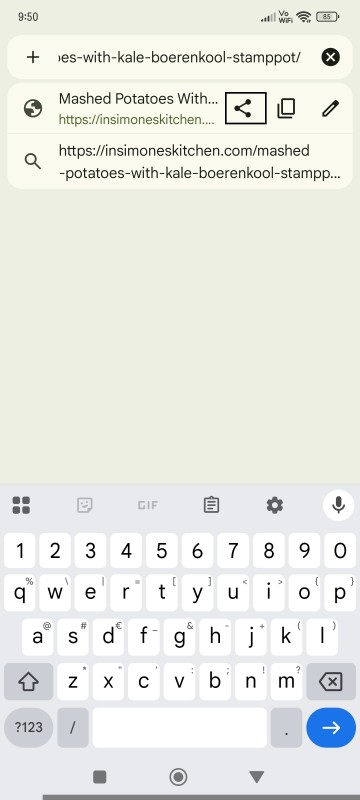
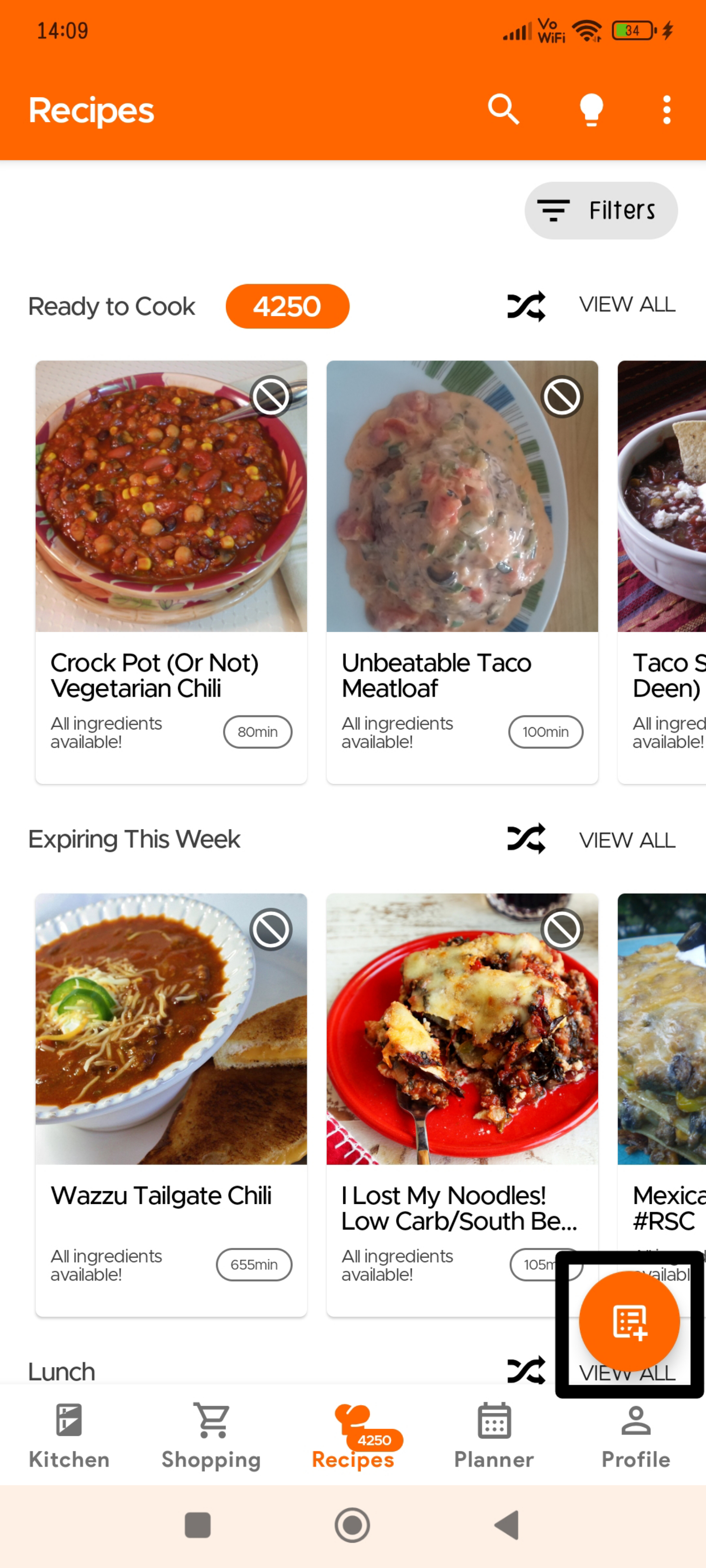
Recipes usually get added automatically but sometimes it may take our team a couple of days to approve these recipes (we check to see if everything is imported correctly, and items are mapped to ones in our DB and your Kitchen).
Or you can go to the Recipe Section and click the Overflow icon (three dots) on the top right:
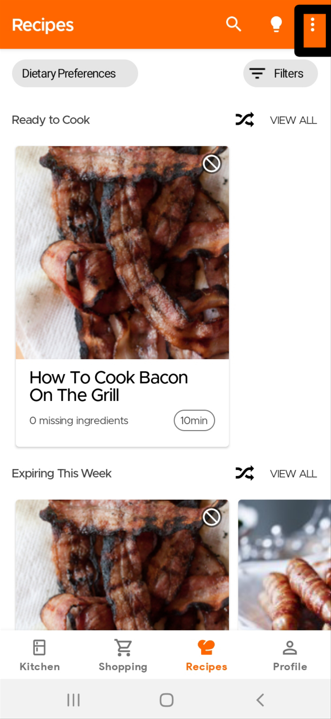
Click on Upload Recipes
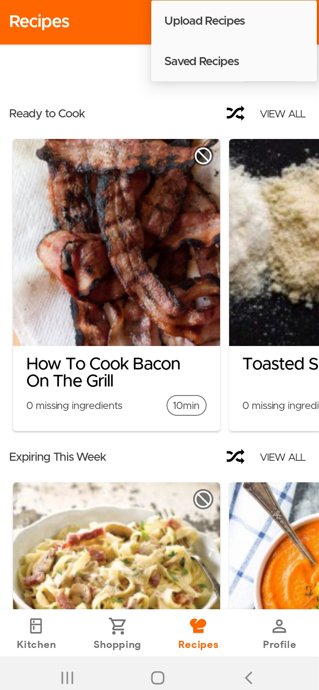
Then you will have the option to choose if you want to submit a recipe from another website or manually submit your own recipe.
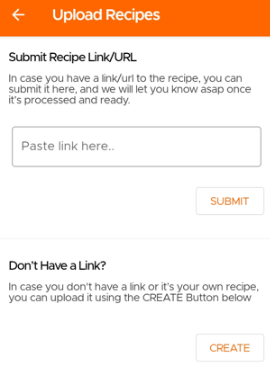
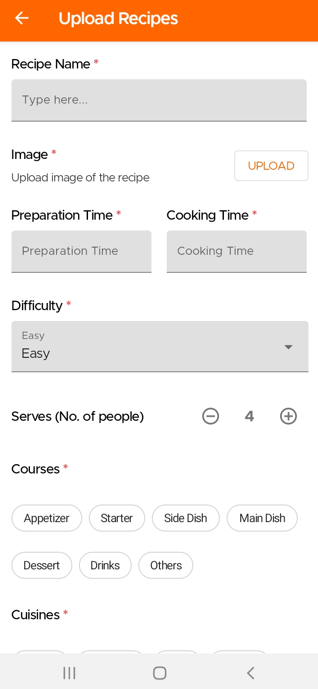
If you wish to manually submit your own recipe, you will need to fill in the required fields marked with an asterisk.
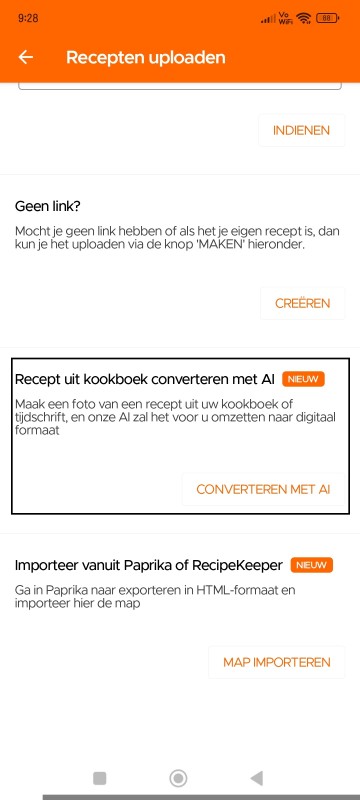
Je kunt nu recepten uploaden door simpelweg een foto te maken - of dat nu van je kookboek, een tijdschrift, of zelfs handgeschreven notities is (alleen beschikbaar voor onze Premium-gebruikers). Let op: recepten die via Kookboek AI zijn geüpload, blijven privé voor de gebruiker.
Om je recepten te scannen/uploaden met Kookboek met AI, ga je naar de Receptenpagina en selecteer je Recept Uploaden, kies vervolgens 'Recept Converteren van Kookboek met AI'
Stap 1: Maak een foto van je recept
Stap 2: Voer de Receptnaam in
Stap 3: Maak een foto van het afgewerkte gerecht (optioneel)
Stap 4: Maak een foto van de kookdetails (porties, bereidingstijd, kooktijd)
Stap 5: Maak een foto van de ingrediëntenlijst
Stap 6: Maak een foto van de instructies
Stap 7: Selecteer de keuken en het type gang voor je recept
Om je Paprika-recepten te importeren in KitchenPal:
1. Ga naar Instellingen in Paprika.
2. Selecteer "Recepten Exporteren."
3. Kies HTML als formaat.
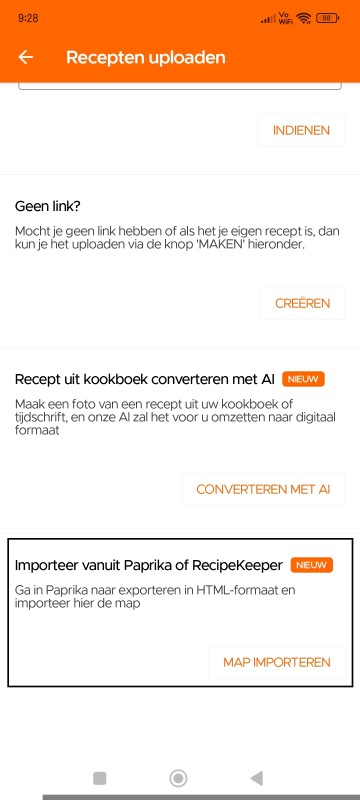
4. Selecteer vervolgens in de KitchenPal-app "Recepten importeren uit Paprika of Recipe Keeper."
Recepten exporteren-pagina van Paprika
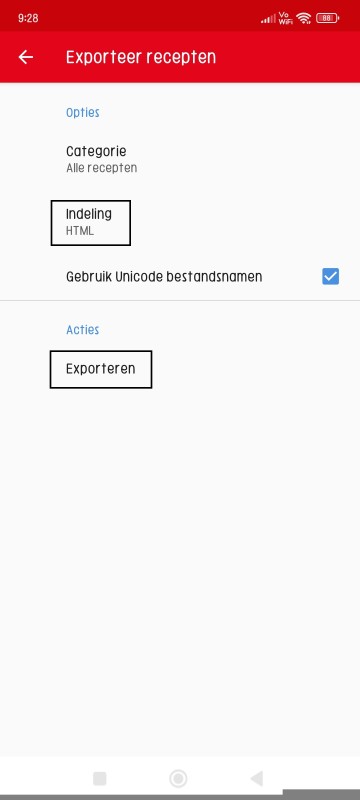
Recepten uploaden-pagina van KitchenPal
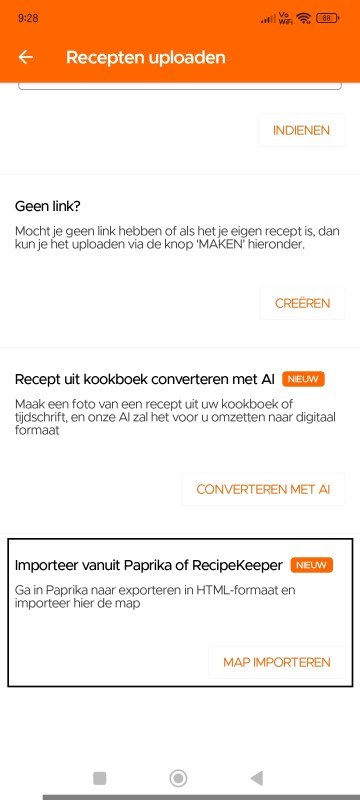
Om je Recipe Keeper-recepten te importeren in KitchenPal:
1. Ga naar Instellingen in Recipe Keeper.
2. Selecteer "Recepten Exporteren."
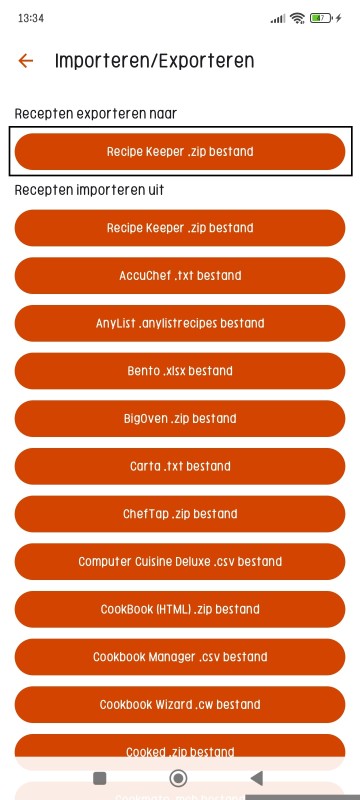
3. Kies Recepten Exporteren naar (Recipe Keeper .zip-bestand)
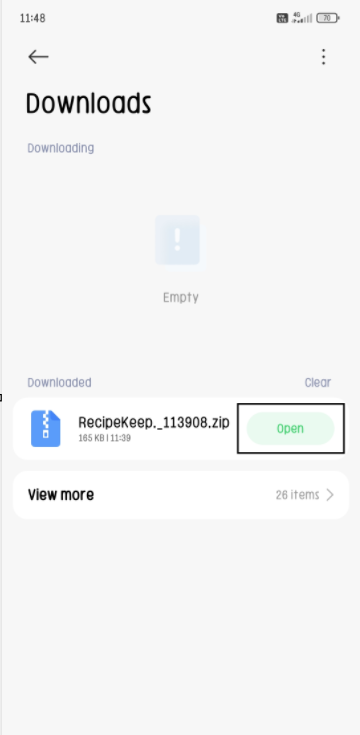
4. Open/pak vervolgens in het gedownloade zip-bestand van Recipe Keeper de bestanden uit naar de opslag van je keuze.
5. Selecteer vervolgens in de KitchenPal-app "Recepten importeren uit Paprika of Recipe Keeper."
Recepten exporteren-pagina van Recipe Keeper
Klik op 'Openen' om het ZIP-bestand uit te pakken
Kies de map waarin je deze bestanden wilt uitpakken
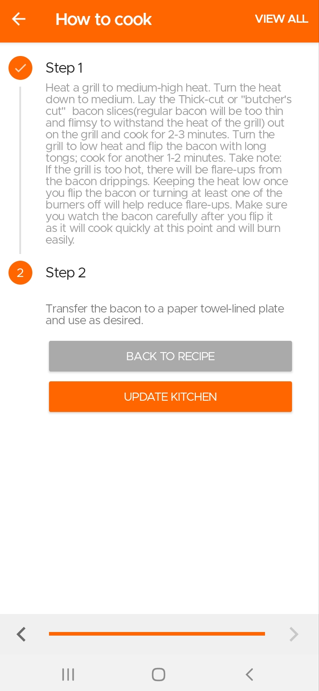
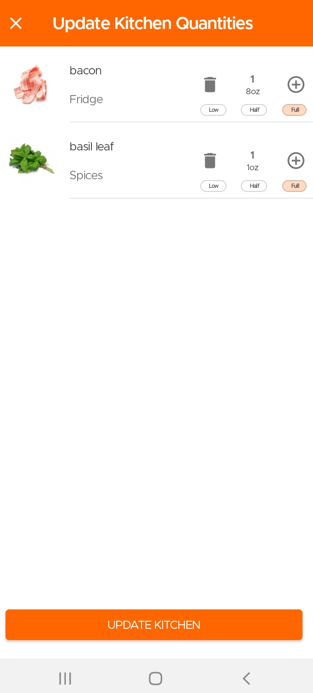
When you finish cooking a recipe, the app will give you an option to deduct the used items from your pantry and keep your kitchen updated.
Go to the Recipes Section and click the Overflow menu (three dots) at the top.
Then click on Saved Recipes to see all the Recipes Saved or Submitted by you.
One of the great advantages of KitchenPal is that you can easily find what to cook with what's in your pantry at any time. But what should you do, when you are looking to cook with only a few specific ingredients in your kitchen (or maybe just looking for inspiration). We have you covered.
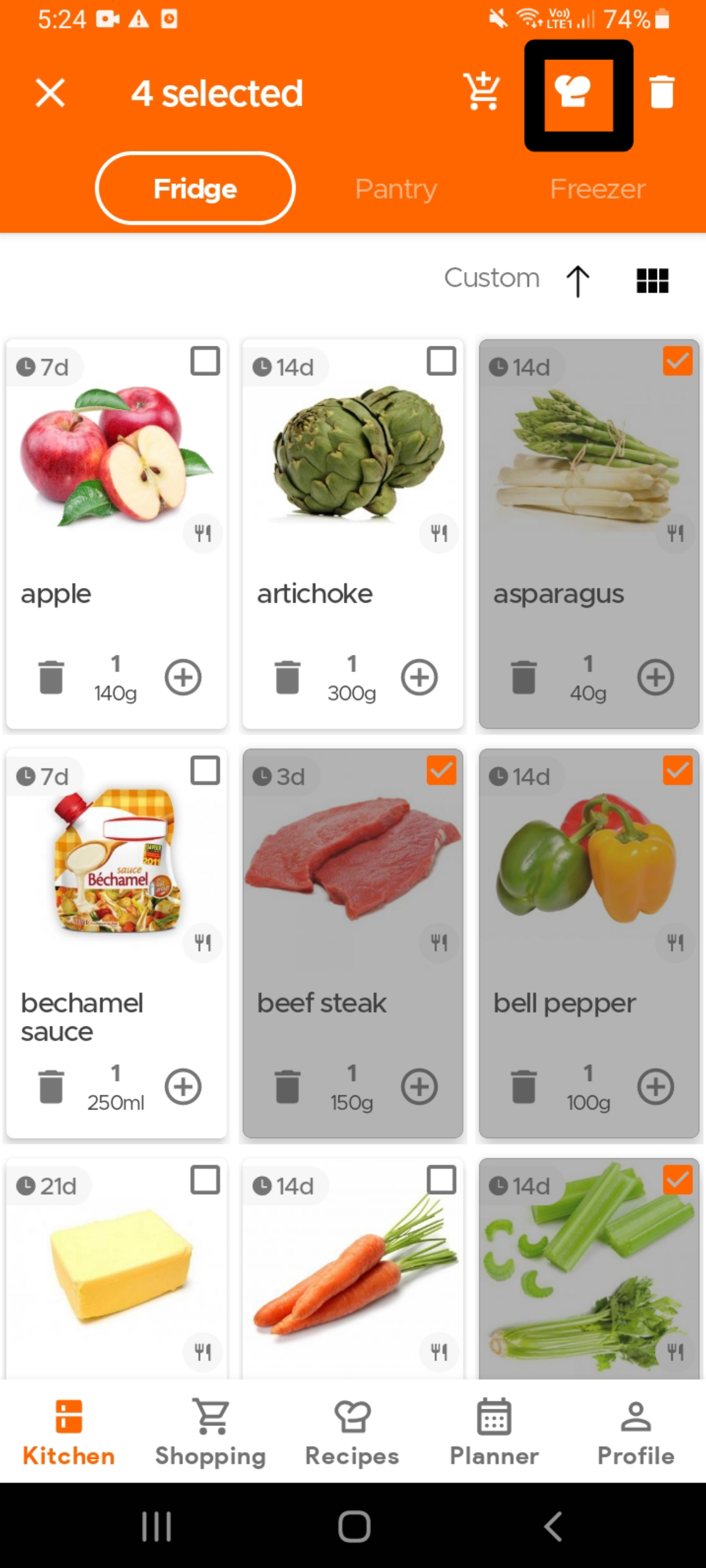
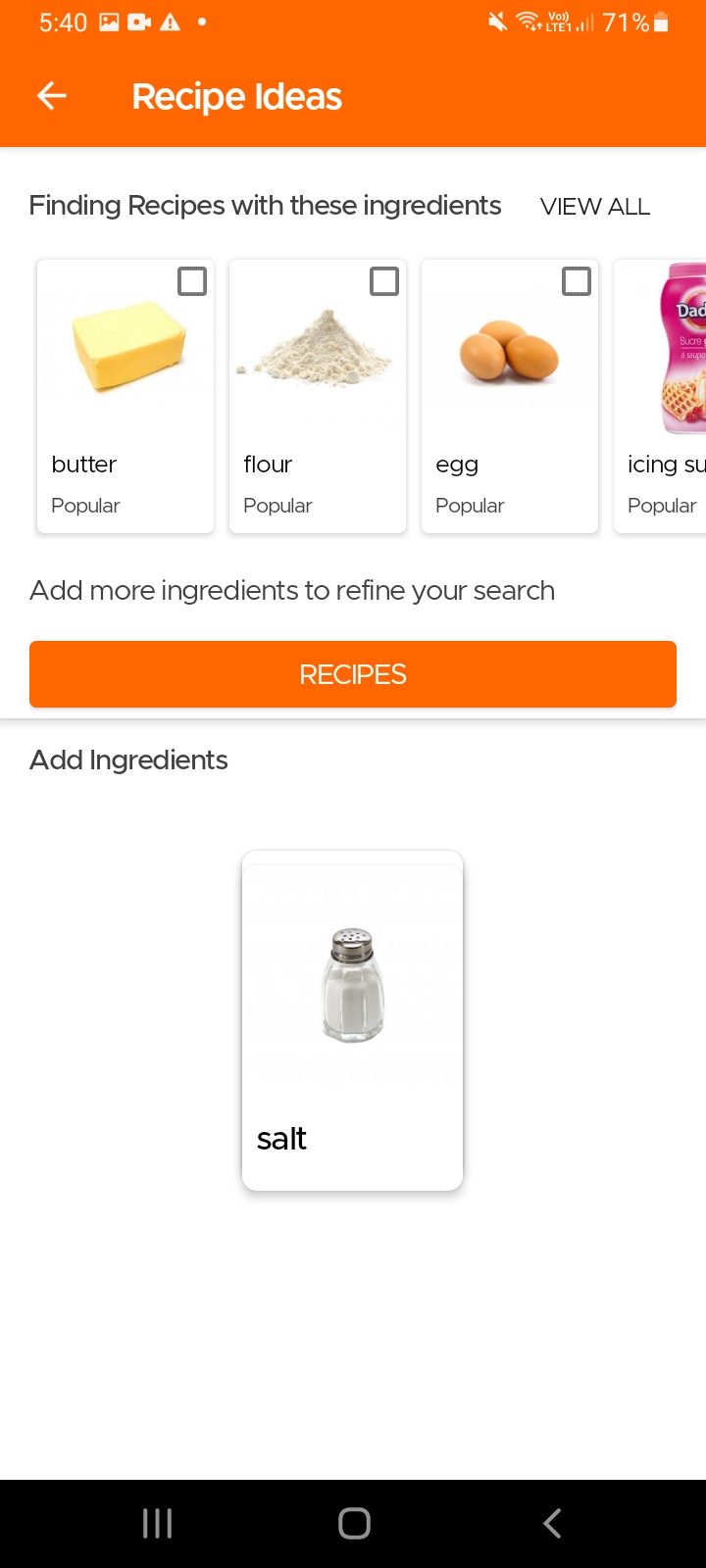
To find recipes using specific ingredients that are already in your kitchen, simply select the ingredient(s) - see the image below (you can select as many ingredients as you want) - and then click on the Recipes icon (chef's hat) on the top app bar.
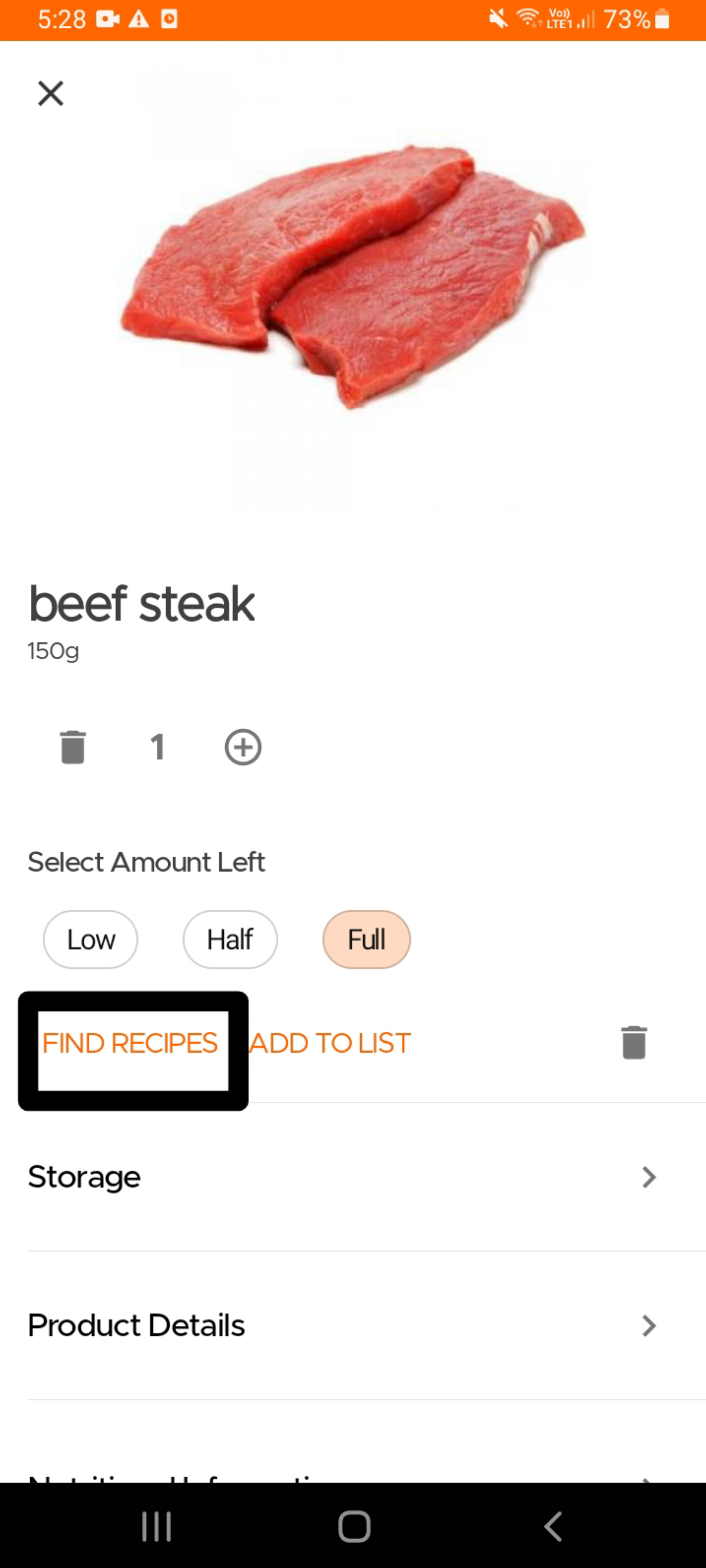
Alternatively, if you are looking for recipes that use a single specific ingredient , you can also open the product card for that ingredient and click on the "Find Recipes" option.
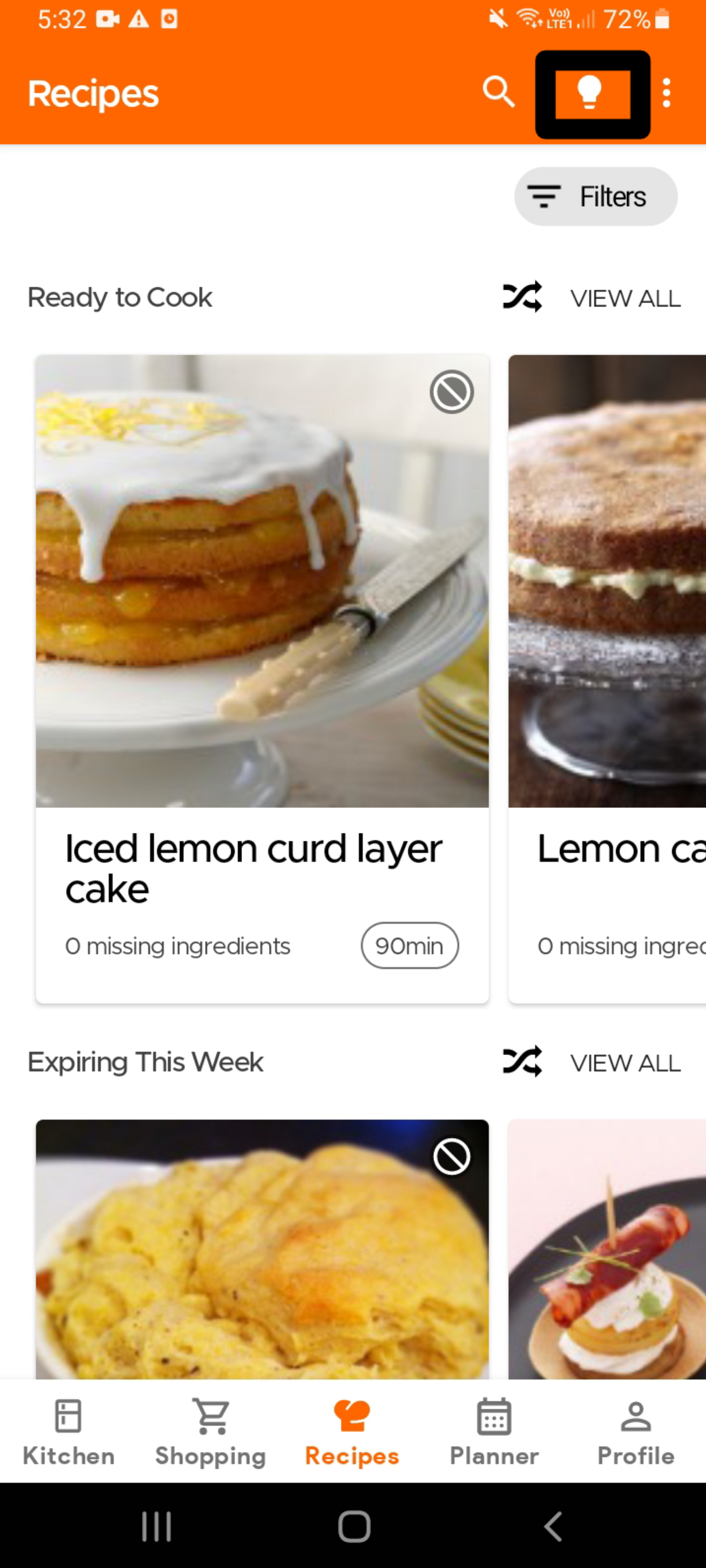
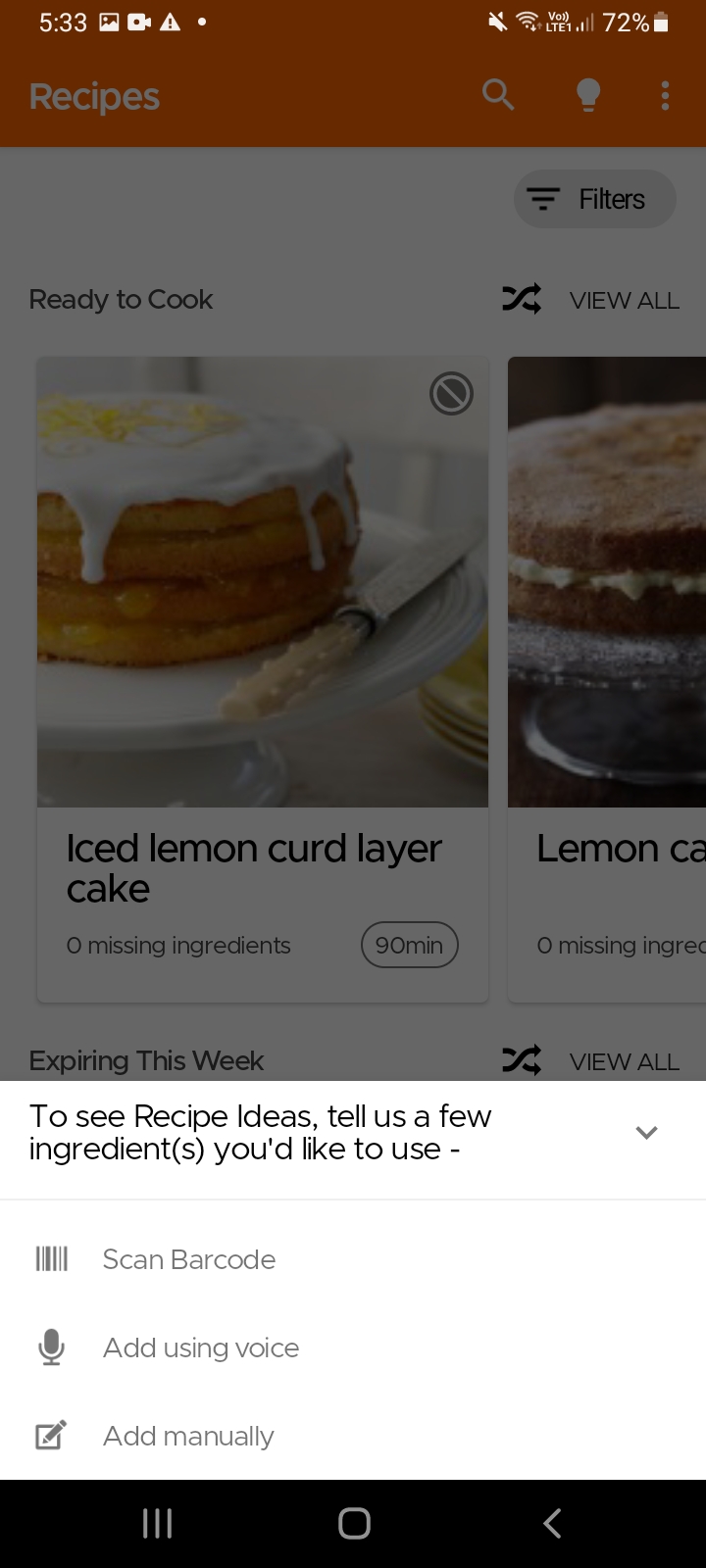
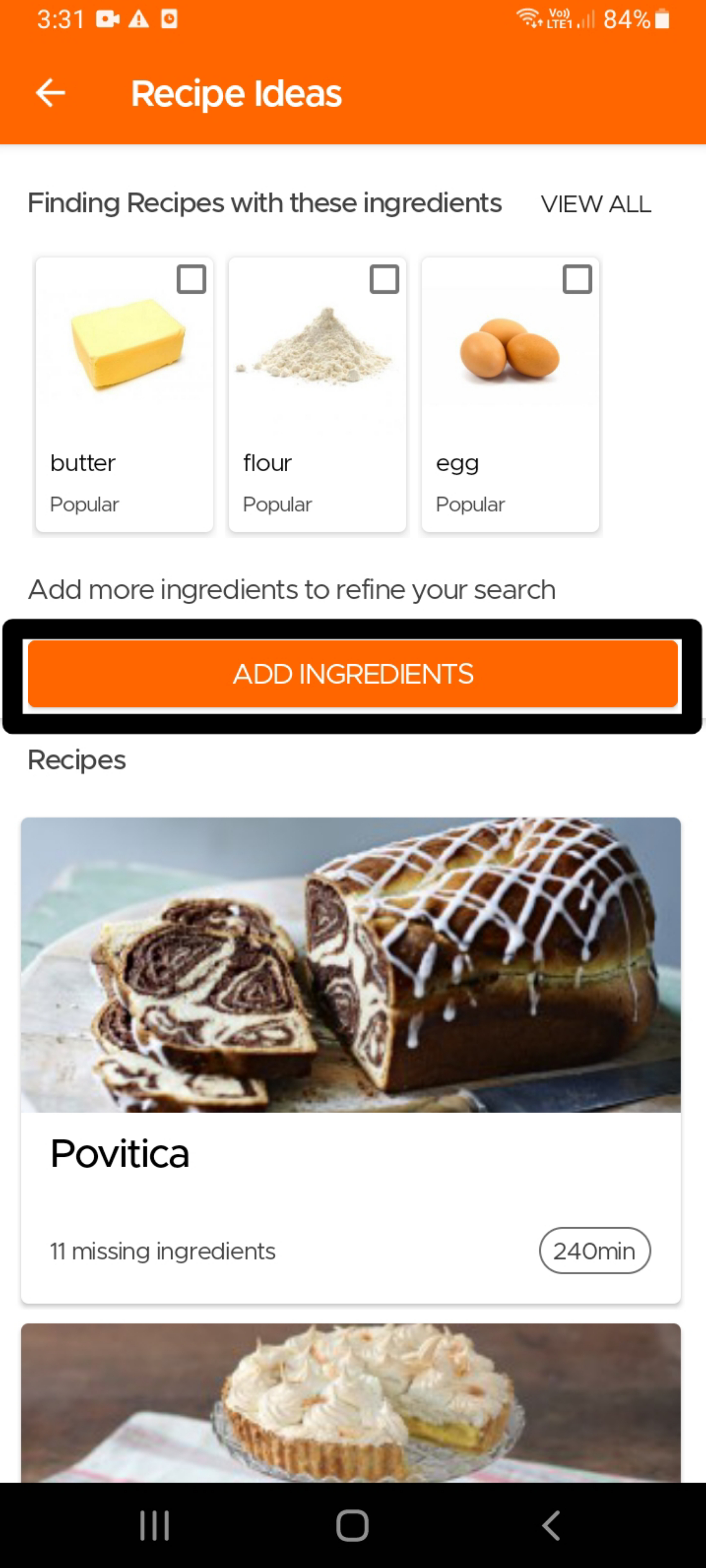
Another option to find recipes using specific ingredients, especially in case you do not use our Pantry feature, is to simply go to the Recipes page and click on the Idea icon (light bulb) on the top right. The app will then ask you to input the main ingredients for which you are looking for recipes. It will then give you tailored recommendations which you can refine further by choosing additional ingredients that should be included or excluded.
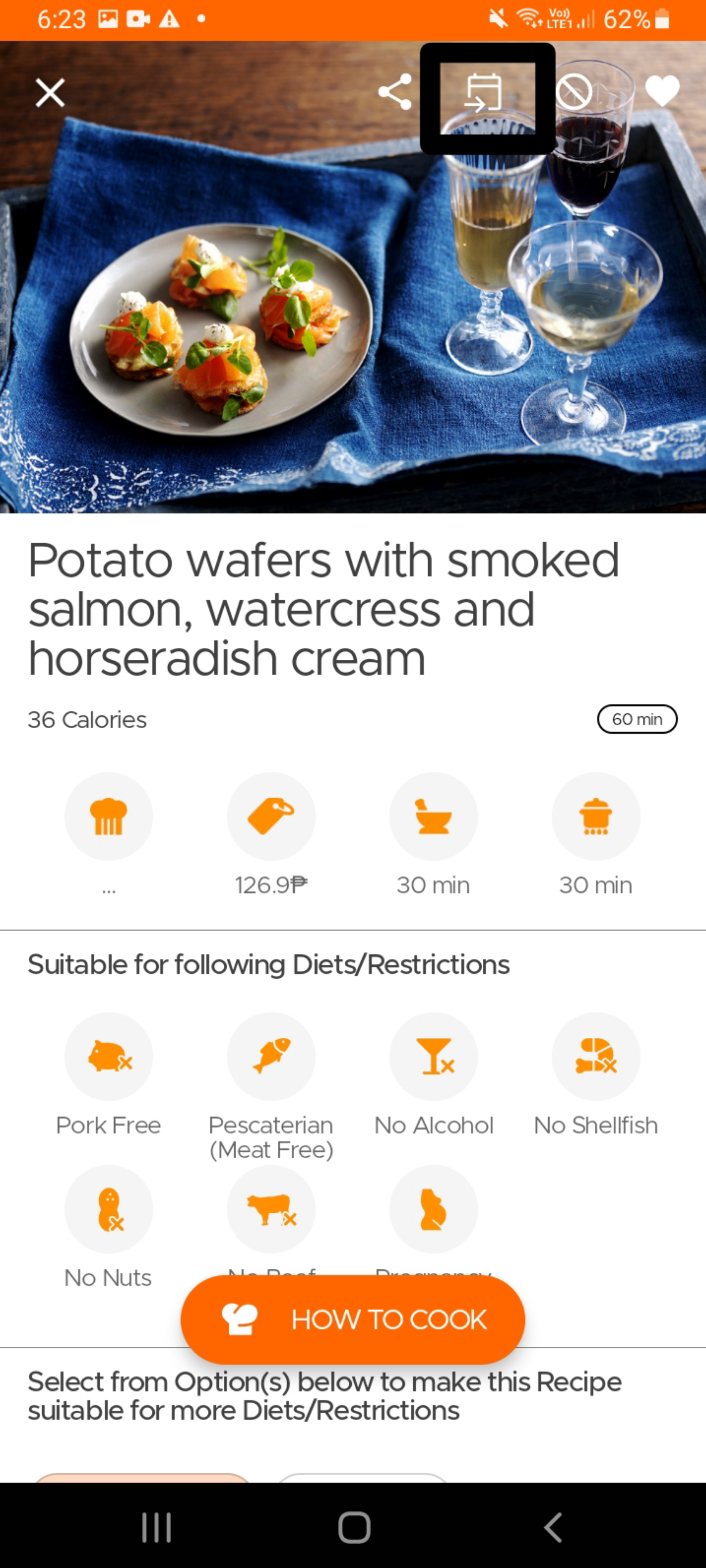
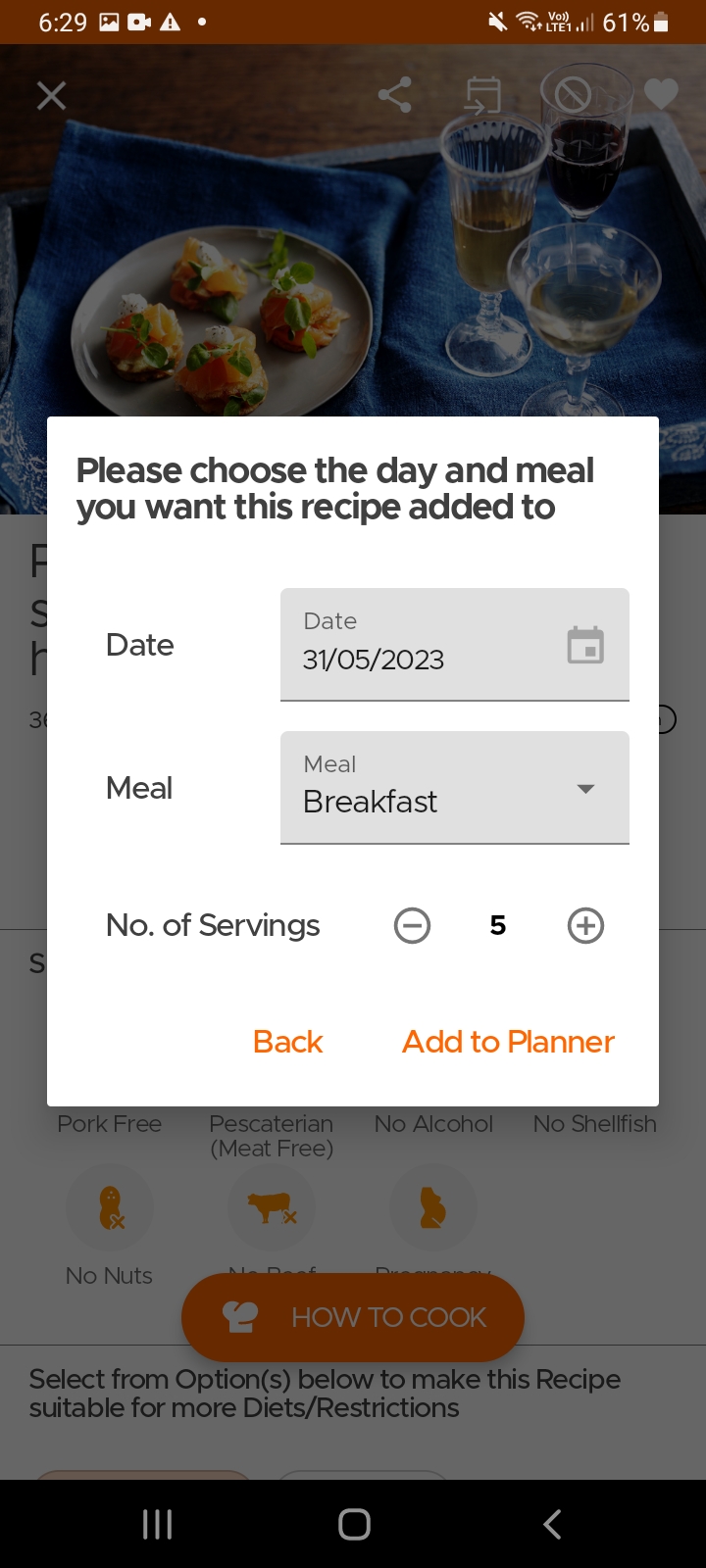
To add a recipe to your planner, simply open the recipe page and click on the Add to Planner icon on top. Select the date, meal and the number of servings and viola, you are done.
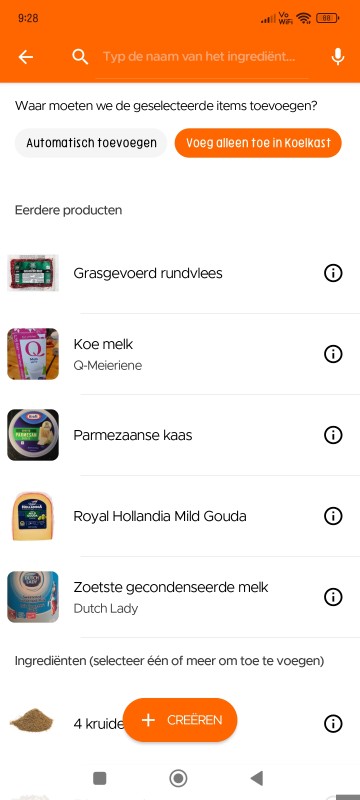
Gebruikers kunnen zelfgemaakte/gekookte gerechten of restjes aanmaken in de voorraad (met de optie aanmaken) en er een vervaldatum voor instellen. Zo kun je een lijst zien van alle beschikbare gerechten om te eten, samen met de items in je voorraad.
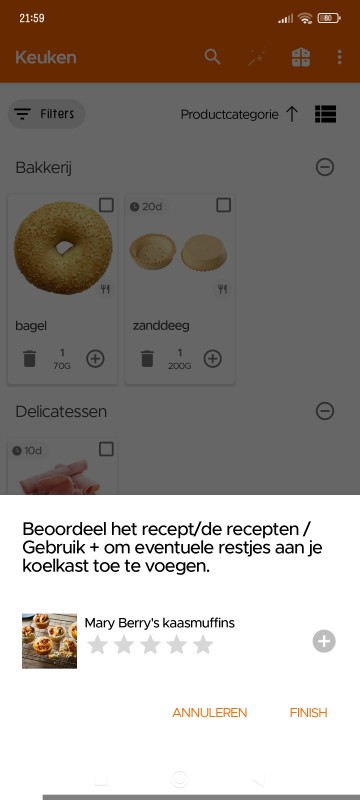
Bovendien krijg je, nadat je een recept hebt gekookt [vanaf de receptpagina], de volgende keer dat je de app opent een bericht zoals dit in de Keuken-sectie, waarmee je je restjes direct aan de keuken kunt toevoegen (de items worden automatisch toegevoegd aan de koelkast met 3 dagen vervaldatum, beide kun je later wijzigen).
Still Need Help?
Can't find what you're looking for? Our support team is here to help!
Email Support Help Center