Recipe FAQs: Finding and Managing Recipes in KitchenPal
Discover how to find recipes with your ingredients, upload your own recipes, save favorites, and manage your recipe collection in KitchenPal.
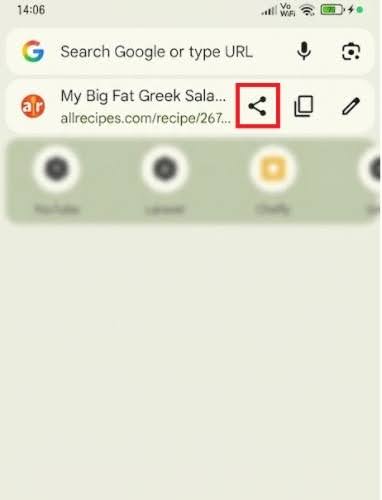
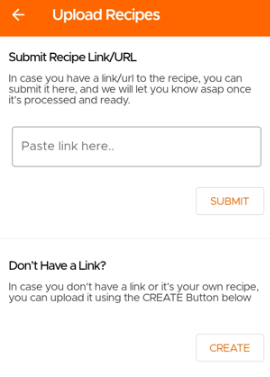
Now you can upload your own recipes or your favourite recipes from other blogs/sites. The simplest way to import a recipe to KitchenPal is to share the URL with KitchenPal while visiting the recipe blog with your browser (choose Share and then scroll and select the KitchenPal app from the list of apps available to share the content with).
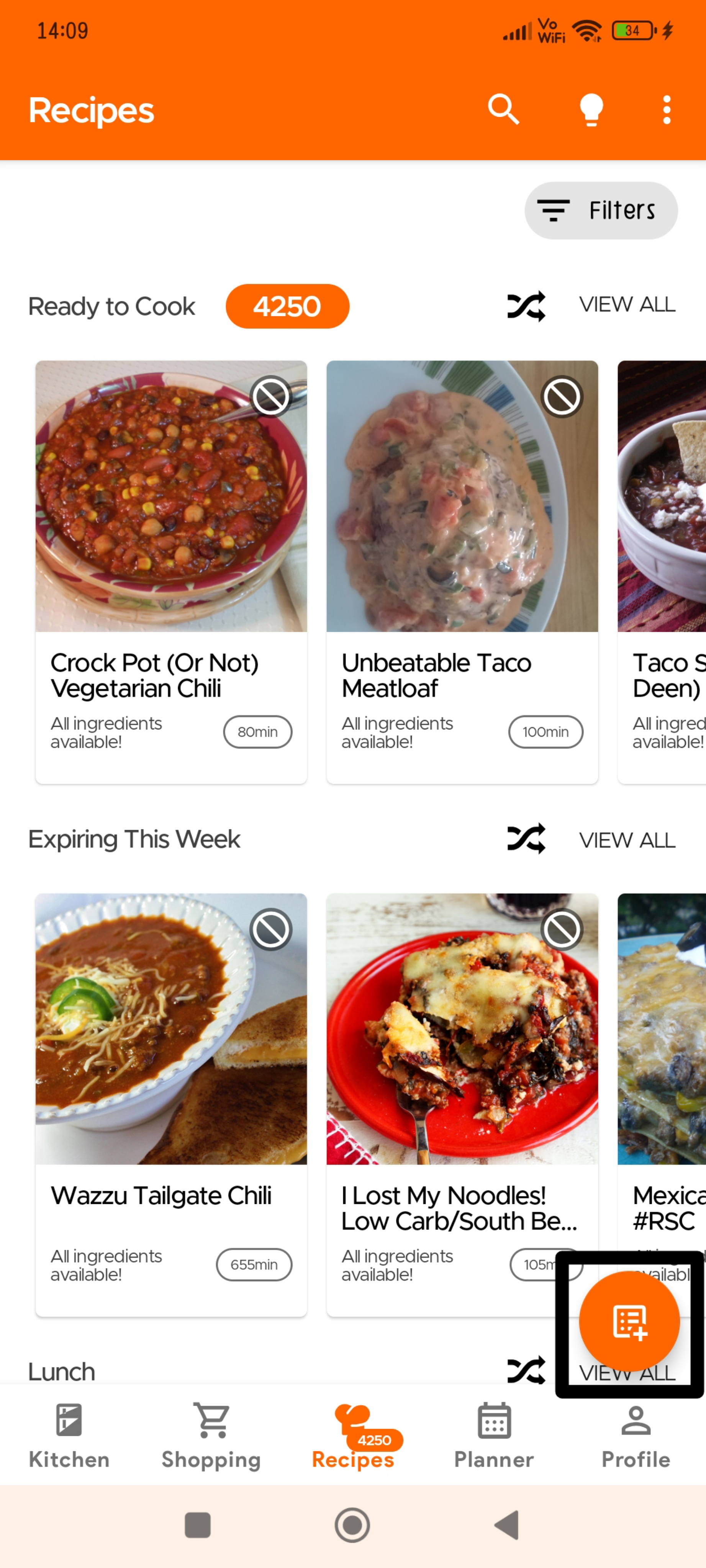
Recipes usually get added automatically but sometimes it may take our team a couple of days to approve these recipes (we check to see if everything is imported correctly, and items are mapped to ones in our DB and your Kitchen).
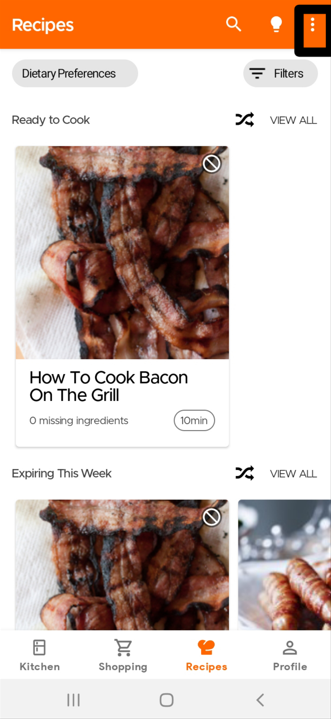
Or you can go to the Recipe Section and click the Overflow icon (three dots) on the top right:
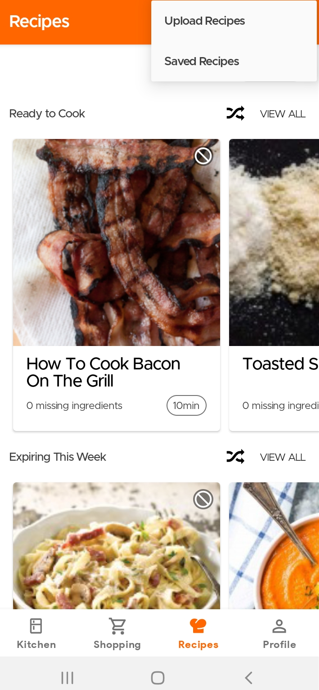
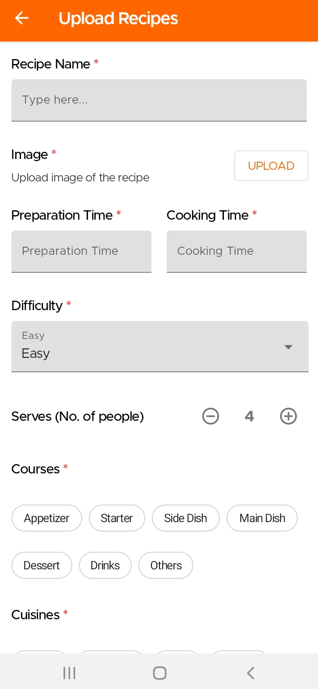
If you wish to manually submit your own recipe, you will need to fill in the required fields marked with an asterisk.
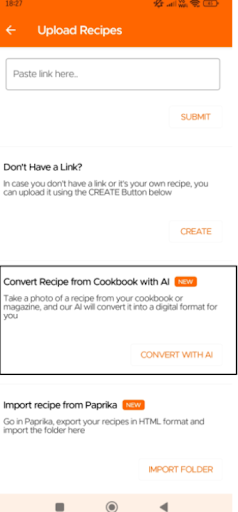
You can now upload recipes simply by taking a photo -whether it's from your cookbook, a magazine, or even handwritten notes (available only to our Premium users). Please note that recipes uploaded through the Cookbook AI remain private to the user.
To scan/upload your recipes using Cookbook with AI, please go to the Recipe page and select Upload Recipe, then choose 'Convert Recipe from Cookbook with AI'
Step 1: Take a photo of your recipe
Step 2: Enter the Recipe Name
Step 3: Take a photo of the finished recipe (optional)
Step 4: Take a photo of the cooking details (servings, prep time, cook time)
Step 5: Take a photo of the ingredients list
Step 6: Take a photo of the instructions
Step 7: Select the cuisine and course type for your recipe
To import your Paprika recipes into KitchenPal:
1. Go to the Settings in Paprika.
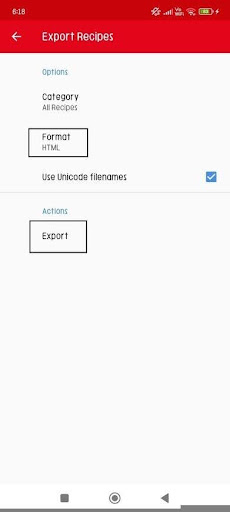
2. Select "Export Recipes."
3. Choose HTML as the format.
4. Then, in the Kitchenpal app, select "Import Recipes from Paprika or Recipe Keeper."
Export Recipes page of Paprika
Upload Recipes page of KitchenPal
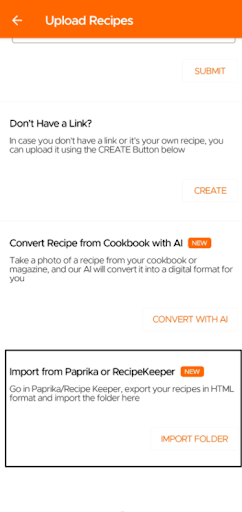
To import your Recipe Keeper recipes into KitchenPal:
1. Go to the Settings in Recipe Keeper.
2. Select "Export Recipes."
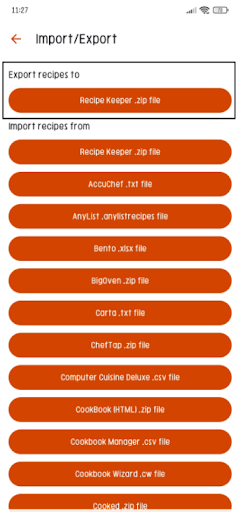
3. Choose Export Recipes to (Recipe Keeper .zip file)
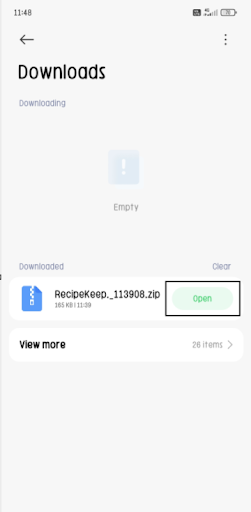
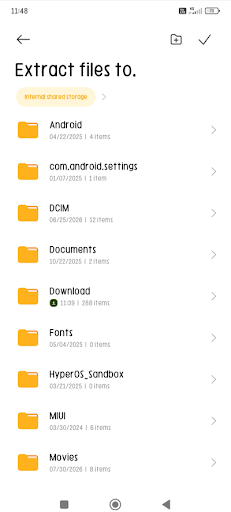
4. Then, in the downloaded zip file from Recipe Keeper, open/extract files to whichever storage you want to keep this.
5. Then, in the Kitchenpal app, select "Import Recipes from Paprika or Recipe Keeper."
Export Recipes page of Recipe Keeper
Click 'Open' to extract the ZIP file
Choose the folder you want to extract these files
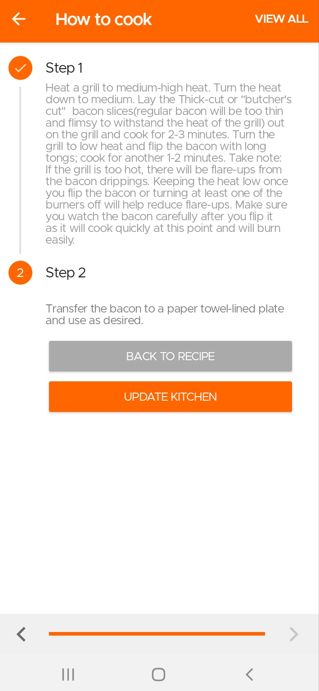
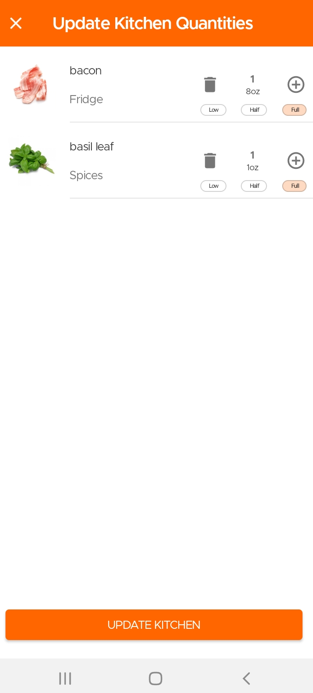
When you finish cooking a recipe, the app will give you an option to deduct the used items from your pantry and keep your kitchen updated.
Go to the Recipes Section and click the Overflow menu (three dots) at the top.
Then click on Saved Recipes to see all the Recipes Saved or Submitted by you.
One of the great advantages of KitchenPal is that you can easily find what to cook with what's in your pantry at any time. But what should you do, when you are looking to cook with only a few specific ingredients in your kitchen (or maybe just looking for inspiration). We have you covered.
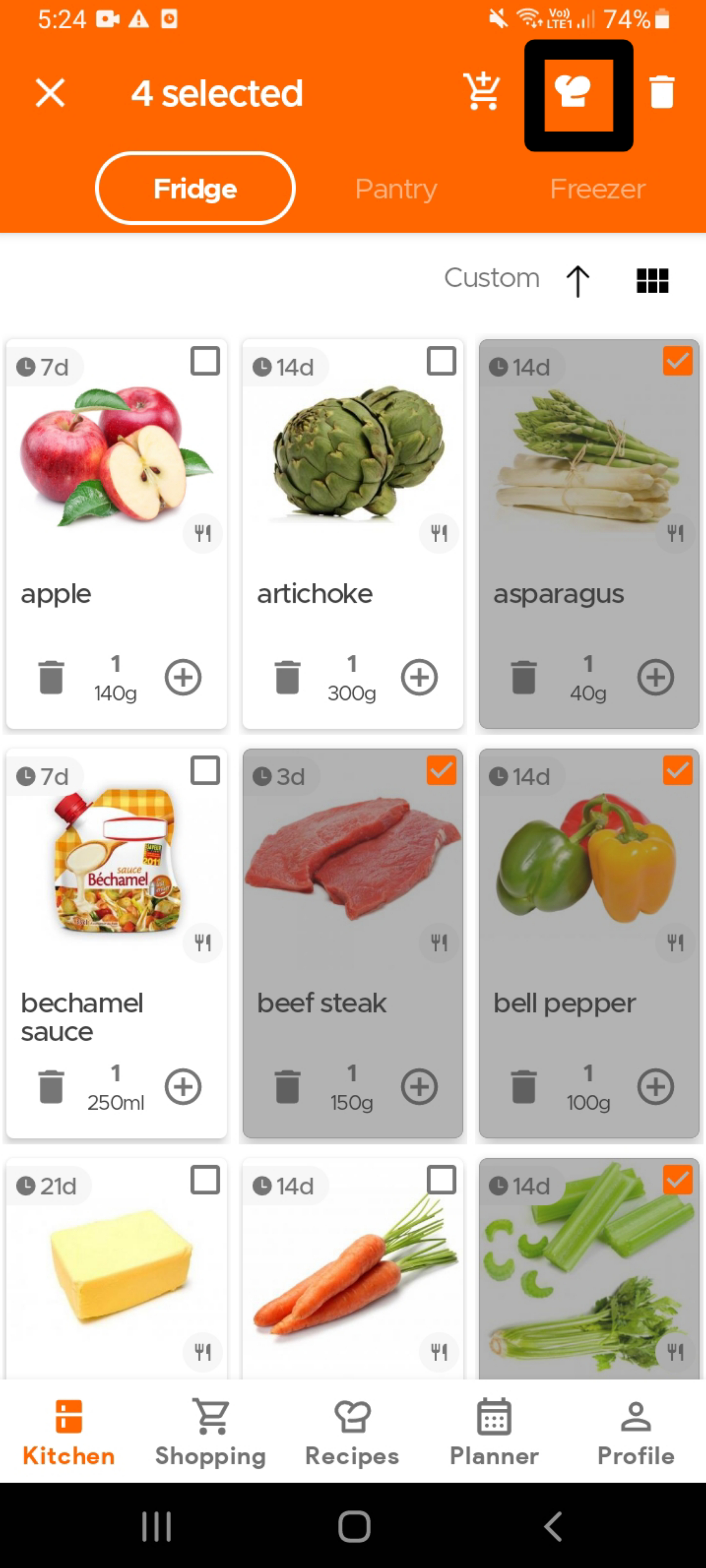
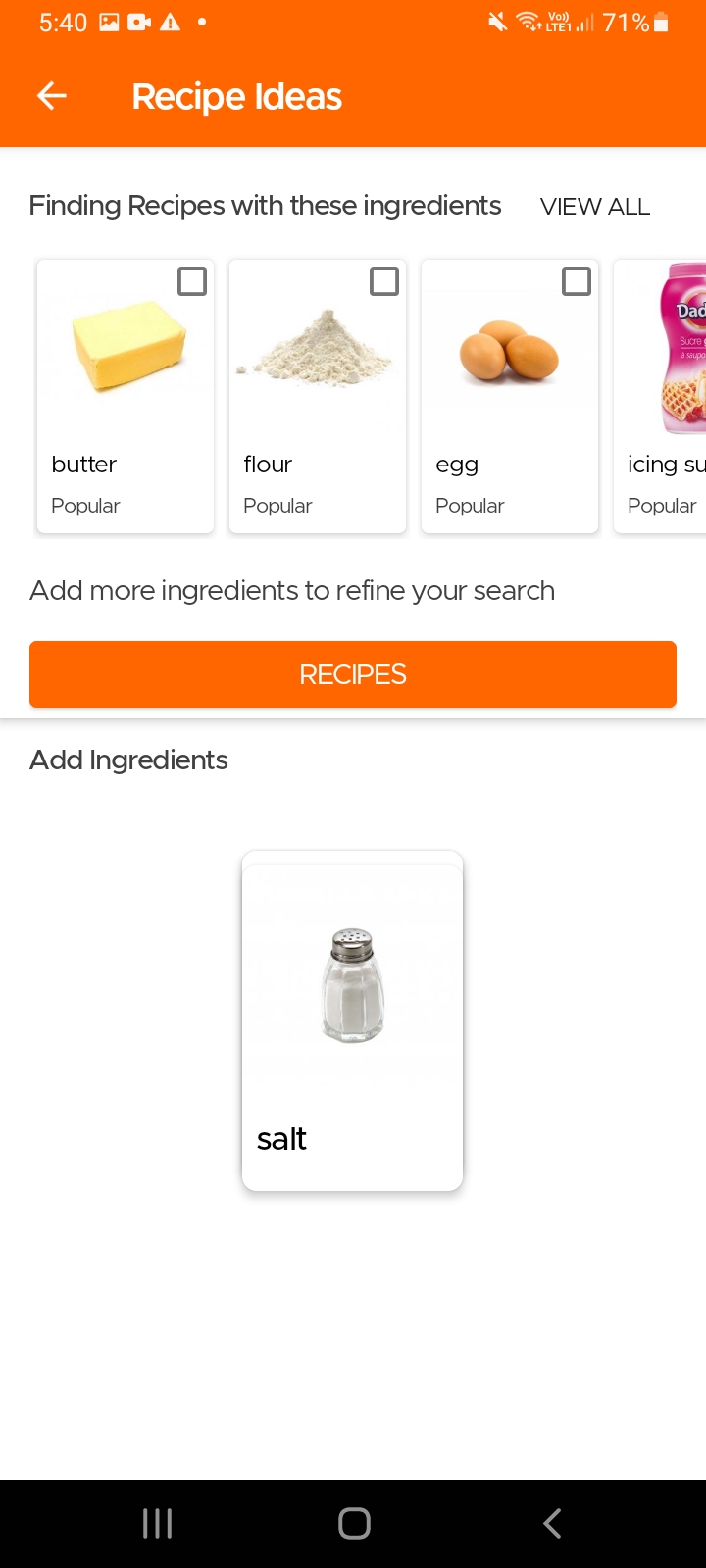
To find recipes using specific ingredients that are already in your kitchen, simply select the ingredient(s) - see the image below (you can select as many ingredients as you want) - and then click on the Recipes icon (chef's hat) on the top app bar.
Alternatively, if you are looking for recipes that use a single specific ingredient , you can also open the product card for that ingredient and click on the "Find Recipes" option.
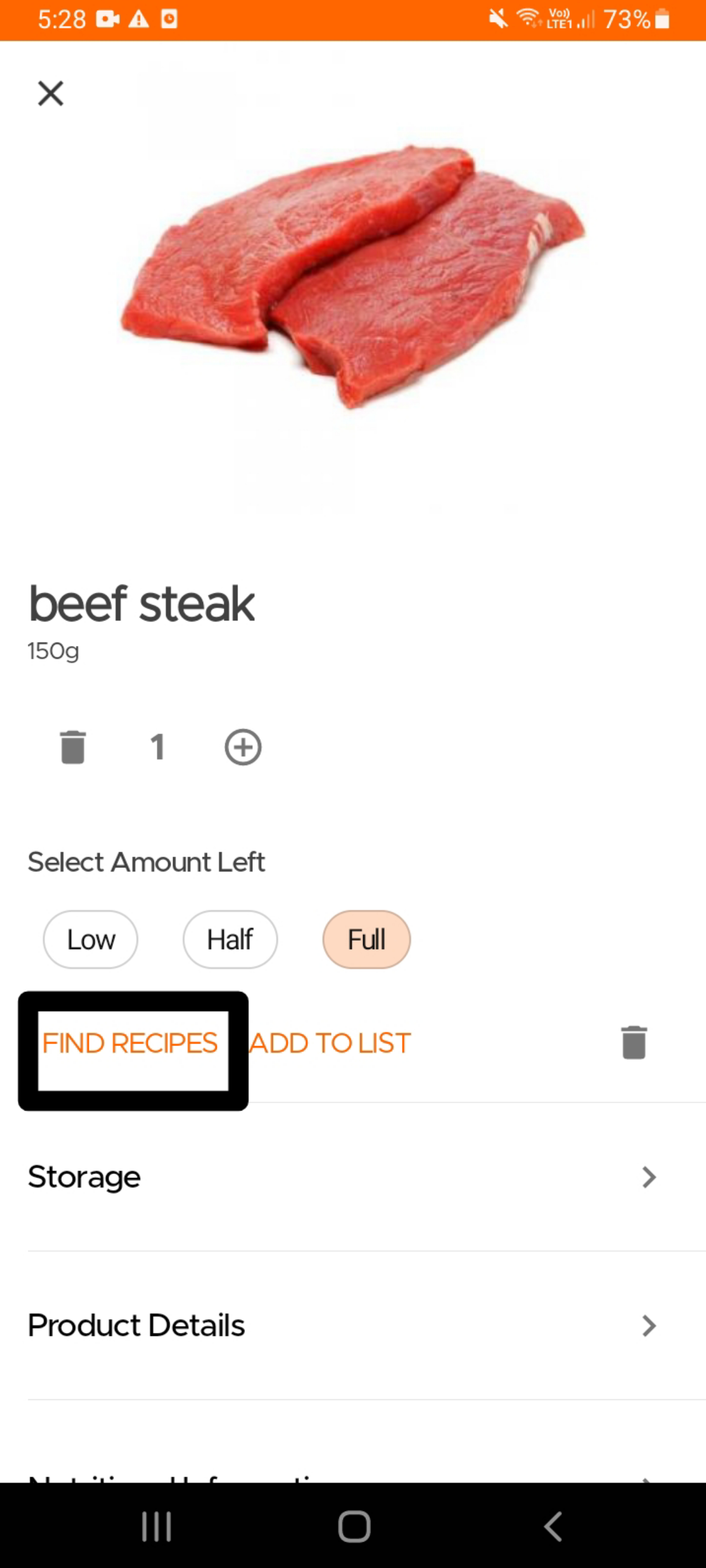
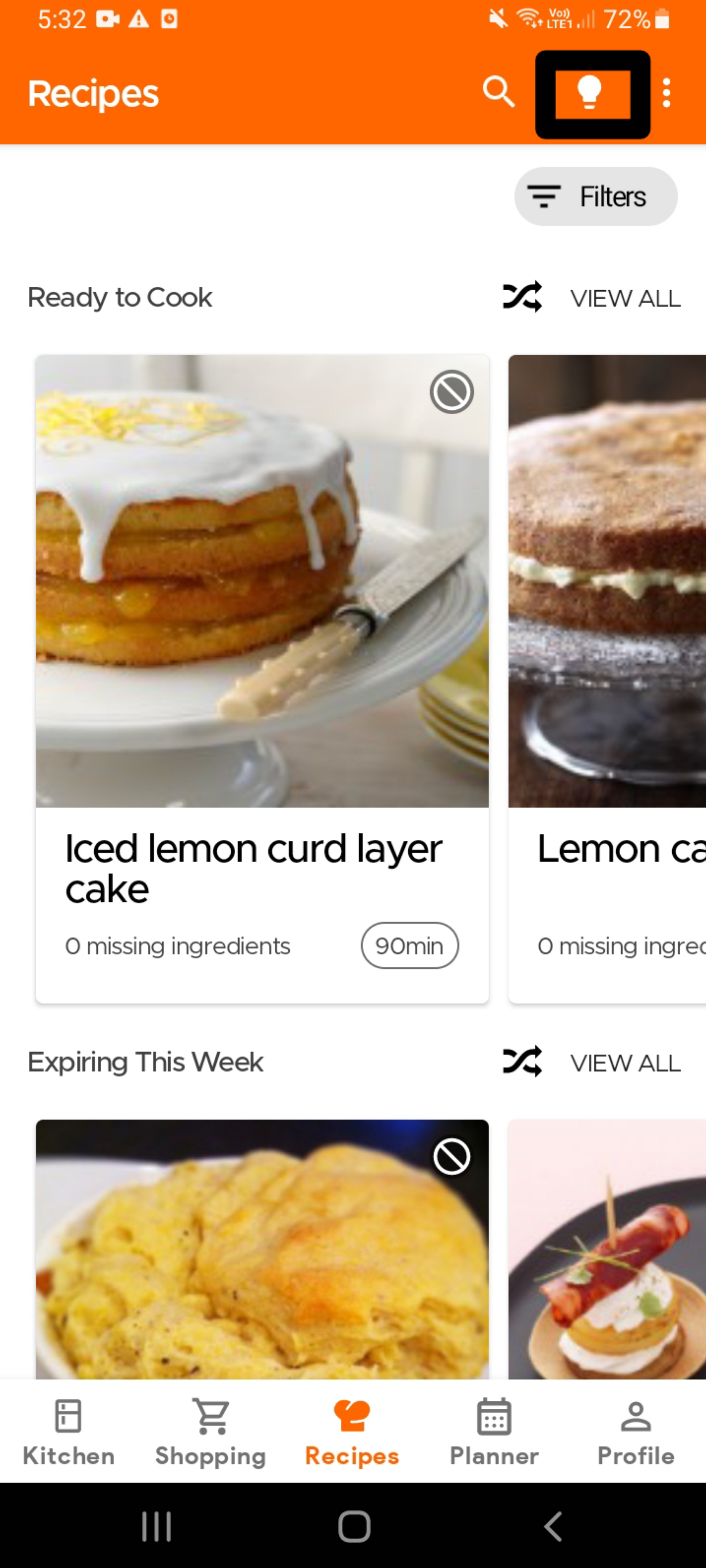
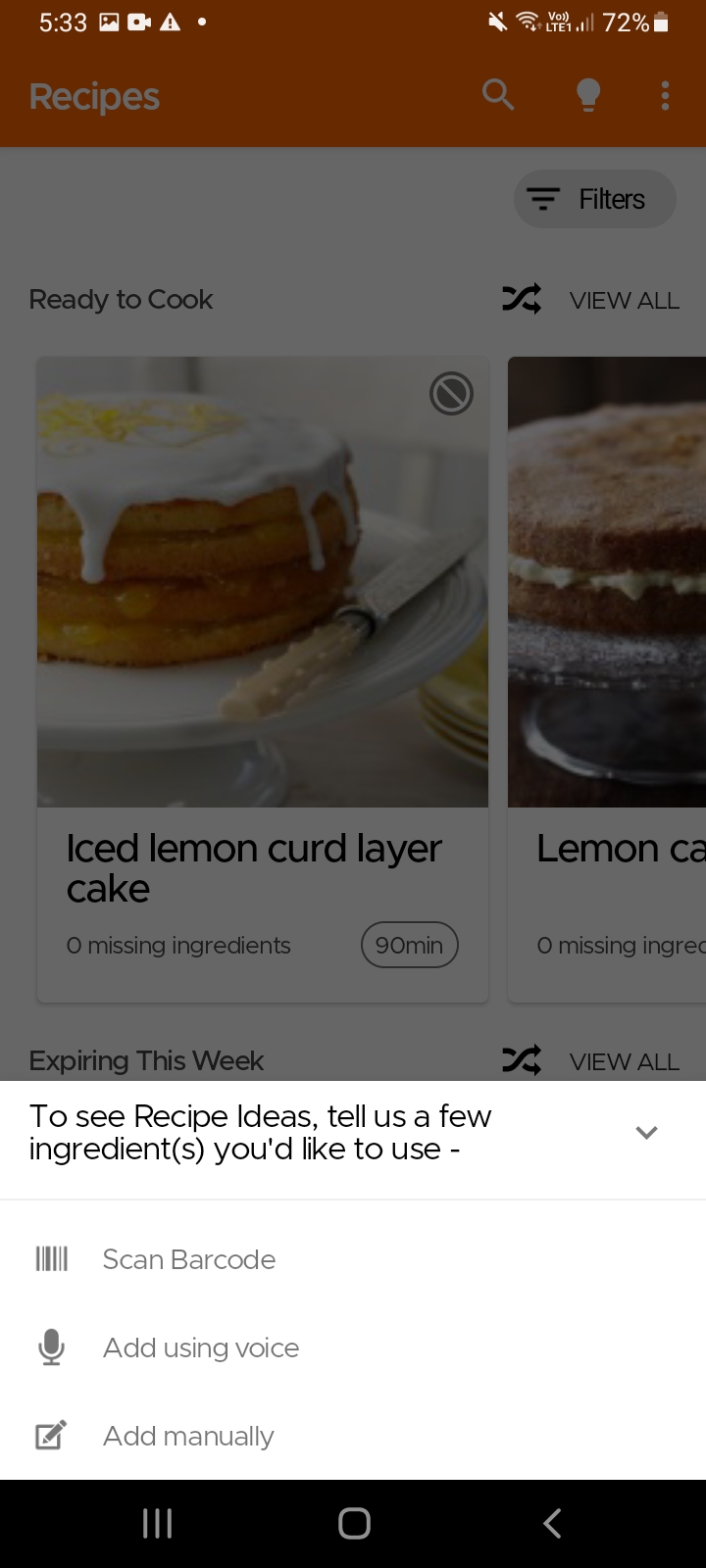
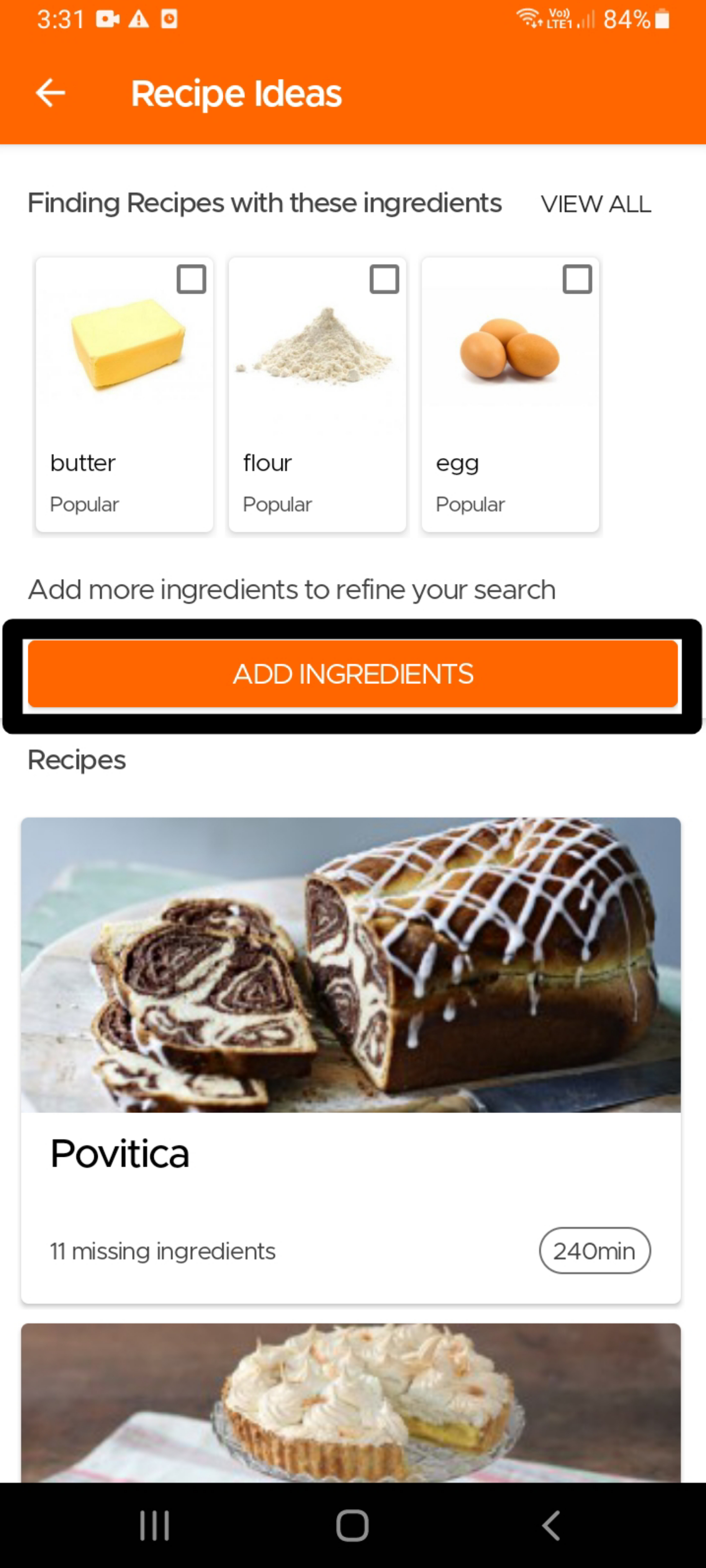
Another option to find recipes using specific ingredients, especially in case you do not use our Pantry feature, is to simply go to the Recipes page and click on the Idea icon (light bulb) on the top right. The app will then ask you to input the main ingredients for which you are looking for recipes. It will then give you tailored recommendations which you can refine further by choosing additional ingredients that should be included or excluded.
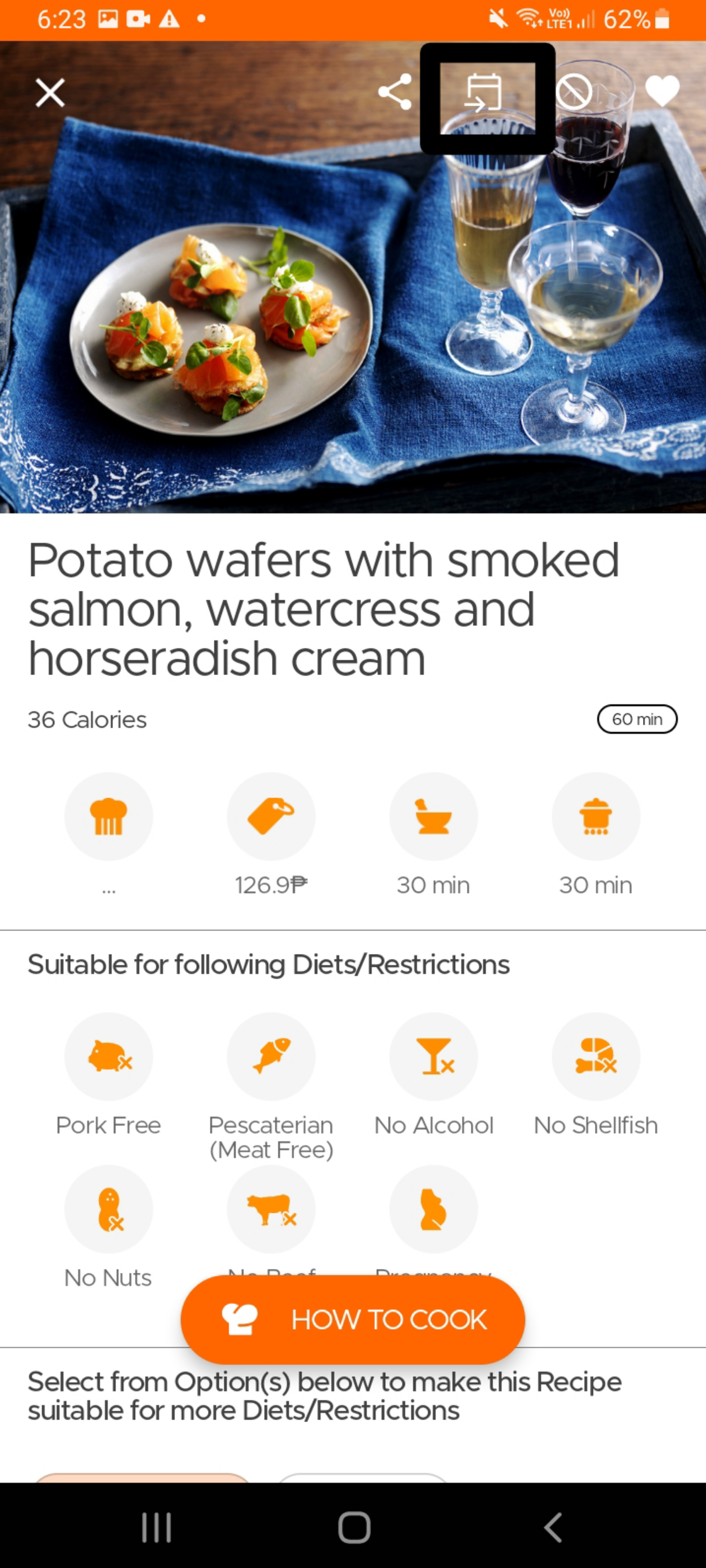
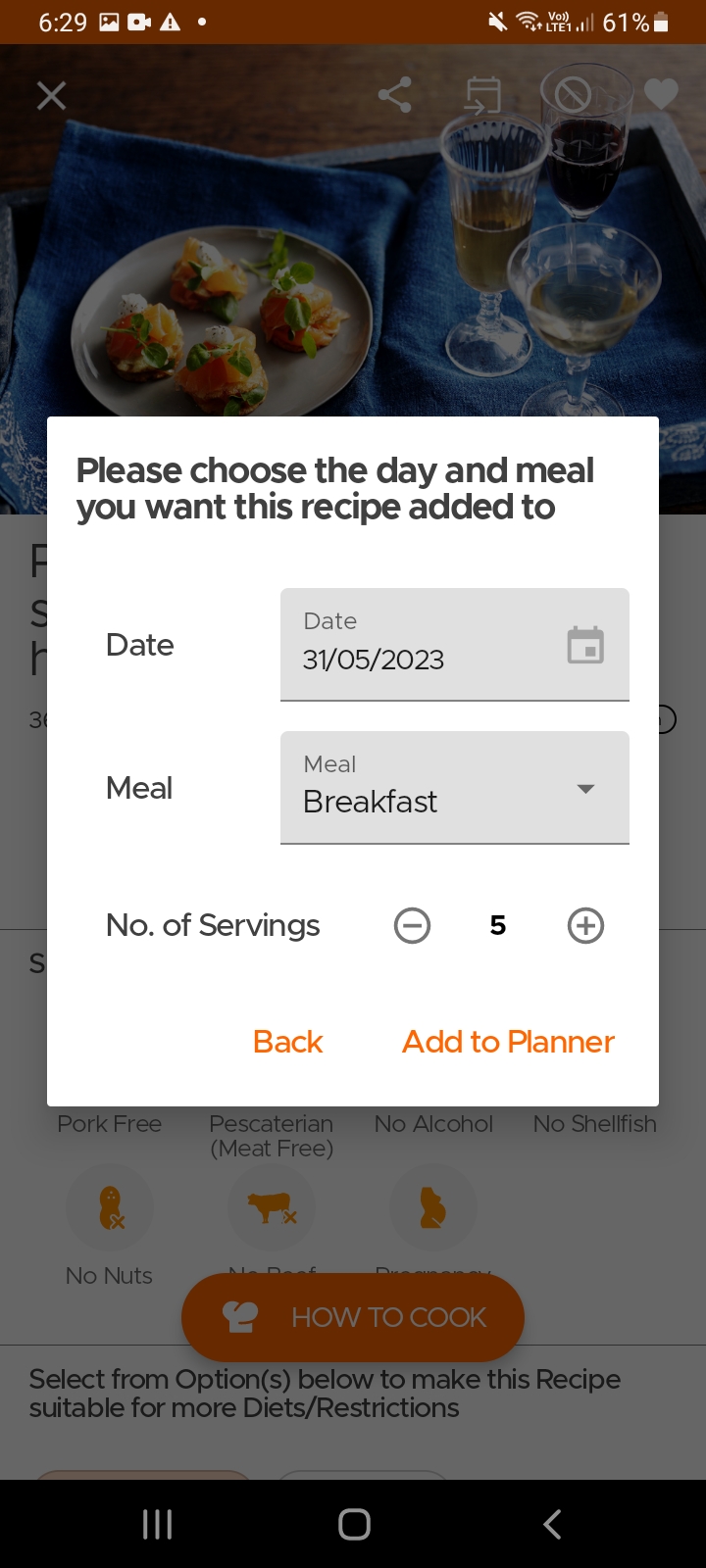
To add a recipe to your planner, simply open the recipe page and click on the Add to Planner icon on top. Select the date, meal and the number of servings and viola, you are done.
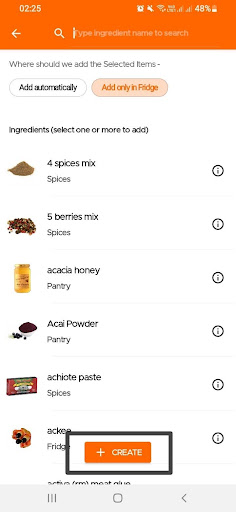
Users can create homemade/cooked or leftover dishes in the inventory (by using the create option) and set an expiry date for them. This will allow you to see a listing of all the dishes available to eat, along with the items in your inventory.
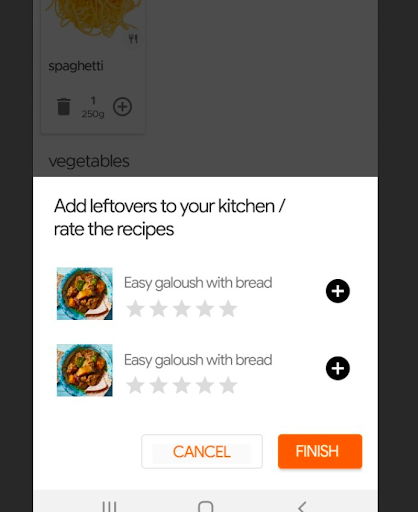
Additionally, after cooking a recipe [from the recipe page], next time you open the app, you will be shown a message like this in Kitchen section, which will allow you to add your leftovers to kitchen directly (the items will get added to the fridge automatically with 3 days expiry, both of which you can change later).
Still Need Help?
Can't find what you're looking for? Our support team is here to help!
Email Support Help Center